How to Choose a Thunderbolt 5 Dock for Triple Displays on Mac (And Why Most Stop at Two)

December 8, 2025

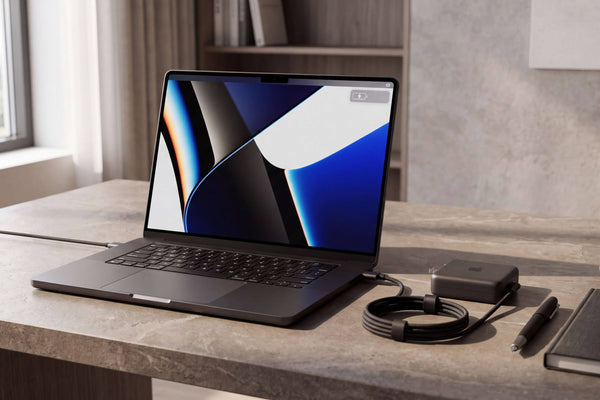
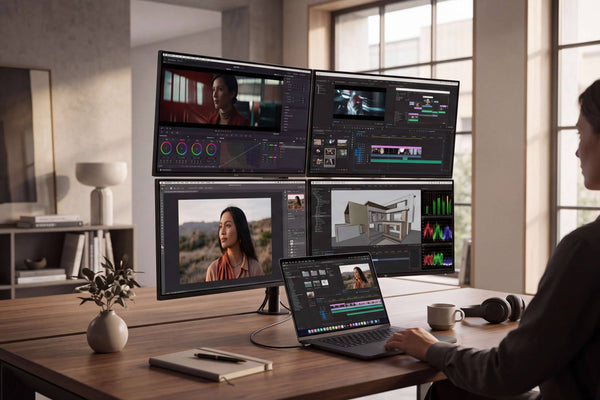
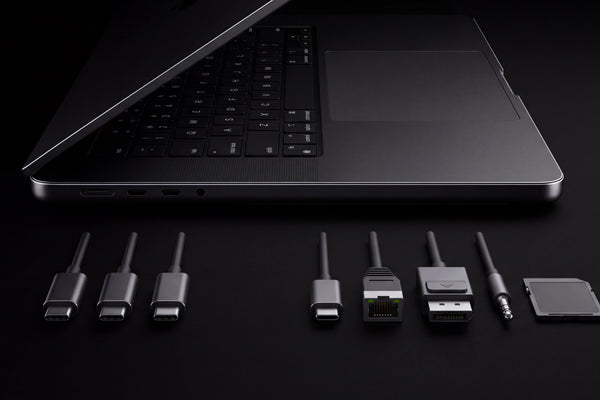
FusionDock Max 2 Thunderbolt 5 MacBook dock driving three external 4K monitors in a triple-display developer setup

When people ask questions like:


  • “Which Thunderbolt 5 dock should I choose if I need triple 4K display support?”
  • “Are there any good reviews on MacBook docks that support triple displays?”
  • “What are the best Thunderbolt 5 docking stations for connecting multiple monitors in 2025?”

they are usually trying to solve one very practical problem:

“I want three external monitors on my Mac. Which dock can actually do this, and what are the trade-offs?”

This article is written for exactly those questions—but with a very Mac-specific angle:


  • Why most Thunderbolt 5 docks still stop at two external displays on macOS?
  • How FusionDock Max 2 uses a dual-chip architecture to reach three native displays on supported Apple Silicon Macs, without DisplayLink drivers or MST workarounds.

TL;DR

  • Bandwidth isn’t the real bottleneck. Thunderbolt 5 offers up to 80 Gb/s bidirectional bandwidth and up to 120 Gb/s for display-heavy workloads, more than enough for triple 4K displays.

  • macOS is the real constraint. macOS does not support DisplayPort MST for extended desktops, so MST hubs/docks and daisy-chains that give three displays on Windows usually only mirror screens on a Mac.

  • Most “universal” Thunderbolt 5 docks stop at two extended displays on macOS, even when their spec sheet advertises triple-display support for Windows. 


  • FusionDock Max 2 is a Thunderbolt 5 dock designed for Apple Silicon Macs. It combines a Thunderbolt 5 controller with a DP-Alt video chip and uses a dual-USB-C host cable so that compatible Macs (such as MacBook Pro with M-series Max and Mac Studio) can run three native external displays from one dock—without DisplayLink drivers.

1. Why “Triple 4K Display support” Is So Confusing for Mac Users

At first glance, Thunderbolt 5 looks perfect for triple-display setups: up to 80 Gb/s of bandwidth (and a 120 Gb/s “boost mode”) means there is more than enough throughput for multiple 4K monitors. 

But on macOS, the limiting factor is not cable bandwidth—it’s how macOS actually handles displays:

  • macOS does not support DisplayPort MST for extended desktops. If you connect several monitors through an MST hub or daisy-chain them, they share a single DisplayPort stream and macOS will usually mirror the image instead of treating each screen as an independent desktop. 
  • Apple Silicon chips also cap how many displays each port and chip can drive. A common rule of thumb is that one Thunderbolt port on a Mac can usually carry at most two displays.

This is why so many users discover that a “triple 4K Thunderbolt dock” they bought works exactly as advertised on Windows—but refuses to go beyond two external displays on their MacBook Pro.

2. macOS Display Limits: Chip First, Dock Second

Before choosing any dock, you have to start with what your Mac chip can do. Apple publishes official external display limits for each MacBook, Mac mini and Mac Studio model, and they vary a lot between base M-series and Max-tier chips. 

In this article we use a simple table that summarizes things up for each chip family:
Mac / Chip (examples)Typical native external displaysWhat this means for docks
M1 / M2 MacBook Air & 13-inch MacBook Pro1Triple 4K only via DisplayLink-type docks
Many base M3 / M4 / M5 MacBook models1–2 (often 2 with lid closed)Triple 4K requires DisplayLink; native docks limited to 1–2
M-series Pro MacBook Pro (M1 Pro / M2 Pro / M3 Pro / M4 Pro)Up to 2Great for dual 4K/6K; triple 4K requires DisplayLink
M-series Max MacBook Pro (M1 Max / M2 Max / M3 Max / M4 Max)Up to 4Ideal candidates for native triple-display Thunderbolt docks
Mac StudioUp to 4Also excellent for native triple or quad display via a dock

A dock can only rearrange and fan out the display pipelines your Mac already has. It cannot create new display engines or override Apple’s per-chip and per-port limits.


This is true for every native dock—including FusionDock Max 2. The difference is how efficiently it uses the display pipelines your Mac already offers.

3. How “Universal” Thunderbolt 5 Docks Behave on macOS vs Windows

Most Thunderbolt 5 docks on the market are designed as universal products: they work with Windows laptops, Intel-based Macs, and Apple Silicon Macs. Their spec sheets often look like this:

  • “Triple 4K or dual 8K on Thunderbolt 5 laptops”
  • “Up to three displays at 4K 144 Hz, or dual 8K 60 Hz”

The asterisks come later, usually buried in the compatibility notes:

  • On macOS, these same docks are typically limited to dual 6K or dual 4K displays, even on high-end Macs that could support three or four monitors natively. 
  • Some support pages state this explicitly: “MacBook models with M-series Pro or Max chips do not support triple displays with this Thunderbolt 5 dock.”

The reason is structural:

  • The dock takes one Thunderbolt connection from the laptop and splits it into several Thunderbolt, DisplayPort or HDMI outputs.
  • On Windows, MST can pack multiple virtual streams into that one cable, so three monitors are possible.
  • On macOS, MST for extended desktops simply isn’t available; the OS will only recognize as many distinct displays as the chip and that single port can natively drive—usually two.

So even if your M-series Max MacBook Pro can theoretically handle four external displays, a typical “universal” Thunderbolt 5 dock will still max out at two extended screens.

4. DisplayLink: the “only” way to go beyond your Mac’s native display limit

Earlier in this guide we looked at why native Thunderbolt 5 / USB4 docks can’t break past Apple’s own display limits on macOS. Even with Thunderbolt 5 bandwidth, macOS doesn’t support MST for extended desktops, and each port is still capped at a small number of displays. In practice, this means that most “universal” Thunderbolt 5 docks stop at two external monitors on a Mac, even if the Mac itself could drive more.

So what can you do if your Mac only supports one or two external displays natively, but you still want three or more screens?

This is where DisplayLink-based docks come in.

How DisplayLink docks work

DisplayLink docks take a different approach from native Thunderbolt docks. Instead of sending every pixel directly from the Mac’s GPU, they:

1. Install a DisplayLink driver on macOS.
2. Use that driver to render extra desktops in software as compressed video streams.
3. Send those streams over USB or Thunderbolt to a DisplayLink chip inside the dock.
4. The chip then decompresses the video and outputs it over HDMI or DisplayPort to your monitors.

From macOS’s perspective, those extra screens are virtual displays created by the DisplayLink software, so they don’t count against the normal Apple Silicon display limit. That’s why even a base-level MacBook Air that officially supports only one external display can, with the right DisplayLink dock, drive three or more monitors.

What DisplayLink is good at

DisplayLink docks are useful when:

  • Your Mac is limited to one or two external displays natively, but your workflow really benefits from three or more screens.
  • You mainly run apps like email, spreadsheets, dashboards, messaging, and browser windows, where a little extra latency or compression isn’t a deal-breaker.
  • You understand that this is a software-assisted workaround, not the same thing as native GPU-driven output.

For many office and dashboard-heavy setups, this is a perfectly sensible trade.

Important trade-offs to be aware of

Because DisplayLink relies on software and compression, there are several caveats you should keep in mind:

  • Extra CPU/GPU work – encoding and decoding the virtual displays consumes system resources. Heavy animations or fast-moving content can feel less fluid than on native displays.
  • 60 Hz caps are common – many DisplayLink configurations top out at 60 Hz, even if your monitors support higher refresh rates.
  • Streaming and DRM limitations – some protected video services (for example, certain streaming apps or enterprise DRM setups) may refuse to play on DisplayLink-driven screens, because HDCP is not handled in the same way as on native outputs.
  • Driver dependence – you must install and maintain the DisplayLink driver on macOS. Major OS updates occasionally require new driver versions, so there is a small maintenance overhead.

5. A Second Path: FusionDock Max 2’s Dual-Chip, Dual-Cable Design

FusionDock Max 2 is iVANKY’s Thunderbolt 5 dock created with one main idea:

If a Mac can natively drive three external displays, the dock should help you actually connect three—without falling back to DisplayLink or Windows-only tricks.

Built for Apple Silicon, not “universal”

FusionDock Max 2 works with Apple Silicon MacBook Air/Pro, Mac Studio and compatible Mac mini models; it does not support Windows PCs or Intel-based Macs. 

This is a deliberate decision. By focusing on one platform, the hardware and firmware can be tuned closely to Apple’s power delivery, sleep behaviour and display engine layout.

Dual-chip architecture & Dual USB-C Cable Design

Internally, FusionDock Max 2 combines:

  • a Thunderbolt 5 controller, and
  • a DP-Alt video chip that helps turn the available display engines into separate physical outputs.

FusionDock Max 2 also ships with a dual USB-C upstream cable. Instead of using just one port on your Mac, the dock connects to two adjacent USB-C / Thunderbolt ports at the same time.

On compatible Macs (for example, MacBook Pro models with M-series Max chips, recent Mac Studio, and specific Mac mini configurations), this adds up to:

  • Up to three native external displays natively from a single dock.
  • two 6K@60 Hz displays via Thunderbolt, plus one 4K@60 Hz display via HDMI.

Still respects Apple’s display limits

Crucially, FusionDock Max 2 does not bypass Apple’s official display limits:

  • If your Mac supports only one external display, FusionDock Max 2 will still only drive one.
  • Triple-display output is supported only on models like MacBook Pro with M1/M2/M3/M4 Max, Mac Studio, and Mac mini M4/M4 Pro that already allow three or more external displays.

In other words, FusionDock Max 2 doesn’t “cheat” macOS—it just uses both of your Mac’s high-bandwidth ports plus a dual-chip design to expose three native displays where other docks still end at two.

6. Frequently Asked Questions - Thunderbolt 5 Docks, Triple 4K and MacBook Setups

Which Thunderbolt 5 dock should I choose if I need triple 4K display support on my Mac?

  • Start with your Mac model:
  • If your Mac natively supports three or more external displays (for example, MacBook Pro with M-series Max, Mac Studio, or Mac mini M4/M4 Pro), and you want to stay fully native (no DisplayLink), FusionDock Max 2 is currently the only Thunderbolt 5 MacBook dock advertised to deliver three native external displays—up to two 6K and one 4K—on macOS. 
  • If your Mac is limited to one or two external displays natively, no native dock will change that. To reach three or more screens, consider a DisplayLink-based solution instead. 

Why can’t my other Thunderbolt 5 dock drive three displays on my Mac, even though the spec sheet says “up to 3 displays”?

Most likely because:

  • The “up to 3 displays” figure refers to Windows with MST, not macOS. 
  • macOS does not support MST for extended desktops, so multiple monitors connected to the same DisplayPort stream are mirrored. 
  • Apple Silicon Macs also limit how many displays can run off a single port; typically you need two physical connections to reach three or four monitors.

Can a single Thunderbolt 5 port on my Mac drive three 4K monitors?

Not on macOS, today.


Community discussions and vendor documentation consistently point out that Apple Silicon Macs do not support more than two displays from a single port; triple or quad setups require multiple physical connections. 


FusionDock Max 2’s triple-display configuration therefore uses:

  • two Thunderbolt/USB-C upstream connections via the included dual-USB-C cable, plus
  • the dock’s HDMI output,

to present three independent display paths to the Mac—while staying within Apple’s per-port limitations.

Does FusionDock Max 2 bypass Apple’s display limits?

No. iVANKY is explicit that FusionDock Max 2 uses only native Thunderbolt and HDMI, and that it does not bypass Apple’s display limitations.


  • If your Mac supports only one external display, the dock will still only give you one.
  • Triple-display support is available only on Macs that Apple already allows to run three or more external monitors (such as MacBook Pro with M-series Max chips, Mac Studio, and Mac mini M4/M4 Pro).

What FusionDock Max 2 does is use those built-in capabilities more efficiently than generic docks, via its dual-chip, dual-cable design.

Bringing It All Together: Choosing the Right Thunderbolt 5 Dock for Your Mac

In the end, choosing a Thunderbolt 5 dock for your Mac isn’t about chasing the biggest “triple 4K” headline – it’s about matching three things: what your Mac actually supports, whether you’re comfortable with DisplayLink, and how honestly a dock’s macOS behaviour is described. Once you see that most universal docks on macOS still top out at two screens, it becomes clear why Mac-focused designs like FusionDock Max 2 exist: not to bend Apple’s rules, but to turn the display power your Mac already has into a clean, native triple-display setup.

People are checking out...

Sale Off
FusionDock Max 2 - 80Gbps Cable Kit
$695.00$618.00
Sale Off
FusionDock Pro 2
$464.00