

Thunderbolt 5 doubles Thunderbolt 4's 40Gbps link to 80Gbps and can reallocate up to 120Gbps toward displays when a video-heavy setup demands it. It also doubles PCIe throughput, raises charging to 240W, and stays compatible with older Thunderbolt and USB-C gear. Whether that adds up to "worth it" depends on your Mac and your workflow: everyday use is still fine on Thunderbolt 4, while editors, 10GbE users, and multi-display desks are where Thunderbolt 5 removes real bottlenecks. This 2026 guide compares the protocols, adds USB4 Version 2.0 to the picture, shows exactly which Macs have Thunderbolt 5 — and maps the answer to a dock decision.
TL;DR — Should You Upgrade to Thunderbolt 5?
- Everyday MacBook use — web, mail, office apps, streaming, light photo edits — Thunderbolt 4 or a good USB-C dock is still enough. You won't feel the difference in the apps you open.
- Video editors, colorists, 3D artists, photographers, audio pros working off external NVMe SSDs and multiple high-res displays — Thunderbolt 5 removes the storage and display bottlenecks that Thunderbolt 4's 40Gbps link creates.
- 10GbE NAS or multi-user studio networks — Thunderbolt 5 has enough bandwidth to run full-speed 10GbE alongside fast storage and displays.
- Future-proofing over 3–5 years — if you plan to keep the dock longer than your current Mac, Thunderbolt 5 gives you room to grow into faster Macs, 6K/8K monitors, and faster SSDs.
Thunderbolt 5 vs 4 vs USB4 Version 2.0: The Spec Table
Protocol comparison
Thunderbolt 5 vs. Thunderbolt 4 vs. USB4 v2
Compare bandwidth, PCIe throughput, display support, power delivery, signaling, networking, and backward compatibility.
| Feature | Thunderbolt 440Gbps class | Thunderbolt 580 / 120Gbps | USB4 Version 2.0“USB 80Gbps” |
|---|---|---|---|
| Baseline bandwidth | 40Gbps bidirectional | 80Gbps bidirectional | 80Gbps symmetric |
| Asymmetric / boost mode | No | YesUp to 120Gbps toward video, 40Gbps return | Optional120 / 40Gbps asymmetric |
| PCIe throughput | Up to 32Gbps | Up to 64GbpsPCIe Gen 4 ×4 | PCIe tunneling with higher ceilings |
| Display support | Up to 2× 4K@60Hz or 1× 8K | Up to 3× 4K@144HzDisplayPort 2.1 tunneling | DisplayPort 2.1 tunneling, up to 80Gbps |
| Power delivery | Up to 100W | Up to 240W | USB PD updated; up to 240W |
| Cable signaling | Conventional | PAM-3Works over passive cables around 1m | PAM-3 |
| Thunderbolt networking | Up to 10Gbps | Up to 20Gbps | Not applicable |
| Backward compatible | Thunderbolt 3, USB4, USB-C | Thunderbolt 4, Thunderbolt 3, USB4, USB-C | USB4 1.0, USB 3.2, USB 2.0, Thunderbolt 3 |
| Built on | USB4, 40Gbps class | USB4 v2, DisplayPort 2.1, PCIe Gen 4 | Base specification |
How Fast Is Thunderbolt 5 in Real Life?
What Is Thunderbolt 5 Bandwidth Boost?
Which Macs Have Thunderbolt 5 in 2026?
2026 Mac compatibility
Which Macs have Thunderbolt 5?
Thunderbolt 5 is limited to higher-end MacBook Pro, Mac Studio, and Mac mini configurations. Confirm the exact chip before choosing a dock.
| Mac | Chip | Thunderbolt ports | Native external-display limit |
|---|---|---|---|
| MacBook Pro 14″ / 16″2024 generation | M4 ProM4 Max | 3×Thunderbolt 5 | M4 Pro: up to 2M4 Max: up to 4 |
| MacBook Pro 14″ / 16″2025 generation | M5 ProM5 Max | 3×Thunderbolt 5 | M5 Pro: up to 3M5 Max: up to 4 |
| Mac Studio2025 generation | M4 MaxM3 Ultra | M4 Max: 4× rearM3 Ultra: 6× totalThunderbolt 5 | M4 Max: up to 5M3 Ultra: up to 8 |
| Mac mini2024 generation | M4 Pro | 3×Thunderbolt 5 | Up to 3 |
- MacBook Air — no. Air models, including the 2025 M4 generation and the newer M5 generation, ship with Thunderbolt 4.
- Base M4 or M5 MacBook Pro — no. The plain (non-Pro/Max) chips keep Thunderbolt 4. Only the Pro and Max chips get Thunderbolt 5.
- iMac (2024) — no. Thunderbolt 4.
Is Thunderbolt 5 Worth It? Upgrade Now vs. Wait
- You edit video, grade color, build 3D scenes, shoot photos, or work with audio off external NVMe storage.
- Your setup includes a 10GbE NAS or shared studio storage.
- You already own a Thunderbolt 5 MacBook Pro or Mac Studio and want the ports to keep up.
- You run multiple 4K/6K displays, especially at higher refresh rates.
- You want a single-cable dock that stays relevant for the next 3–5 years.
- Your day is browsing, writing, presenting, email, and streaming.
- You use one or two 4K displays at 60Hz.
- Your external storage is SATA SSDs or USB drives, not high-end NVMe.
- You don't plan to add 10GbE.
Which FusionDock Fits Your Setup?
Which FusionDock Fits Your Setup?
- Thunderbolt 5 dock + Thunderbolt 4 Mac → runs at Thunderbolt 4 speeds (40Gbps, host display limits). Good way to future-proof the dock.
- Thunderbolt 5 port + Thunderbolt 4/3 or USB-C peripheral → the peripheral runs at its native maximum.
- Thunderbolt 5 is backward compatible with Thunderbolt 4, Thunderbolt 3, USB4, and USB-C — old gear doesn't stop working.
Frequently Asked Questions
Is Thunderbolt 5 backward compatible with Thunderbolt 4 and USB-C?
Do I need new cables for Thunderbolt 5?
Can I use a Thunderbolt 5 dock with a Thunderbolt 4 Mac?
Is Thunderbolt 5 faster than HDMI?
Is Thunderbolt 5 the fastest cable?
Is there a big difference between Thunderbolt 4 and 5?
The Bottom Line
Keep Reading
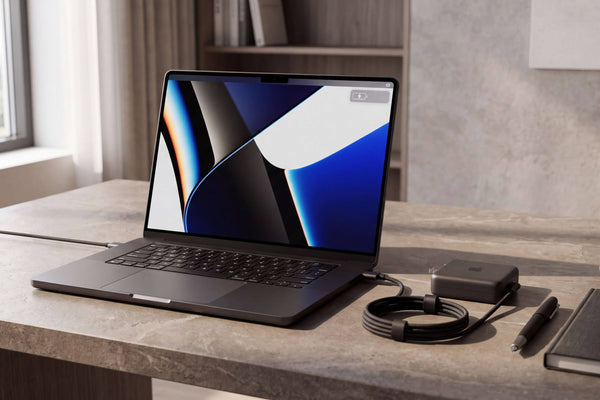
96W vs 140W Dock Charging for 16-inch MacBook Pro
Why 140W USB-C fast charging works on newer 16-inch MacBook Pros but not 2021/early-2023 models, plus our 96W vs 140W...
Read Article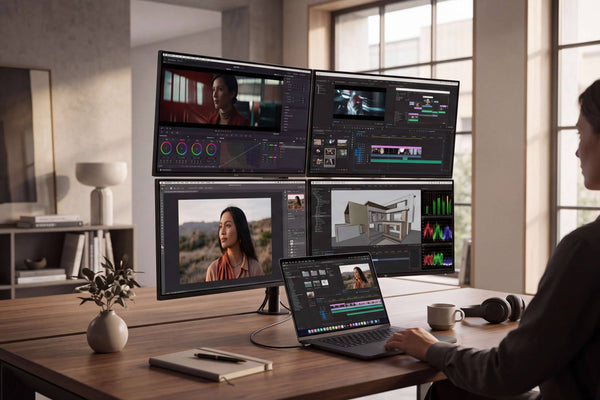
M5 Pro & M5 Max: 3–4 Displays From One Thunderbolt Port
M5 Pro supports 3 external displays and M5 Max 4 from one Thunderbolt port. Learn what changed, why TB5 alone...
Read Article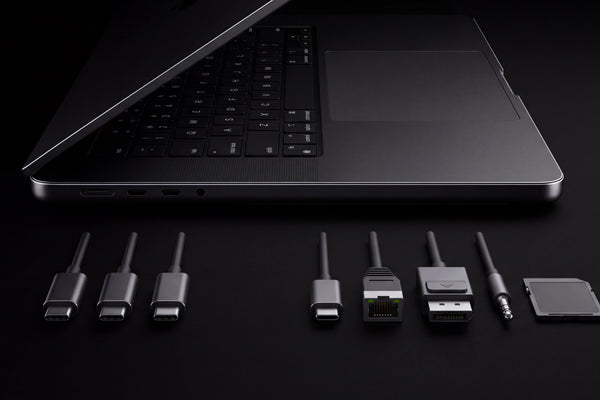
Thunderbolt 5 Hub vs Dock: Which Is Better for Your Mac?
Thunderbolt 5 hub vs dock for Mac: compare ports, charging, display support, and real desk setups to find out which...
Read Article