

Troubleshooting
1. 3.5mm audio port has no sound output
1. Check wiring and connections
Step 1: Restart your Mac and make sure both the dock’s power cable and the audio cable are properly and securely connected.
Step 2: Reconnect the dock to your Mac via the Thunderbolt cable. If necessary, flip the dual USB-C connector on the Mac side and try again.
Step 3: After plugging into the 3.5mm audio jack, wait about 20 seconds before use.
Step 4: Unplug the DC power cable, wait 30 seconds, then reconnect it.
Step 5: Check that the dock’s 3.5mm audio jack is clean and free of debris. If needed, use compressed air to clear it.
Step 6: If possible, verify that the audio cable connected to the dock works properly.
2. Check sound settings
Step 1: Temporarily disconnect all other devices from the dock, keeping only the audio cable (connected to the dock’s audio port) and your keyboard/mouse.
Step 2: Go to Apple menu >System Settings (or System Preferences) > Sound.
Step 3: Go to Sound > Output > select the speakers or headphones connected via the audio cable.
*If "Internal Speakers" do not appear in the "Output" device list, please contact the iVANKY support team.
Step 4: Check the Output volume: If the level is too low, drag the slider to the right and test again.
Step 5: Check the Mute checkbox: If selected, deselect it and test again.
3. Port Alternation
Step 1: Try alternating between the front and rear audio ports on the Dock (see port diagram, Port 5).
Please note:
-Port 13 is a 3.5 mm audio input
-Port 14 is a 3.5 mm audio output
If you only need audio output, you may alternate between Port 5 and Port 14 for testing.
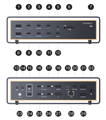
Step 2: Recognition may take some time; please wait for about one minute.
Step 3: If the port still does not work, please contact the iVANKY support team and provide the following information so we can check for possible device compatibility issues:
-The port number that is not working
-macOS version
-Device that cannot be used and its model
-Purchase link (if available)
2. No Audio Input from the 3.5 mm Audio Jack
Step 1: Check that the audio cable is securely connected and confirm that the Dock’s LED indicator is illuminated.
Step 2: Connect the microphone to Port 5 or Port 13 on the Dock.
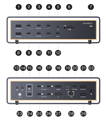
Step 3: If possible, test with a different microphone or audio input device to determine whether the issue is related to the port or the external device.
Step 4: If the port still does not work, please contact the iVANKY support team and provide the following information so we can check for possible device compatibility issues:
-The port number that is not working
-macOS version
-Device that cannot be used and its model
-Purchase link (if available)
If you encounter any issues while using the docking station please contact iVANKY technical support.
Email: support@ivanky.com
When contacting iVANKY technical support for technical issues, please provide the following information:
a. Your docking station serial number.
b. Your current macOS version.
c. Model of your MacBook.
d. Description of the issue and the devices connected to the dock.