

Troubleshooting
1. KVM Not Working
1. Select a Compatible KVM Switch
To ensure proper operation with FusionDock Ultra, please use a compatible KVM switch.
Step 1:
-Recommended KVM purchase link (US):
https://www.amazon.com/Displayport-Monitors-Computers-Monitor-Keyboard/dp/B0DD7XSQ7H/
- Recommended KVM purchase link (DE):
https://www.amazon.de/-/en/CMSTEDCD-Displayport-Computers-Compatibility-Controller/dp/B0G58C1NVD/
- Recommended KVM purchase link (JP): https://www.amazon.co.jp/-/zh/dp/B0F21ZHDCJ/
- Recommended KVM purchase link (UK ):
https://www.amazon.co.uk/Switches-computers-Keyboard-Printer-Controller/dp/B0GKNBML5K/
- Recommended KVM purchase link (IT):
https://www.amazon.it/-/en/CMSTEDCD-Computer-Computers-Monitors-Controller/dp/B0GKNBML5K/
- Recommended KVM purchase link (ES):
https://www.amazon.es/-/en/Computers-Keyboard-External-Extension-Controller/dp/B0F8T5TMT2/
- Recommended KVM purchase link (ES):
https://www.amazon.fr/-/en/Switches-Computers-Extension-Controllers-Adapters/dp/B0F8T5TMT2/
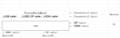
Step 2: Connect the KVM switch according to the wiring diagram shown in the reference images.
2. KVM Malfunction
1. Verify FusionDock Ultra Standalone Operation
Before troubleshooting the KVM, confirm that FusionDock Ultra works properly when connected directly to the MacBook.
Step 1: Please use the dual USB-C cable included with your FusionDock Max 2 to connect the dock to the correct USB-C ports on your MacBook.
Step 2: If you are currently using an HDMI-to-DP cable to connect the dock and your monitor, we recommend replacing it with one of the following: an HDMI cable, a USB-C cable, a USB-C to HDMI cable, or a USB-C to DP cable.
Step 3: If the issue persists, please contact the iVANKY support team for further assistance.
Note:
When using a KVM switch, both the USB-C data cable and the HDMI video cable must be connected at the same time.
2. Verify whether the FusionDock Ultra is connected correctly with your KVM
Step 1: Refer to Figure 1 for the correct connection method between the dock and KVM. If you are currently using an HDMI-to-DP cable, please replace it with a USB-C to HDMI cable or a USB-C to DP cable, connecting from the dock’s USB-C video port to the KVM’s video port.
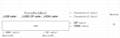
Step 2: If your connection setup differs from Figure 1, please contact the iVANKY support team and provide:
-Your MacBook model and macOS version
-Monitor model
-KVM purchase link & Suggested connection method (as shown in Figure 1)
Step 3: If the keyboard or mouse is not responding, confirm that the USB-C connection to the MacBook is correct.
Then connect the keyboard and mouse to the KVM’s dedicated peripheral USB-A ports, disconnect and reconnect the USB-C data cable to allow re-recognition, or try using wired keyboard and mouse for testing.
If you encounter any issues while using the docking station please contact iVANKY technical support.
Email: support@ivanky.com
When contacting iVANKY technical support for technical issues, please provide the following information:
a. Your docking station serial number.
b. Your current macOS version.
c. Model of your MacBook.
d. Description of the issue and the devices connected to the dock.