

Troubleshooting
No video output
1. Check accessories and connections
Step 1: Make sure the video cable (HDMI or USB-C) is properly connected to the monitor and securely plugged in.
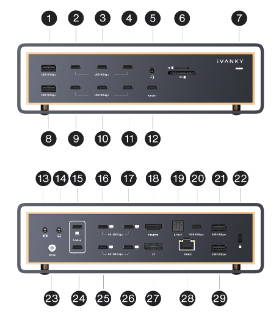
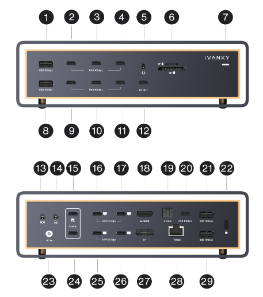
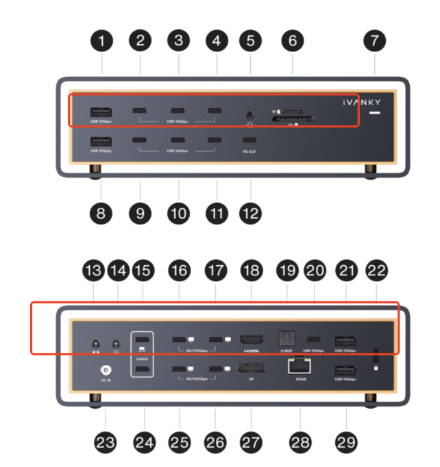
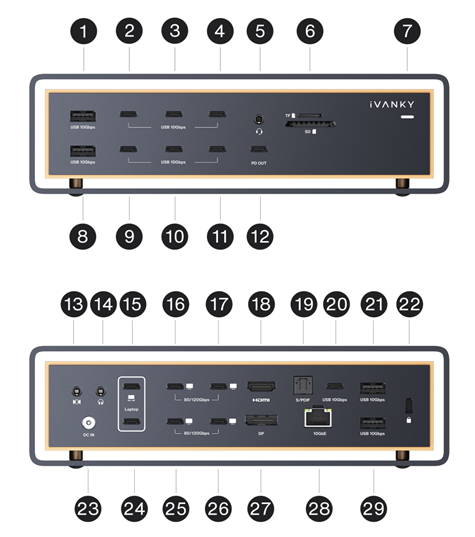
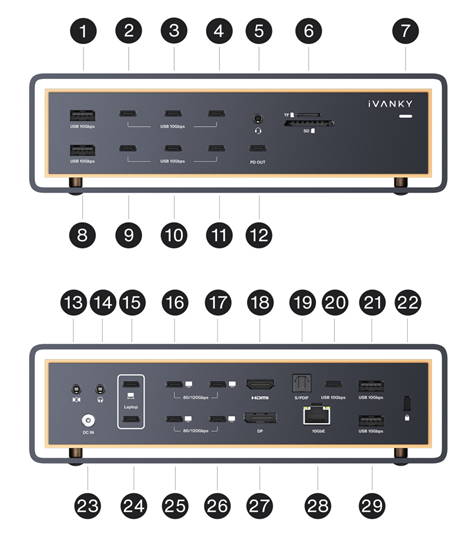
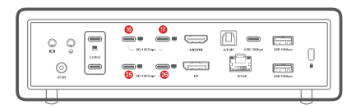
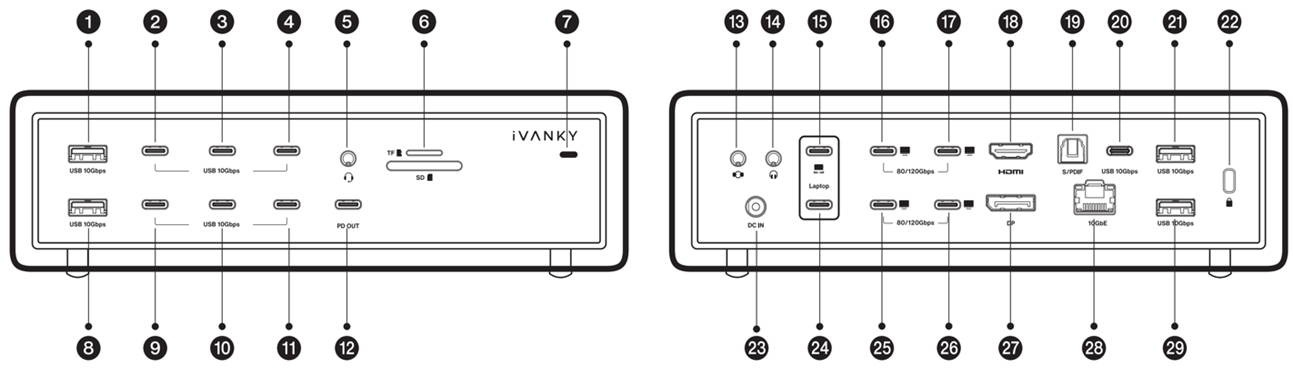
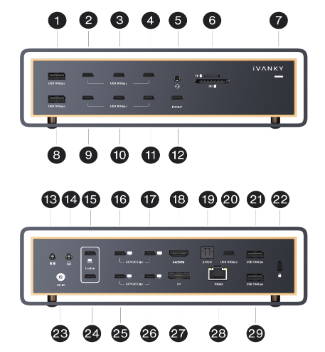
Step 2: When using a video cable with an iVANKY docking station, please use iVANKY original cables to avoid potential cable quality issues. Connect the monitor to Port 18 / 16 / 17 / 25 / or 26 to ensure proper operation.
Note: Port 18 (HDMI port) does not support HDMI-to-DP cables.
Step 3: Go to the Apple menu (upper-left corner) > System Settings (or System Preferences) > Displays, and select the resolution recommended by your computer.
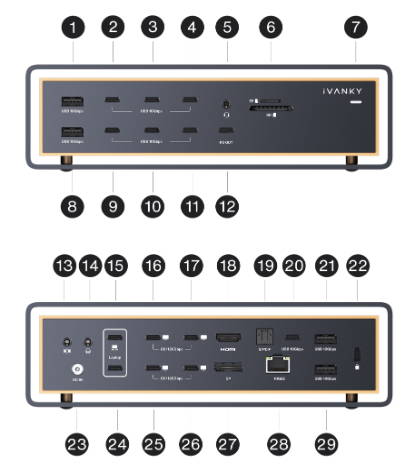
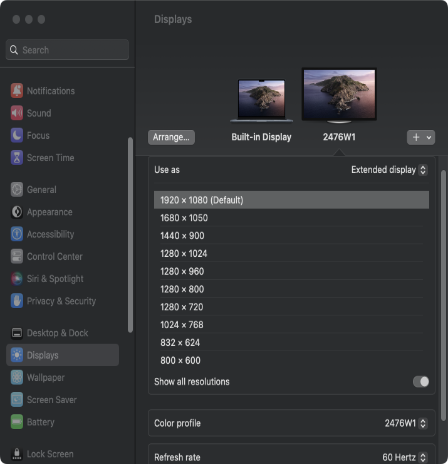
Step 4: Unplug the dock’s USB-C cable from your computer, flip the USB-C connector, and reconnect it to the computer.
Step 5: Try connecting the Dock to a different Thunderbolt port on the Mac. Only Mac devices with Apple M-series (Apple Silicon) chips are supported.
Step 6: Disconnect all other monitors and leave only the monitor with no display connected. Then reconnect the monitors in a different order and test again. For example, if the monitor was previously connected first, reconnect it after the other monitors.
Step 7: If there is no display output when using an HDMI connection, replace the cable with a DP cable or a USB-C-to-DP cable and test again.
Disconnect all other monitors and test with only the affected monitor connected.
If there is still no display output, please contact iVANKY Customer Support for further assistance.
2. Monitor detection
Step 1: Disconnect the monitor from the docking station, then reconnect it. Turning off the monitor first may help.
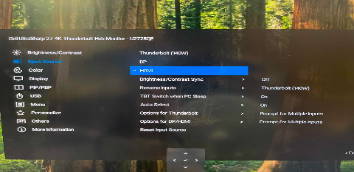
Step 2: Manually select the correct input on the monitor, such as HDMI.
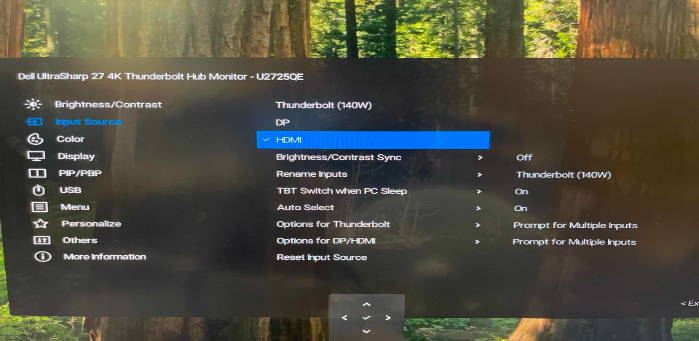
Step 3: Restart your Mac. For MacBook, close the lid for a few seconds, then reopen it.
Step 4: Go to the Apple menu (upper-left corner) > System Settings (or System Preferences) > Displays. Hold down the "Option" key to reveal the "Detect Displays" button, then click it repeatedly (more than 10 times).
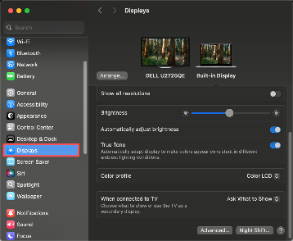
3. Allow docking station connection
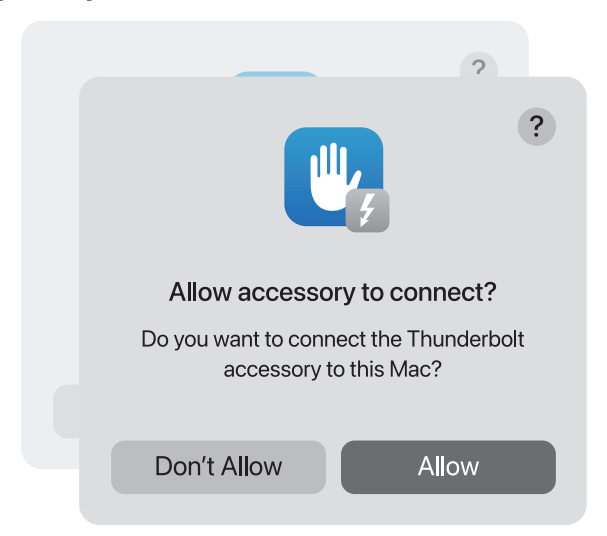
Step 1: Go to the Apple menu (upper-left corner) > System Settings (or System Preferences) > Privacy & Security.
Step 2: Scroll down and click the pop-up menu next to “Allow accessories to connect”, then choose the option you need.
4. Check monitor brightness
Step 1: If the external monitor shows a black screen, please make sure the monitor brightness has not been turned down.
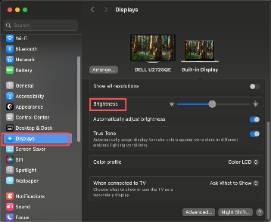
Step 2: If you are using an Apple keyboard and monitor, adjust the brightness with the brightness keys on your keyboard, or go to System Settings > Displays to adjust it.
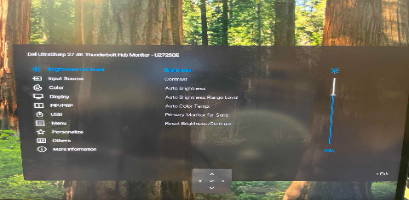
Step 3: If you are using a third-party monitor, please use the monitor’s built-in menu to adjust brightness. If the screen is still black, the monitor may not be powered on or may be malfunctioning.
5. Reset the Dock
Disconnect the Dock’s DC power adapter from the power outlet.
Wait for about 60 seconds, then reconnect the power adapter and resume use.
6. Software update
Software may affect display detection, image quality, and available resolutions or refresh rates.
Install the latest macOS updates. These updates can include firmware improvements for Apple displays.
If your monitor is not made by Apple, make sure it has the latest firmware provided by the manufacturer. Check the monitor’s manual or the manufacturer’s website for details.
If the issue persists, please contact the iVANKY support team and provide the following information so we can check for possible device compatibility issues:
1.Your macOS version
2.Which device is not working and its model
3. A purchase link if available
Unable to Output Dual Displays
1. Confirm Mac Dual Display Support
Check Mac compatibility
FusionDock Ultra supports dual display output only on the following Mac models:
MacBook Pro with M1/M2/M3/M4 Pro or M4 (base model) and M5 (base model)
MacBook Pro M1 / M2 / M3 / M4 Max
Mac mini M2 Pro / M4 / M4 Pro
Mac Studio (all models)
iMac M4 (2024) with 4 Thunderbolt ports
2. Check accessories and connections
Step 1: Make sure the video cable (HDMI or USB-C or DP) is properly connected to the monitor and securely plugged in.
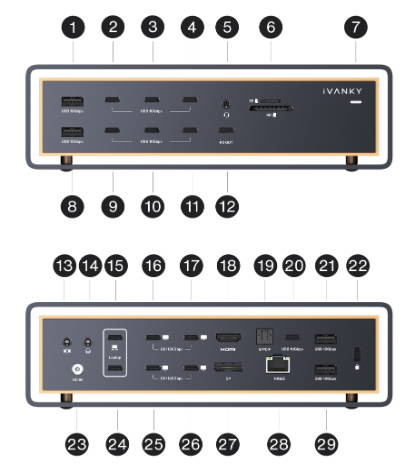
Step 2: If you are using a conversion cable with the iVANKY Dock, please use an iVANKY original cable to avoid potential cable quality issues. Connect the monitor to Port 16 / 17 / 18 / 25 / 26 / or 27 to ensure proper operation.
Note: Port 18 (HDMI) does not support HDMI-to-DP cables.
Step 3: Go to the Apple menu (upper-left corner) > System Settings (or System Preferences) > Displays, and select the resolution recommended by your Mac.
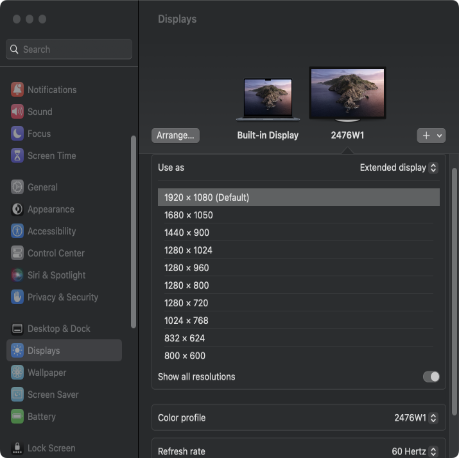
Step 4: Unplug the dock’s USB-C cable from your Mac, flip the connector, and reconnect it.
Step 5: Try another Thunderbolt port on your Mac.
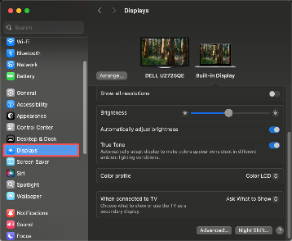
Step 6: Go to the Apple menu (upper-left corner) → System Settings → Displays.
If the external monitor is detected by the Mac but no image is displayed, replace the HDMI cable and test again. If the issue persists, please contact iVANKY Customer Support for further assistance.
3. Monitor detection
Step 1: Disconnect the monitor from the docking station, then reconnect it. Turning off the monitor first may help.
Step 2: Manually select the correct input source on the monitor (e.g., HDMI).
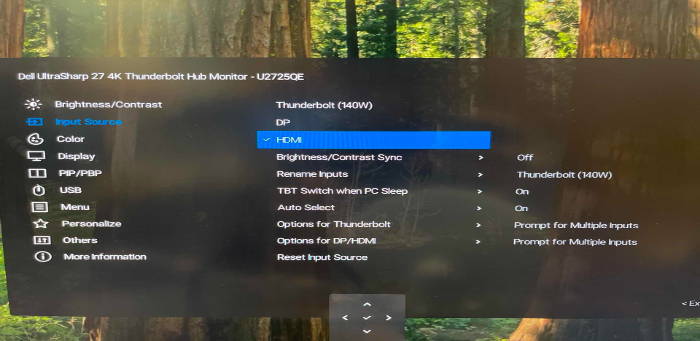
Step 3: Restart your Mac. For MacBook, close the lid for a few seconds, then reopen it.
Step 4: Go to the Apple menu (upper-left corner) > System Settings (or System Preferences) > Displays. Hold the Option key to reveal the Detect Displays button, then click it repeatedly (10+ times).
4. Allow Docking Station Connections
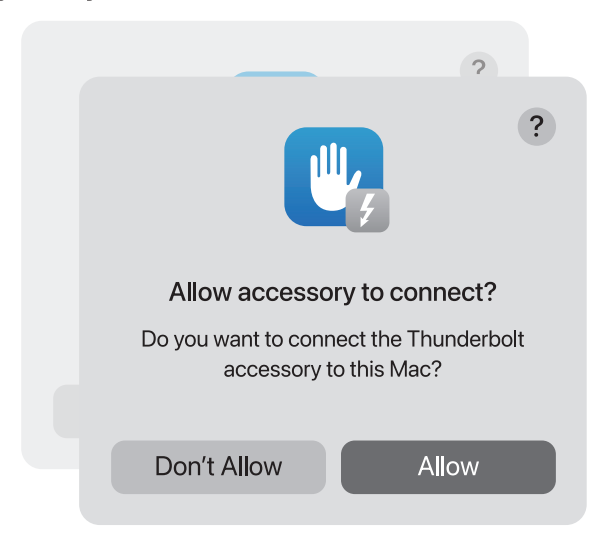
Step 1: Go to the Apple menu (upper-left corner) > System Settings (or System Preferences) > Privacy & Security.
Step 2: Scroll down and click the pop-up menu next to “Allow accessories to connect”, then choose the option you need.
5. Check monitor brightness
Step 1: If the external monitor shows a black screen, please make sure the monitor brightness has not been turned down.
Step 2: If you are using an Apple keyboard and monitor, adjust the brightness with the brightness keys on your keyboard, or go to System Settings > Displays to adjust it.
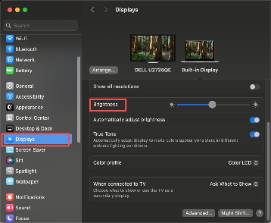
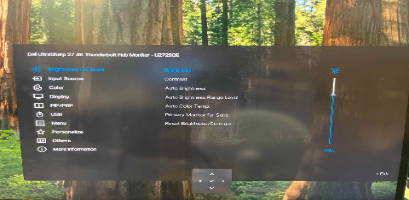
Step 3: If you are using a third-party monitor, please use the monitor’s built-in menu to adjust brightness. If the screen is still black, the monitor may not be powered on or may be malfunctioning.
6. Update Software
Software may affect display detection, image quality, and available resolutions or refresh rates.
Install the latest macOS updates. These updates can include firmware improvements for Apple displays.
If your monitor is not made by Apple, make sure it has the latest firmware provided by the manufacturer. Check the monitor’s manual or the manufacturer’s website for details.
If the issue persists, please contact the iVANKY support team and provide the following information so we can check for possible device compatibility issues:
1.Your macOS version
2.Which device is not working and its model
3. A purchase link if available
Issues on LG UltraFine 5K Monitor
Note: The FusionDock Ultra supports connecting two LG UltraFine 5K (27MD5KL-B) displays.
When connecting two displays, please connect one display per port group:
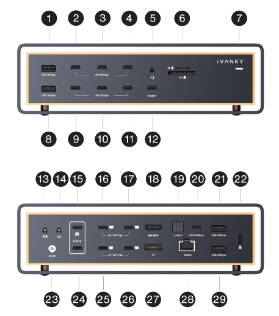
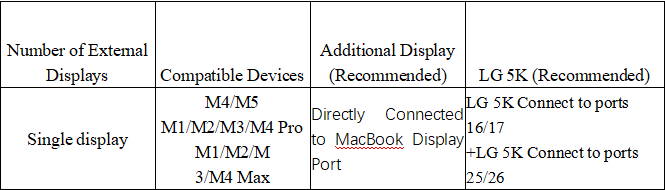
Connect one LG UltraFine 5K display to Port 16 or 17
Connect the other LG UltraFine 5K display to Port 25 or 26
Each port group supports one display only.
If you need to connect a third display, please connect it directly to the Mac’s video output port.
1. Check if your Mac supports dual displays
(1) Connect the LG UltraFine 5K (27MD5KL-B) monitor to any of the FusionDock Ultra Thunderbolt ports (21/22/23) using a Thunderbolt cable.
(2) Connect the HDMI monitor to the FusionDock Ultra HDMI port (port 18).
Since there are so many different monitors on the market, we can’t guarantee every model will work perfectly. If your monitor doesn’t display, the resolution looks lower than expected, or screen output isn’t working, just share your monitor model or purchase link with our support team—we’ll be happy to help you right away.
Multi-Display Resolution Not Meeting Specifications
Step 1: Reconnect the Thunderbolt cable between the Dock and your Mac. If it still doesn’t work, try flipping the dual USB-C connector before reconnecting.
Step 2: If possible, replace the Thunderbolt cable, DP cable, or USB-C-to-DP cable, and connect the monitor using the Dock’s Thunderbolt output port or DP port.
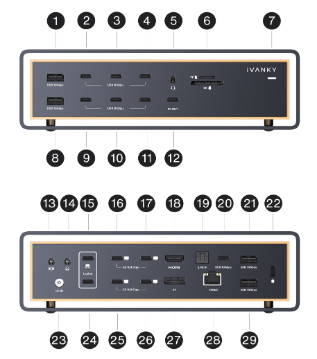
Step 3: Connect the monitor to the Dock as a single display only, and check whether the resolution meets the required specifications. If the issue persists when connected alone, try using a different cable.
Step 4: Connect the monitor directly to your Mac to confirm that the monitor itself outputs the correct resolution.
If the issue persists, please contact the iVANKY support team and provide the following information so we can check for possible device compatibility issues:
1.Your macOS version
2.Which device is not working and its model
3.The purchase link if available
Unable to output dual 6K, triple 6K, or quad 6K displays
Note: Only Port 16 / 17 / 25 / 26 on the FusionDock Ultra support 6K resolution output.
FusionDock Ultra is compatible with a wide range of mainstream 6K monitors and flexible multi-display combinations.
6K Display Output Capability by Mac Model (via Thunderbolt)
MacBook with M3 / M2 / M1: supports up to one 6K display
MacBook with M5 (base) / M4 (base) / M3 / M2 / M1 Pro: supports up to two 6K displays
MacBook with M1 / M2 / M3 / M4 Max, all Mac Studio models, and Mac mini M4 Pro: support up to three 6K displays
MacBook with M1 / M2 / M3 / M4 Max and all Mac Studio models: support up to four 6K displays
Step 1: Disconnect all other monitors and keep only the monitor that is not displaying an image.
Check whether the display can output normally when connected alone.
Note: Port 18 (HDMI port) does not support DP-to-HDMI cables.
Step 2: After completing Step 1, please provide the following information to iVANKY -Customer Support:
-Mac model
-macOS version
-Monitor model
-Dock port number used for each monitor connection
-Result of Step 1 (whether the previously non-displaying monitor works when connected alone)
Our support team will review the information and assist in confirming any potential compatibility issues as soon as possible.
Unable to connect 3 monitors
1. Check if your Mac supports triple displays
* Only the following Mac models support triple display output with FusionDock Ultra:
-MacBook Pro with M1 / M2 / M3 / M4 Max
-All Mac Studio models
-Mac mini with M4 or M4 Pro
* Before using triple displays, please connect the monitors using one of the following methods:
1. Select two ports from Port 16 / 17 / 18, and one port from Port 25 / 26 / 27.
2. Select one port from Port 16 / 17 / 18, and two ports from Port 25 / 26 / 27.
2. Check accessories and connections
Step 1: Make sure the video cable (HDMI or USB-C) is properly connected to the monitor and securely plugged in.
Step 2: If you are using a third-party adapter cable with iVANKY Dock, please switch to our iVANKY original cable to avoid compatibility issues. Connect to ports 21–23 to ensure stable performance.
Step 3: Go to the Apple menu (upper-left corner) > System Settings (or System Preferences) > Displays, then select the resolution recommended by your Mac.
Step 4: Unplug the dock’s USB-C cable from your Mac, flip the connector, and reconnect it.
Step 5: Try another Thunderbolt port on your Mac.
Step 6: If the external display is detected but shows no image, replace the HDMI cable. If the issue persists, please contact iVANKY customer support.
3. Monitor detection
Step 1: Disconnect the monitor from the docking station, then reconnect it. Turning off the monitor first may help.
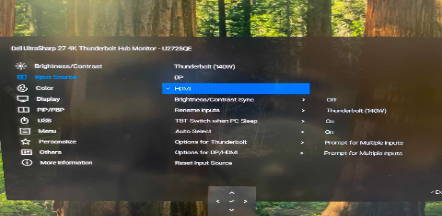
Step 2: Manually select the correct input source on the monitor (e.g., HDMI).
Step 3: Restart your Mac. For MacBook, close the lid for a few seconds, then reopen it.
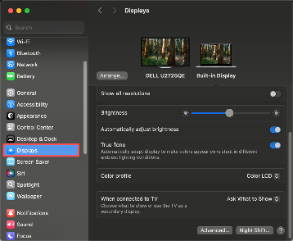
Step 4: Go to the Apple menu (upper-left corner) > System Settings (or System Preferences) > Displays. Hold the Option key to reveal the Detect Displays button, then click it repeatedly (10+ times).
4. Allow Docking Station Connections
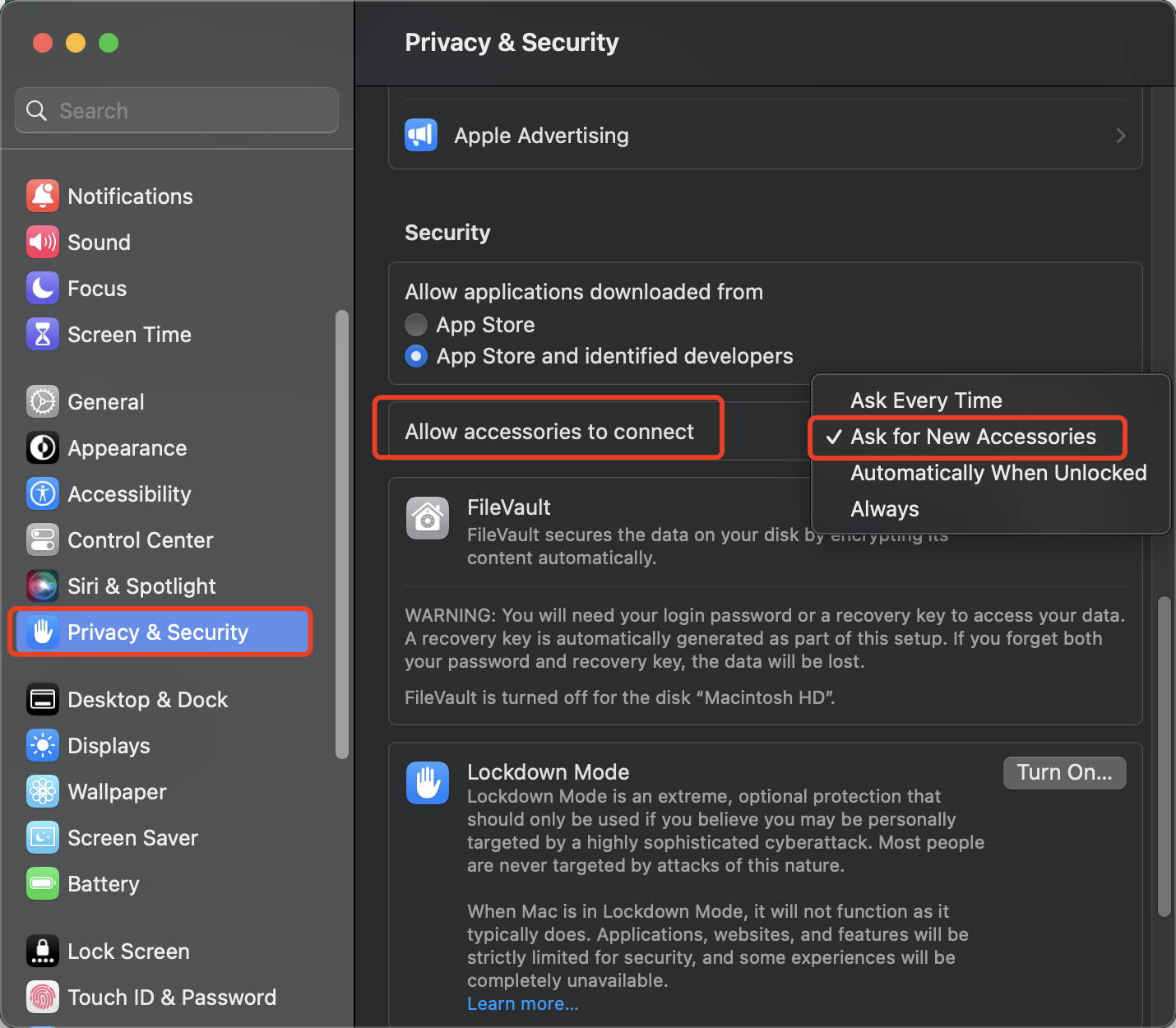
Step 1: Go to the Apple menu (upper-left corner) > System Settings (or System Preferences) > Privacy & Security.
Step 2: Scroll down and click the pop-up menu next to “Allow accessories to connect”, then choose the option you need.
5. Check monitor brightness
Step 1: If the external monitor is black, please make sure the brightness is not set to the lowest.
Step 2: If you are using an Apple keyboard and monitor, adjust the brightness with the brightness keys on your keyboard, or go to System Settings > Displays to adjust it.
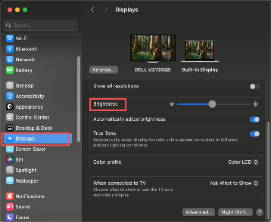
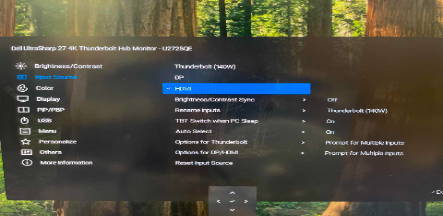
Step 3: If you are using a third-party monitor, please use the monitor’s built-in menu to adjust brightness. If the screen is still black, the monitor may not be powered on or may be malfunctioning.
6. Update Software
Software may affect display detection, image quality, and available resolutions or refresh rates.
Install the latest macOS updates. These updates can include firmware improvements for Apple displays.
If your monitor is not made by Apple, make sure it has the latest firmware provided by the manufacturer. Check the monitor’s manual or the manufacturer’s website for details.
If the issue persists, please contact the iVANKY support team and provide the following information so we can check for possible device compatibility issues:
1.Your macOS version
2.Which device is not working and its model
3. A purchase link if available
Unable to Connect Quad Displays
1. Check if your Mac supports quad displays
Only the following Mac models support quad display output with FusionDock Ultra:
-MacBook Pro with M1 / M2 / M3 / M4 Max
-All Mac Studio models
-Supported display configurations:
-4 × 4K @ 60Hz
-4 × 6K @ 60Hz (Pro Display XDR)
When connecting four displays, please connect the monitors using the following port distribution:
-Select two ports from Port 16 / 17 / 18
-Select two ports from Port 25 / 26 / 27
Each display must be distributed across both port groups.
Connecting all four displays within the same port group is not supported.
2. Check accessories and connections
Step 1: Ensure that the video cables (HDMI or USB-C) are properly connected to the monitors and securely plugged in.
Step 2: If you are using adapter or conversion cables with the iVANKY Dock, switch to iVANKY original cables to avoid potential cable quality issues. Connect the monitors to Port 15 or Port 24 to ensure proper operation.
Step 3: Go to the Apple menu (upper-left corner) > System Settings (or System Preferences) > Displays, and choose the resolution recommended by the computer.
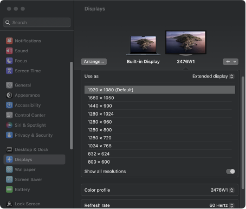
Step 4: Disconnect the USB-C cable connecting the Dock to the computer, flip the USB-C connector, and reconnect it.
Step 5: Try connecting the Dock to a different Thunderbolt port on the Mac.
Step 6: Go to the Apple menu (upper-left corner) > System Settings (or System Preferences) > Displays. If the external monitor is detected by the Mac but no image is displayed, replace the HDMI cable and test again.
If the issue persists, please contact iVANKY Customer Support for further assistance.
3. Monitor detection
Step 1: Disconnect the monitor from the docking station, then reconnect it. Turning off the monitor first may help.
Step 2: Manually select the correct input source on the monitor (e.g., HDMI).
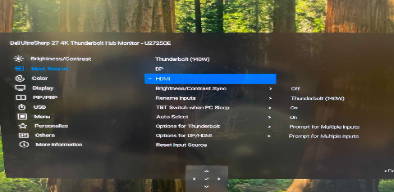
Step 3: Restart your Mac. For MacBook, close the lid for a few seconds, then reopen it.
Step 4: Go to the Apple menu (upper-left corner) > System Settings (or System Preferences) > Displays. Hold the Option key to reveal the Detect Displays button, then click it repeatedly (10+ times).
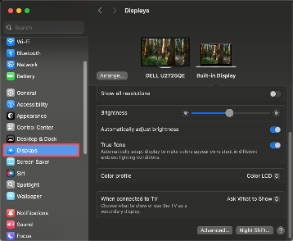
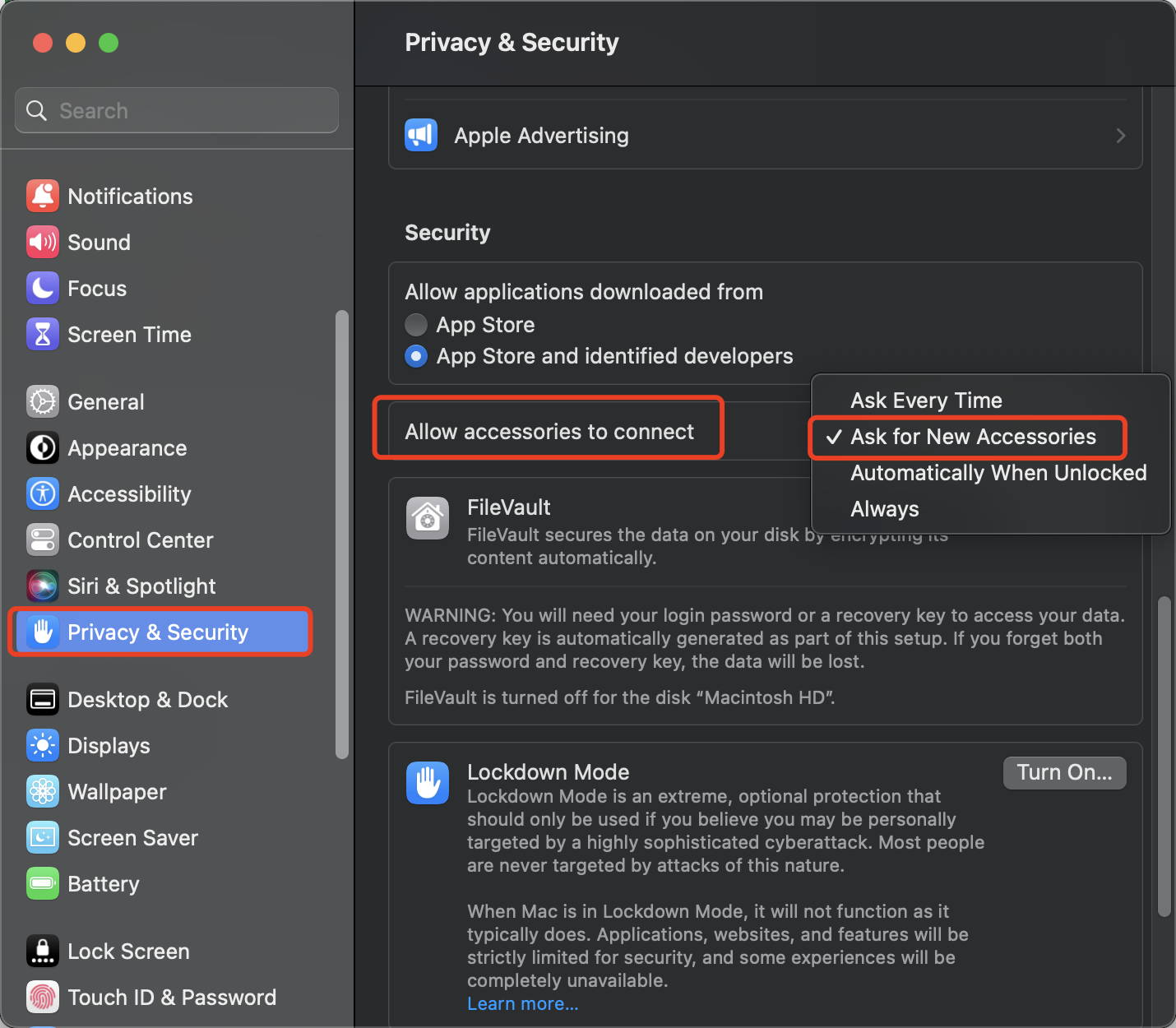
4. Allow Docking Station Connections
Step 1: Go to the Apple menu (upper-left corner) > System Settings (or System Preferences) > Privacy & Security.
Step 2: Scroll down and click the pop-up menu next to “Allow accessories to connect”, then choose the option you need.
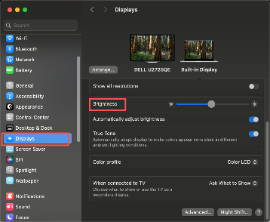
5. Check monitor brightness
Step 1: If the external monitor is black, please make sure the brightness is not set to the lowest.
Step 2: If you are using an Apple keyboard and monitor, adjust the brightness with the brightness keys on your keyboard, or go to System Settings > Displays to adjust it.
Step 3: If you are using a third-party monitor, please use the monitor’s built-in menu to adjust brightness. If the screen is still black, the monitor may not be powered on or may be malfunctioning.
6. Update Software
Software may affect display detection, image quality, and available resolutions or refresh rates.
Install the latest macOS updates. These updates can include firmware improvements for Apple displays.
If your monitor is not made by Apple, make sure it has the latest firmware provided by the manufacturer. Check the monitor’s manual or the manufacturer’s website for details.
If the issue persists, please contact the iVANKY support team and provide the following information so we can check for possible device compatibility issues:
1.Your macOS version
2.Which device is not working and its model
3. A purchase link if available
Daisy Chain Support (FusionDock Ultra Only)
The FusionDock Ultra supports Thunderbolt daisy chaining. However, most monitors currently available on the market do not support Thunderbolt daisy chain connections. Whether daisy chaining can be used depends on the monitor’s hardware capabilities.
Please contact the monitor manufacturer to confirm whether your display supports Thunderbolt daisy chaining.
Screen Flickering
If the display flickers occasionally during extended use, the issue may be caused by electromagnetic interference in the operating environment.
1. Check Accessories and Connections
Step 1: Ensure the dock is used in a well-ventilated environment. Do not place or operate the Dock inside a PC case or in a confined, enclosed space.
Step 2: Disconnect the dual USB-C cable connecting the Dock to the Mac, then restart the Mac.
Step 3: Connect the USB-C cable to the Dock’s upstream Port 16 first, then connect the USB-C cable to upstream Port 24.
Step 4: If possible, replace the original magnetic USB-C cable with a Thunderbolt 5 cable shorter than 1 meter.
Step 5: Disconnect any non-essential peripherals. Connect required devices to the recommended ports on the Dock first, and avoid using unnecessary ports.
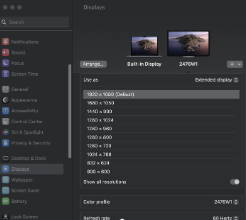
Step 6: Go to the Apple menu (upper-left corner) > System Settings (or System Preferences) > Displays, and select the resolution recommended by your Mac.
Step 7: Try using a different video input on your monitor.
Step 8: Make sure your Mac is updated to the latest macOS version.
2. Check the Monitor Condition
Step 1: Inspect the screen for physical damage:
-Check whether the artifacts are caused by cracks.
-Look for visible cracks, dirt, or liquid leakage.
-If damage is found, please contact the monitor’s support team.
Step 2: Rule out app-related issues:
-Restart your MacBook without opening any software. Test if the problem persists.
-If the issue only occurs with a specific application: Uninstall and reinstall the app, or update the app to the latest version.
-If the issue continues, please reach out to the app’s customer support.
Step 3: Keep your system and monitor updated
-Install the latest macOS updates, which may include firmware updates for Apple-made monitors.
If you’re using a non-Apple monitor, make sure it’s running the latest firmware provided by the manufacturer.
For details, please refer to the monitor’s documentation or the manufacturer’s website.
If the issue remains unresolved, please provide our customer support team with the following details:
-The macOS version currently installed on your MacBook.
-The exact port(s) that are not working.
-The model of your external monitor.
-The exact model, year, and specifications of your MacBook
DL6950 Accessory (Multi-Display Setup)
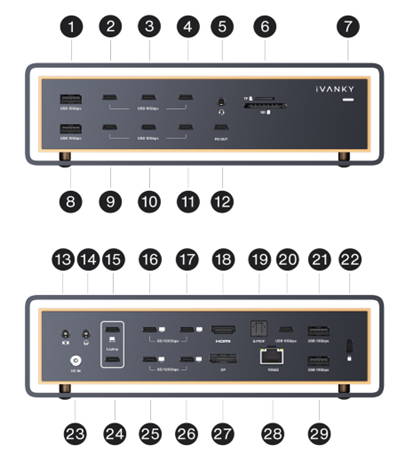
Step 1: When using the DL6950 accessory with FusionDock Ultra for multi-display output, the recommended connection ports are Port 20 / 21 / 29.
If any of these ports do not function as expected, use the following alternative ports: Port 3 / 4 / 10 / 11.
KVM Malfunction
1. Verify whether the FusionDock Max 2 works properly when directly connected to your MacBook
Step 1: Please use the dual USB-C cable included with your FusionDock Max 2 to connect the dock to the correct USB-C ports on your MacBook.
Step 2: If you are currently using an HDMI-to-DP cable to connect the dock and your monitor, we recommend replacing it with one of the following: an HDMI cable, a USB-C cable, a USB-C to HDMI cable, or a USB-C to DP cable.
Step 3: If the issue persists, please contact the iVANKY support team for further assistance.
2. Verify whether the FusionDock Max 2 is connected correctly with your KVM
Step 1: Refer to Figure 1 for the correct connection method between the dock and KVM. If you are currently using an HDMI-to-DP cable, please replace it with a USB-C to HDMI cable or a USB-C to DP cable, connecting from the dock’s USB-C video port to the KVM’s video port.
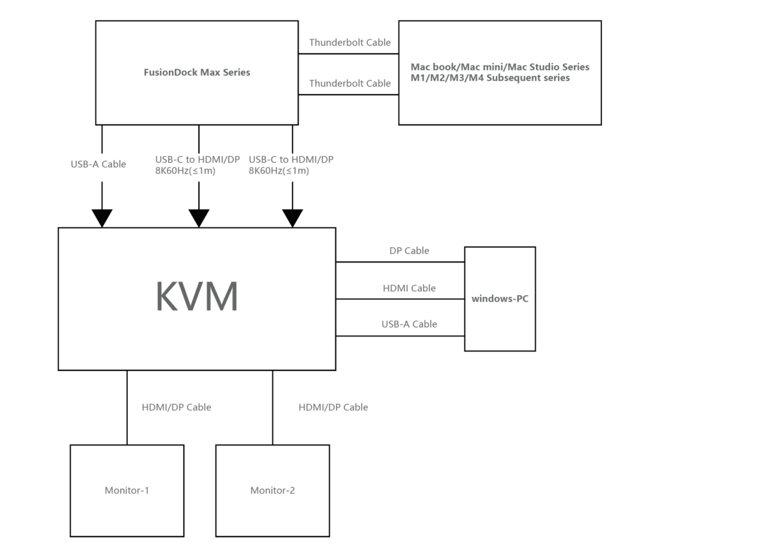
Step 2: If your connection setup differs from Figure 1, please contact the iVANKY support team and provide:
-Your MacBook model and macOS version
-Monitor model
-KVM purchase link & Suggested connection method (as shown in Figure 1)
Unable to connect to the network
Step 1: Check if the LED light on the docking station is on.
Step 2: please unplug and reconnect the following cables:
-The cable connecting the device to the docking station
-The USB-C cable between the docking station and the Mac
-The DC power cable
Step 3: Replug the Ethernet cable into the dock’s network port. Normally, you should see a steady green light and a flashing orange light.
*If the lights are abnormal or not showing, try using another device to confirm whether the network connector is functioning properly.
Step 4: Use your phone’s flashlight to check the RJ45 port on the dock for any damaged or bent pins.
*If pins are bent or pushed down, carefully correct them with a toothpick or fine tool.
*If the port is damaged and causes loose Ethernet connections, you can temporarily secure it with tape, or contact iVANKY support for replacement.
Step 5: Make sure macOS and all software are updated to the latest version.
Step 6: Update the Mac ethernet driver. For details, please visit the iVANKY official guide:
https://ivanky.com/blogs/news/ivanky-ethernet-driver-download-guide"
Step 7: Go to the Apple menu (upper-left corner) > System Settings> click Network. You should see USB 10/100/1000 LAN and USB 10/100/1G/10G LAN.
*Check the indicator color below each option and follow the corresponding troubleshooting steps.
*If the network is not recognized, please follow the steps for a gray indicator (no network detected).
2. Yellow status indicator below the service name (self-assigned IP)
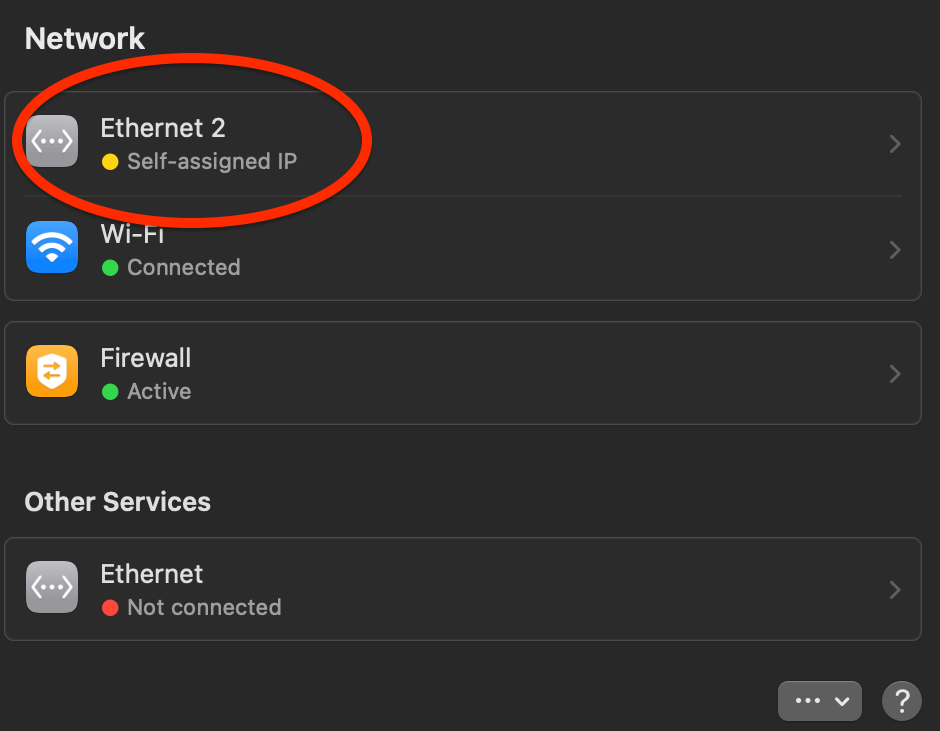
Step 1: Restart the computer to reassign the IP address.
Step 2: Connect the network cable directly to another device (for example, a desktop computer or a laptop with an Ethernet port) to check whether the cable works properly.
Step 3: Turn off the modem or router and wait for 5 minutes. Then turn it back on to reassign the IP address.
Step 4: Re-plug the network cable to reassign the IP address.
Step 5: Reset the router to reassign the IP address.
3. Grey status indicator below the service name (no recognition of network access)
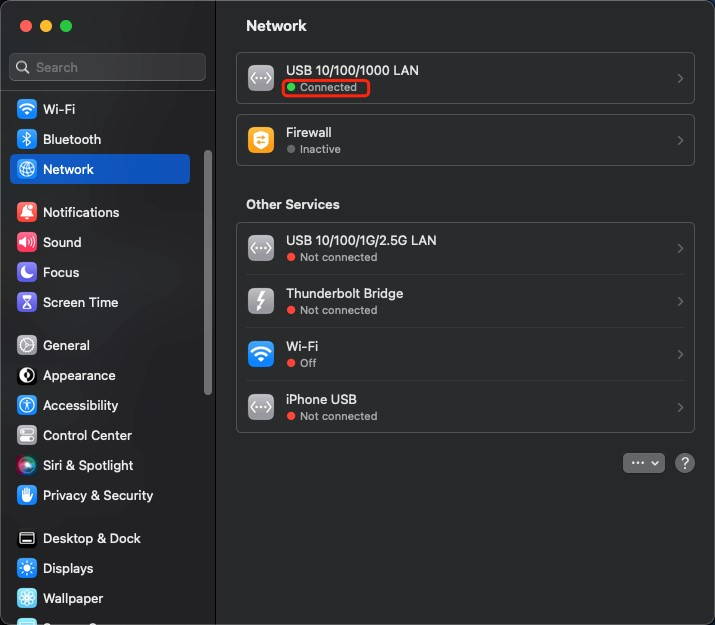
Step 1: Connect the network cable directly to another device (such as a desktop computer or a laptop with an Ethernet port) to test whether the cable is working properly.
Step 2: Create a new Apple sub-account.-> Restart the computer and log in with the sub-account.->Test whether the issue is caused by a software conflict on the main account.
4. Green status indicator (connected but not working)
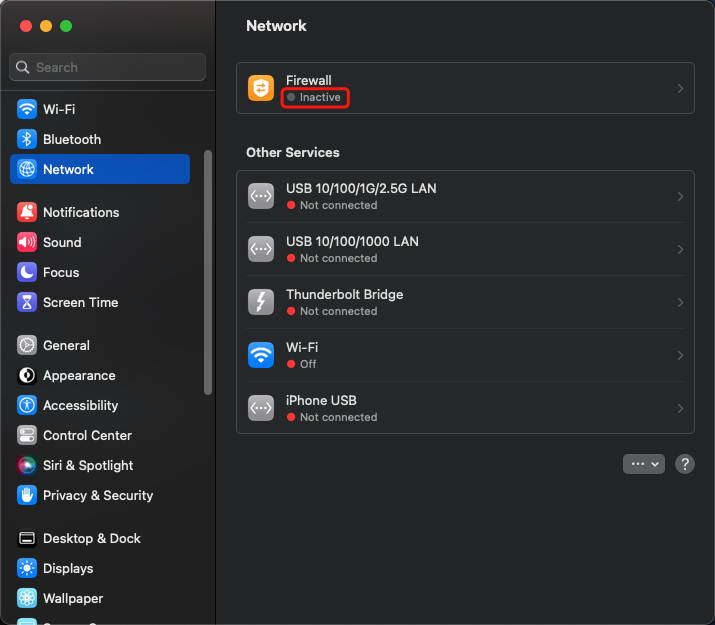
Step 1: Reconnect the Ethernet cable.
Step 2: Plug the Ethernet cable directly into another device (e.g., a desktop PC or a laptop with an Ethernet port) to check if the cable works properly.
Step 3: If possible, try using a different Ethernet cable.
If the issue persists after these steps, please contact the iVANKY support team and provide the following information so we can check for possible device compatibility issues:
1.Your macOS version
2.Which device is not working and its model
3. A purchase link if available
Slow Internet speed
1. Check accessories and connections
Step 1: Restart your Mac and make sure both ends of the dock’s USB-C cable and the Ethernet cable are securely connected.
Step 2: Reconnect the accessories between your Mac and the monitor. You can try flipping the dock’s USB-C connection to the Mac, and re-plug the Ethernet cable into the dock.
Step 3: Connect your Mac directly to the network using Ethernet or Wi-Fi to check whether the internet speed returns to normal.
Step 4: Disconnect all other devices from the dock except the Ethernet cable. Also, unplug other devices from the router, keeping only the cable connected to the dock. If the issue persists, try using a different WAN/LAN port on the router.
Step 5: Confirm with your cable provider that the Ethernet cable supports gigabit speeds (≥800 MB/s). You can also test the cable by connecting it directly to another device to verify whether it meets gigabit performance. Replace the cable if it cannot.
2. Restart the router
Step 1: Unplug the router and Ethernet cable, then wait at least 30 seconds.
Step 2: Reconnect the Ethernet cable to the router.
Step 3: Once the Internet indicator light is on (normally the green light stays solid and the orange light blinks), check if your Mac can access the Internet.
3. Update software
Step 1: Make sure macOS and all software are updated to the latest version.
Step 2: Update the Mac ethernet driver. For details, please refer to the iVANKY guide:
https://ivanky.com/blogs/news/ivanky-ethernet-driver-download-guide"
If the issue persists after these steps, please contact the iVANKY support team and provide the following information so we can check for possible device compatibility issues:
-Mac model
-macOS version
-Device that cannot be used properly and its model
-Purchase link (if available)
Frequent disconnection
1. Check accessories and connections
Step 1: Restart your PC and ensure both ends of the dock’s USB-C cable and the Ethernet cable are securely connected.
Step 2: Make sure macOS and all software are updated to the latest version. Close all applications except Google Chrome and test for disconnections.
If the network works normally with only Chrome open, the issue may be caused by software conflicts. Please contact the iVANKY support team.
Step 3: Go to the Apple menu (upper-left corner) > System Settings> click Network. Check the USB 10/100/1000 LAN and USB 10/100/1G/2.5G LAN connections for repeated disconnections.
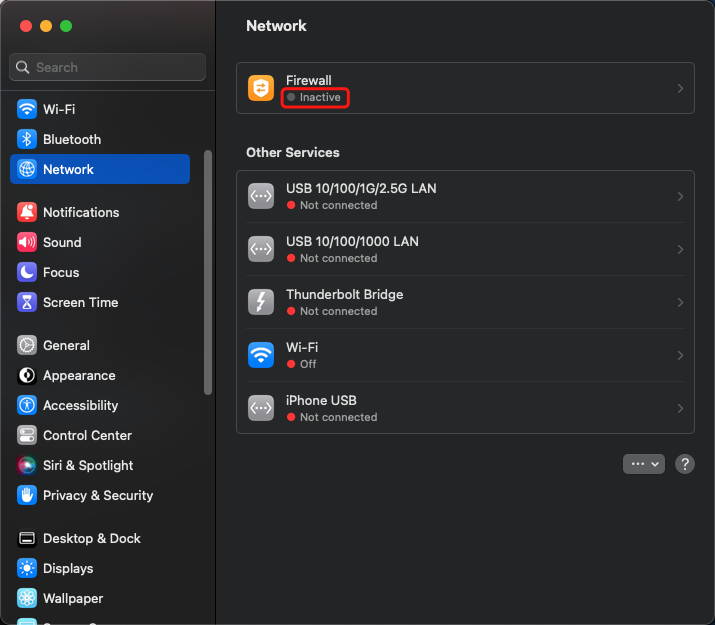
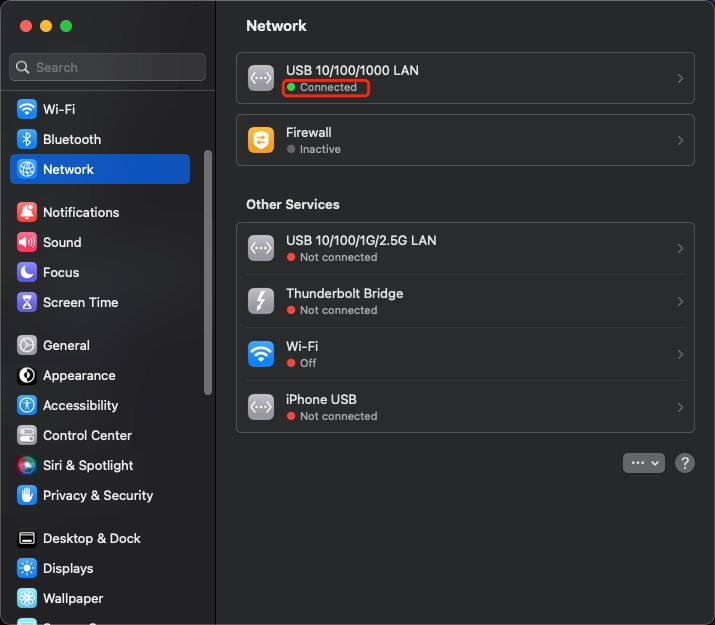
Step 4: Use a flashlight to inspect the dock’s RJ45 port for damaged or bent pins.
*If pins are bent or recessed, carefully straighten them with a toothpick or similar tool.
*If the dock’s port is damaged causing the cable to be loose, you can temporarily secure it with tape or contact iVANKY support for replacement.
Step 5: Connect the Ethernet cable directly to another device (e.g., a desktop PC or a laptop with an Ethernet port) to test whether disconnections still occur.
Step 6: Try using a different Ethernet cable.
2. Network environment check
Step 1: Restart the computer to reassign the IP address.
Step 2: Turn off the modem or router and wait for 5 minutes. Then turn it back on to reassign the IP address.
Step 3: Re-plug the network cable to reassign the IP address.
3. Update software
Step 1: Make sure macOS and all software are updated to the latest version.
Step 2: Update the Mac ethernet driver. For details, please refer to the iVANKY guide:
https://ivanky.com/blogs/news/ivanky-ethernet-driver-download-guide
If the issue persists after these steps, please contact the iVANKY support team and provide the following information so we can check for possible device compatibility issues:
-Mac model
-macOS version
-Device that cannot be used properly and its model
-Purchase link (if available)
Network Connection Not Working
If the Ethernet port on your iVANKY Thunderbolt device is unable to obtain an IP address from the DHCP server, or if there is no network traffic even though it is properly connected to your router or switch, the issue may be related to previous macOS network configurations or Energy Efficient Ethernet (EEE) compatibility.
Please follow the steps below to recreate the Thunderbolt Ethernet network service and, if necessary, disable Energy Efficient Ethernet (EEE) in macOS.
Step 1:
1.Go to the Apple menu (upper-left corner) > System Settings > Network.
2. Locate all existing and unused network services named “USB 10/100/1G/2.5G LAN”.
3. Select each USB 10/100/1G/2.5G LAN entry, click Remove Service…, then click Delete.
4. Repeat this process until all USB 10/100/1G/2.5G LAN services associated with the Dock are removed.
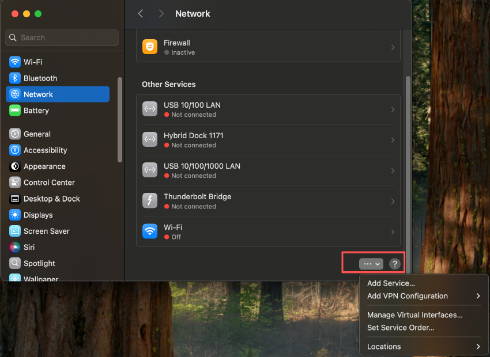
Step 2: Create a New Thunderbolt Ethernet Service
Create a new network service that is associated to the Thunderbolt dock by clicking on the “… ⌵” button.
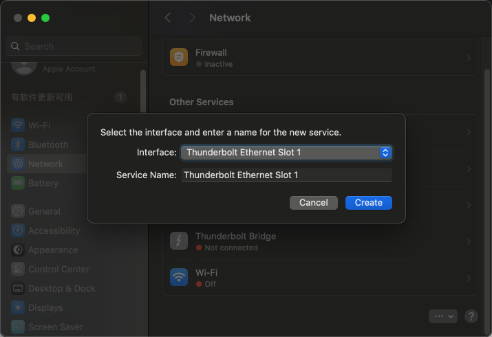
1. In the Network settings page, click the “… ⌵” button.
2. Select Add Service.
3. Choose USB 10/100/1G/2.5G LAN as the interface.
4. Use USB 10/100/1G/2.5G LAN as the service name, then click Create.
5. Wait 5–10 seconds and check the status indicator: A green indicator means the connection is detected. Test the network. If the issue persists, continue to Step 3.
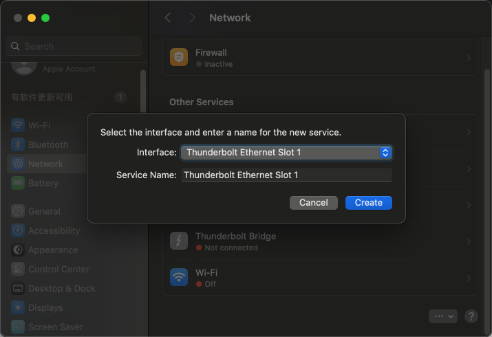
Step 3: If the Status Indicator Remains Red
If the newly created Thunderbolt Ethernet service still shows a red indicator after a short period:
1. Disconnect and reconnect the Thunderbolt cable and Ethernet cable.
2. Disconnect the Dock completely and wait 30–45 seconds.
3. Reconnect the Dock and test the network again.
If the issue persists, continue to Step 4 to disable Energy Efficient Ethernet.
Step 4: Disable Energy Efficient Ethernet (EEE)
1. Select the USB 10/100/1G/2.5G LAN service that shows a red indicator.
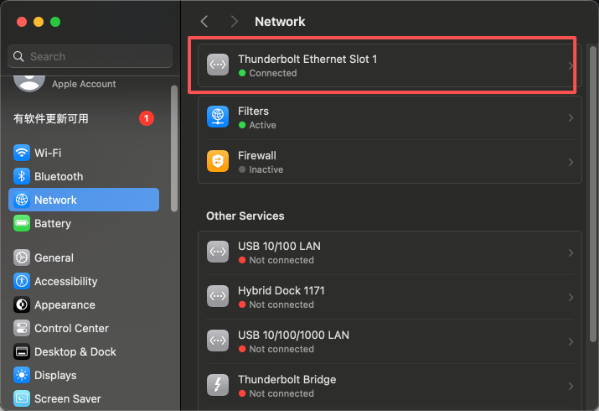
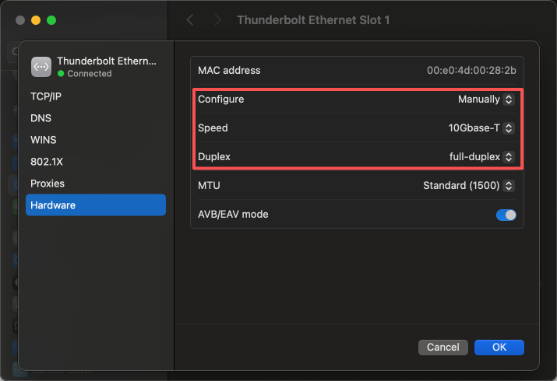
2. Click Details, then select Hardware.
3. Change Configure from Automatic to Manually.
4. Select the appropriate Speed based on your router or switch:
-100BaseTX -1000BaseT (1 Gb)
-2500Base-T (2.5 Gb)
-5000Base-T
-10Gbase-T (10 Gb)
Note: iVANKY FusionDock Ultra supports speeds up to 10Gbase-T.
5. Under Duplex, select Full Duplex or Full Duplex, Flow Control. Do not select any option that includes “Energy Efficient Ethernet”.
6. Leave other settings at their default values (for example, MTU 1500).
7. Click OK, then click Apply.
USB-C port not working
Step 1: Check whether the dock’s LED indicators are on.
Step 2: please unplug and reconnect the following cables:
-The cable connecting the device to the docking station
-The USB-C cable between the docking station and the Mac
-The DC power cable
Step 3: Connect a known-working USB-C device to the port to check if it works. If it does, the dock is not the issue.
Step 4: Try a different USB-C cable to see if the original cable is faulty.
Step 5: Test other USB-C ports on the dock to confirm they are working.
Step 6: Step 6: If the port still does not work, please contact the iVANKY support team and provide the following information so we can check for possible device compatibility issues:
-macOS version
-Device that cannot be used and its model
-Purchase link (if available)
Example feedback format for individual ports:
-Ports 7 / 10 not working
-MacBook Model: MacBook Pro 14 M2 MAX 2023
-macOS: Ventura 13.3.1
USB-A port not working
Step 1: Check whether the dock’s LED indicators are on.
Step 2: please unplug and reconnect the following cables:
-The cable connecting the device to the docking station
-The USB-C cable between the docking station and the Mac
-The DC power cable
Step 3: Connect a known-working USB-A device to the port to check if it works. If it does, the dock is not the issue.
Step 4: Try a different USB-A cable to see if the original cable is faulty.
Step 5: Test other USB-A ports on the dock to confirm they are working.
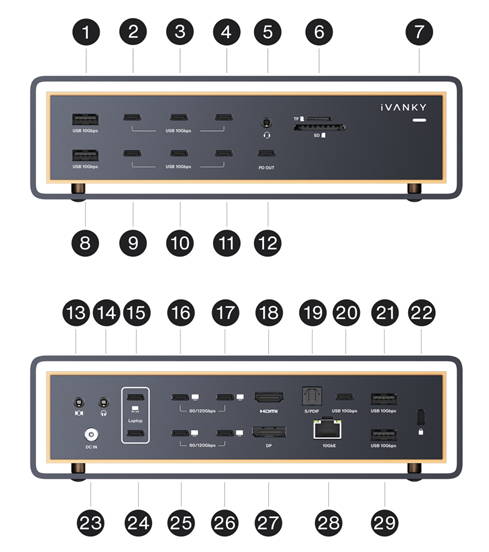
Step 6: If the port still does not work, please contact the iVANKY support team and provide the following information so we can check for possible device compatibility issues:
-The port number that is not working
-macOS version
-Device that cannot be used and its model
-Purchase link (if available)
3.5mm audio port has no sound output
1. Check wiring and connections
Step 1: Restart your Mac and make sure both the dock’s power cable and the audio cable are properly and securely connected.
Step 2: Reconnect the dock to your Mac via the Thunderbolt cable. If necessary, flip the dual USB-C connector on the Mac side and try again.
Step 3: After plugging into the 3.5mm audio jack, wait about 20 seconds before use.
Step 4: Unplug the DC power cable, wait 30 seconds, then reconnect it.
Step 5: Check that the dock’s 3.5mm audio jack is clean and free of debris. If needed, use compressed air to clear it.
Step 6: If possible, verify that the audio cable connected to the dock works properly.
2. Check sound settings
Step 1: Temporarily disconnect all other devices from the dock, keeping only the audio cable (connected to the dock’s audio port) and your keyboard/mouse.
Step 2: Go to Apple menu >System Settings (or System Preferences) > Sound.
Step 3: Go to Sound > Output > select the speakers or headphones connected via the audio cable.
*If "Internal Speakers" do not appear in the "Output" device list, please contact the iVANKY support team.
Step 4: Check the Output volume: If the level is too low, drag the slider to the right and test again.
Step 5: Check the Mute checkbox: If selected, deselect it and test again.
3. Port Alternation
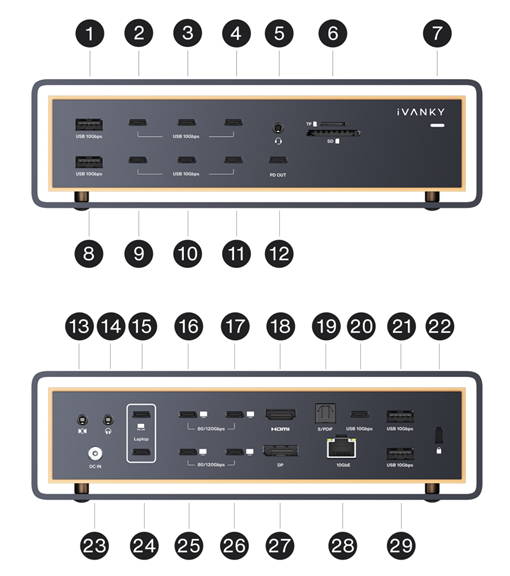
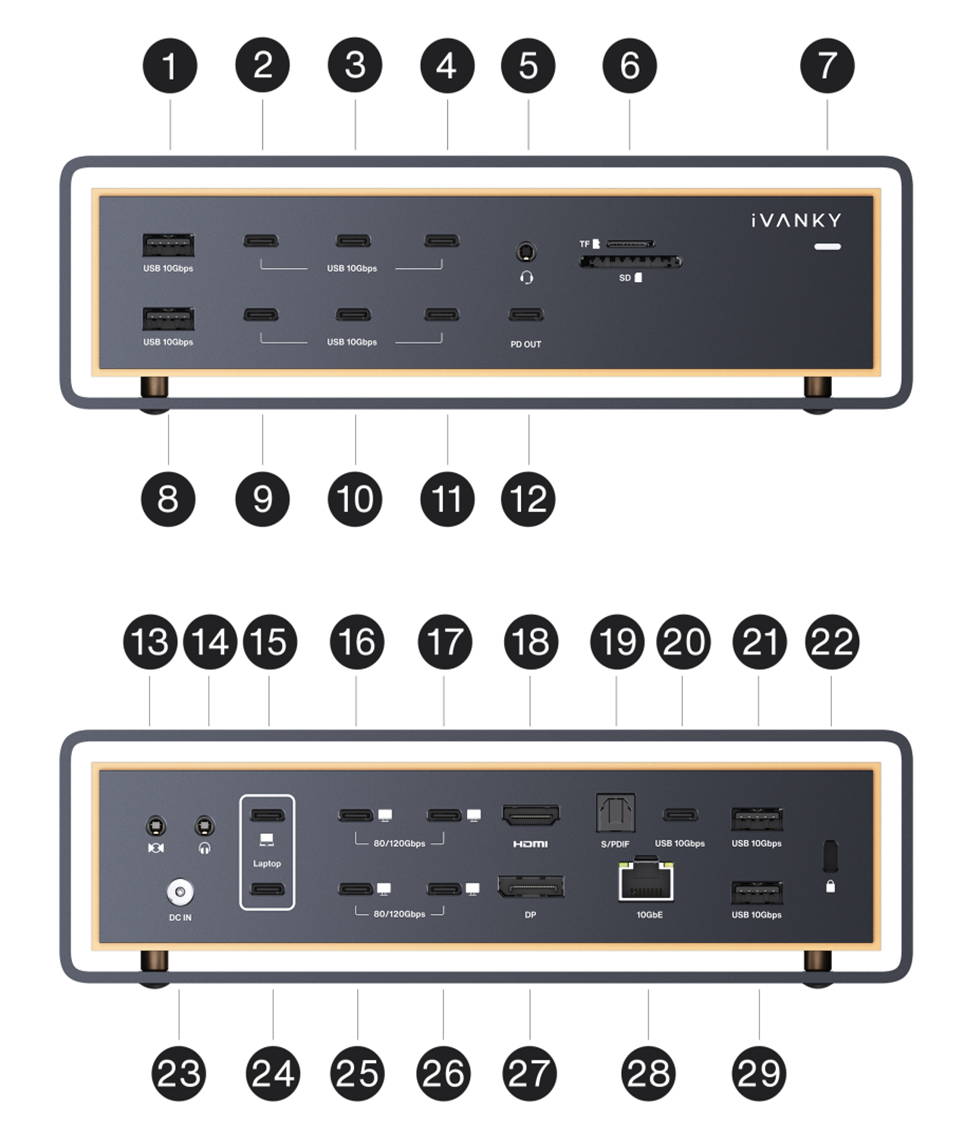
Step 1: Try alternating between the front and rear audio ports on the Dock (see port diagram, Port 5).
Please note:
-Port 13 is a 3.5 mm audio input
-Port 14 is a 3.5 mm audio output
If you only need audio output, you may alternate between Port 5 and Port 14 for testing.
Step 2: Recognition may take some time; please wait for about one minute.
Step 3: If the port still does not work, please contact the iVANKY support team and provide the following information so we can check for possible device compatibility issues:
-The port number that is not working
-macOS version
-Device that cannot be used and its model
-Purchase link (if available)
No Audio Input from the 3.5 mm Audio Jack
Step 1: Check that the audio cable is securely connected and confirm that the Dock’s LED indicator is illuminated.
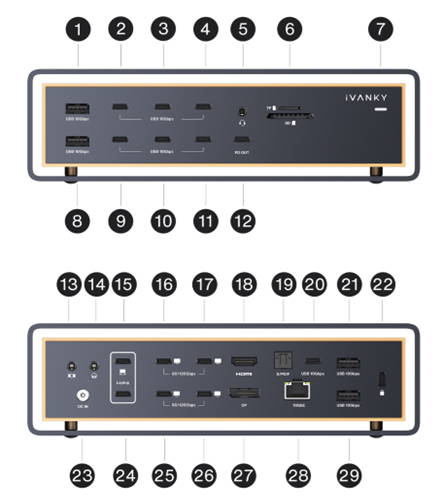
Step 2: Connect the microphone to Port 5 or Port 13 on the Dock.
Step 3: If possible, test with a different microphone or audio input device to determine whether the issue is related to the port or the external device.
Step 4: If the port still does not work, please contact the iVANKY support team and provide the following information so we can check for possible device compatibility issues:
-The port number that is not working
-macOS version
-Device that cannot be used and its model
-Purchase link (if available)
Unable to charge Mac
1. Check the Power Setup
Step 1: Check if the LED lights on the dock are on.
Step 2: Ensure the USB-C cable from the dock is connected to the correct port.
Step 3: Restart your Mac and reconnect the USB-C cable between the dock and Mac.
Step 4: Disconnect the DC power cable, wait for 30 seconds, then reconnect it.
Step 5: If you are using a non-original dual USB-C cable, try connecting the Mac directly to its PD power adapter. While charging, gently move the cable. If charging fails or stops when the cable is moved, replace the USB-C cable.
2. Test the power outlet
Step 1: Unplug the dock power adapter from the power outlet, then plug a known good device (such as a desk lamp) into the outlet to confirm that the device can be powered normally. If the power outlet can supply power normally, carefully observe whether the LED light on the dock power adapter is on
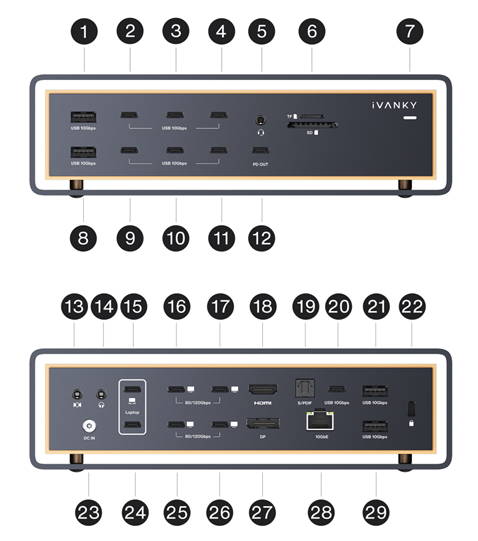
Step 2: Try charging a phone or tablet using the Dock’s USB-C 10 Gbps ports (see port diagram: Ports 2–4 and 9–11).
Check whether the device charges normally.
Step 3: If the port still does not work, please contact the iVANKY support team and provide the following information so we can check for possible device compatibility issues:
-macOS version
-Device that cannot be used and its model
-Purchase link (if available)
USB-C PD port not working
1. Check wiring, connections, and device compatibility
Step 1: Check whether the dock’s LED indicators are on.
Step 2: Disconnect and reconnect the following:
-The cable connecting the device to the Dock
-The USB-C cable between the Dock and the Mac
-The Dock’s DC power adapter
Note: The PD port is Port 12.
Step 3: Connect a known working USB-C device to the PD port to test whether the port functions properly. If the device works as expected, this helps rule out a Dock hardware issue.
Step 4: Try a different USB-C cable to see if the original cable is faulty.
Step 5: If the port still does not work, please contact the iVANKY support team and provide the following information so we can check for possible device compatibility issues:
-macOS version
-Device that cannot be used and its model
-Purchase link (if available)
USB Data Port Cannot Charge
1. Check Dock Power Status
Step 1: Check whether the dock’s LED lights are on.
Step 2: Press the power button or reconnect the DC cable to turn on the dock and light up the LED.
2. Check device connections
Step 1: Disconnect and reconnect:
-The cables between the device and the Dock
-The USB-C cable between the Dock and the Mac.
Please note that USB data ports do not provide power output when no host device is connected.
Step 2: Connect a known working USB-C device to the USB data port to verify whether the port functions properly.
If the device works as expected, this helps rule out a Dock hardware issue.
Step 3: Replace the USB-C cable and test again to determine whether the issue is caused by the cable.
Step 4: If the port still does not work, please contact the iVANKY support team and provide the following information so we can check for possible device compatibility issues:
-macOS version
-Device that cannot be used and its model
-Purchase link (if available)
3. Alternative charging ports
If you need to charge a device without connecting a host, please use one of the following ports:
-The front dedicated PD port (Port 12), which provides up to 45W of power
-The Thunderbolt 5 ports (Ports 16–17 and 25–26), each providing up to 15W of power output
SD/TF card not working
1. Check wiring and connections
Step 1: Check if the dock’s LED lights are on. If not, press the power button or reconnect the adapter.
Step 2: Disconnect and reconnect the following connections, then wait 30 seconds:
-The cable between the device and the Dock
-The USB-C cable between the Dock and the Mac
-The Dock’s DC power adapter
Step 3: Make sure the SD/TF card slots are clean and free of debris. Use compressed air if needed.
Step 4: If possible, connect the SD/TF card directly to the Mac to confirm it functions correctly.
2. Reinsert the card
Step 1: If the card is not recognized, remove it and insert it again.
*SD cards may fail to load if inserted too slowly or too quickly.
Step 2: If the port still does not work, please contact the iVANKY support team and provide the following information so we can check for possible device compatibility issues:
-macOS version
-Device that cannot be used and its model
-Purchase link (if available)
3. Format the SD / TF Card
If the SD/TF card cannot be read even when connected directly to the Mac, the card format may be incompatible with macOS.
In this case, please format the card and set the file system to exFAT, then test again.
Please submit your information using the following format:
-MacBook Model: MacBook Pro 14-inch, M2 Max (2023)
-macOS Version: Ventura 13.3.1
-SD / TF Card: SanDisk Extreme PRO SD UHS-I Card, 128 GB
How to Stop the Fan
Disconnect the Dock’s DC power adapter. Once the Dock is powered off, the fan will stop operating.
Please note that when the Dock is powered on and operating for an extended period under load, the fan may start automatically to support normal operation.
Why does the fan make a sound?
The fan noise you may hear is normal behavior and is related to the device’s cooling design:
1. The device uses a dedicated cooling fan to maintain stability during high-power and full-load operation.
2. When the device is under higher performance load, the fan operates to reduce internal temperature and ensure reliable performance.
VCD30 (NTC Version)
FusionDock Ultra is equipped with a high-performance cooling system integrated with an NTC temperature sensor module.
The fan speed is dynamically adjusted based on the device’s operating load to achieve intelligent thermal control:
-Low temperature / low speed:
< 20 dB, comparable to quiet breathing
-High temperature / high speed:
< 50 dB, comparable to a library environment
If you find the fan noise noticeable, try reducing the number of connected peripherals or returning the Dock to a lower-load operating environment to allow the fan speed to decrease.
Sharing Wired Network Among iPhone, iPad, and Mac Devices
1.Ensure device compatibility
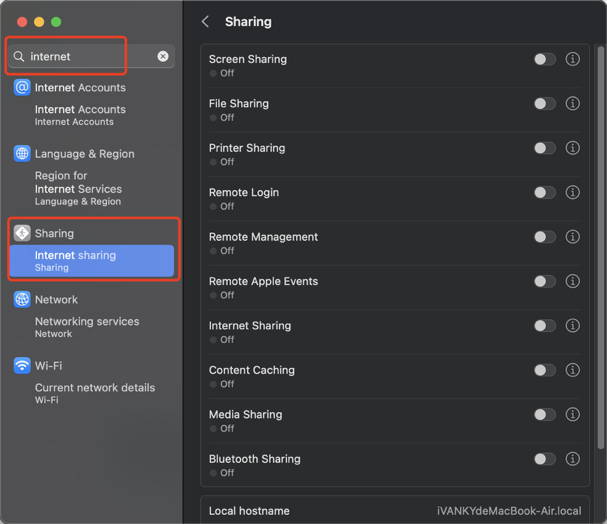
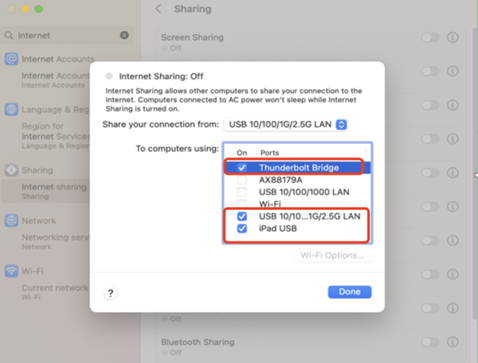
Step 1: Go to System Settings → type "Internet" in the search bar → click "Internet Sharing".
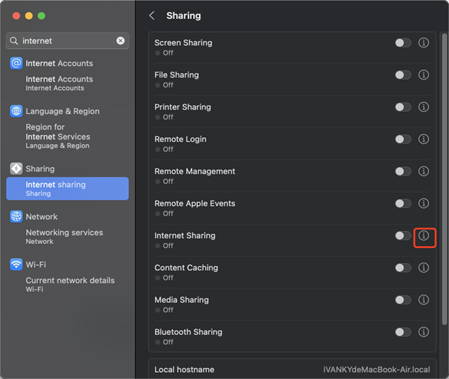
Step 2: Click the exclamation mark (!) next to the option.
Step 3: Check the devices you want to share the network with, then click "Done".
Step 4: Turn on "Internet Sharing".
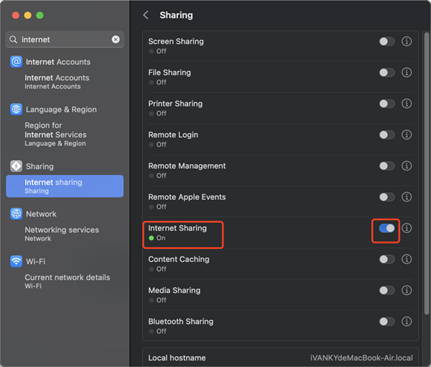
Step 5: Wait a few seconds, then confirm that devices connected via VCD10 can access the internet.
VCD30 Compatibility with iMac
The FusionDock Ultra supports the following iMac models:
2021 models: 2 variants
2023 models: 2 variants
2024 models: 2 variants
Total supported models: 6
Please note the following display output limitations:
Only the 2024 iMac models with four Thunderbolt ports support multi-display output with VCD30.
The other five iMac models, when used with VCD30, support only one external display output.
Compatibility with Unverified Devices
1.Pre-sales Inquiry: Customers are advised to consult the brand store of their device to confirm compatibility with the key specifications of the VCD30.
The key interface specifications of the FusionDock Ultra are as follows for your reference:
-Thunderbolt 5 port
-Up to 80Gbps bandwidth
-Supports USB 3.2 Gen 2 (10Gbps)
-Supports PD 5V/3A (15W) power delivery
-Supports BC1.2 5V/1.5A charging
We recommend providing the above interface specifications to the official customer support or technical team of the device you plan to use, to confirm whether it supports connection via a Thunderbolt 5 dock or a dock with equivalent interface specifications.
2. Post-Sales Compatibility Check
To help identify the cause of the issue, please follow the steps below:
Step 1: Connect the device directly to your MacBook’s Thunderbolt port and check whether it works properly.
Step 2: Then, connect the same device to the Thunderbolt port on the VCD30 and test it again.
Result Evaluation:
-If the device does not work when connected directly to the MacBook, the issue is likely related to the device itself.
-If the device works when connected directly to the MacBook but does not function through the VCD30, this may indicate a compatibility limitation between the device and the dock.
Please let us know the results of your testing, and we will be happy to assist you further.
KVM Not Working
1. Select a Compatible KVM Switch
To ensure proper operation with FusionDock Ultra, please use a compatible KVM switch.
Step 1:
-Recommended KVM purchase link (US):
https://www.amazon.com/Displayport-Monitors-Computers-Monitor-Keyboard/dp/B0DD7XSQ7H/
- Recommended KVM purchase link (DE):
https://www.amazon.de/-/en/CMSTEDCD-Displayport-Computers-Compatibility-Controller/dp/B0G58C1NVD/
- Recommended KVM purchase link (JP): https://www.amazon.co.jp/-/zh/dp/B0F21ZHDCJ/
- Recommended KVM purchase link (UK ):
https://www.amazon.co.uk/Switches-computers-Keyboard-Printer-Controller/dp/B0GKNBML5K/
- Recommended KVM purchase link (IT):
https://www.amazon.it/-/en/CMSTEDCD-Computer-Computers-Monitors-Controller/dp/B0GKNBML5K/
- Recommended KVM purchase link (ES):
https://www.amazon.es/-/en/Computers-Keyboard-External-Extension-Controller/dp/B0F8T5TMT2/
- Recommended KVM purchase link (ES):
https://www.amazon.fr/-/en/Switches-Computers-Extension-Controllers-Adapters/dp/B0F8T5TMT2/
Step 2: Connect the KVM switch according to the wiring diagram shown in the reference images.
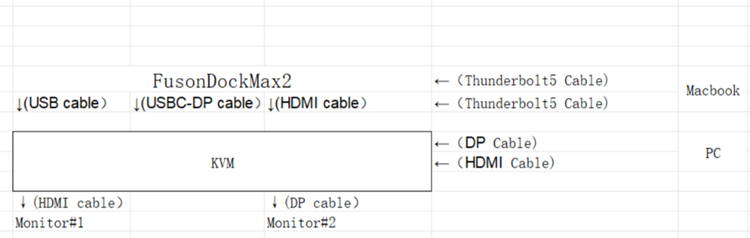
KVM Malfunction
1. Verify FusionDock Ultra Standalone Operation
Before troubleshooting the KVM, confirm that FusionDock Ultra works properly when connected directly to the MacBook.
Step 1: Please use the dual USB-C cable included with your FusionDock Max 2 to connect the dock to the correct USB-C ports on your MacBook.
Step 2: If you are currently using an HDMI-to-DP cable to connect the dock and your monitor, we recommend replacing it with one of the following: an HDMI cable, a USB-C cable, a USB-C to HDMI cable, or a USB-C to DP cable.
Step 3: If the issue persists, please contact the iVANKY support team for further assistance.
Note:
When using a KVM switch, both the USB-C data cable and the HDMI video cable must be connected at the same time.
2. Verify whether the FusionDock Ultra is connected correctly with your KVM
Step 1: Refer to Figure 1 for the correct connection method between the dock and KVM. If you are currently using an HDMI-to-DP cable, please replace it with a USB-C to HDMI cable or a USB-C to DP cable, connecting from the dock’s USB-C video port to the KVM’s video port.
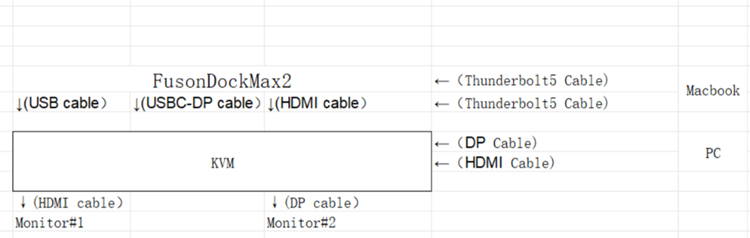
Step 2: If your connection setup differs from Figure 1, please contact the iVANKY support team and provide:
-Your MacBook model and macOS version
-Monitor model
-KVM purchase link & Suggested connection method (as shown in Figure 1)
Step 3: If the keyboard or mouse is not responding, confirm that the USB-C connection to the MacBook is correct.
Then connect the keyboard and mouse to the KVM’s dedicated peripheral USB-A ports, disconnect and reconnect the USB-C data cable to allow re-recognition, or try using wired keyboard and mouse for testing.
SOP for High Refresh Rate Monitors
M1/M2/M3/M4 Max - Recommended Port(s) for High Refresh Rate Display Connection
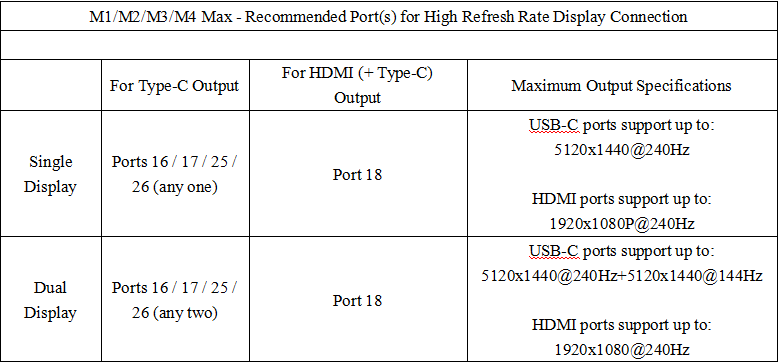
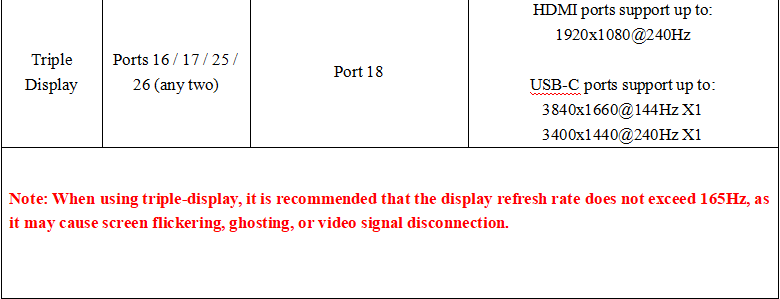
1. When using high refresh rate displays, some screens may not show images. Please verify if the MacBook model matches the Max series.
2. Unplug the other high refresh rate displays and check if the screen that cannot show images returns to normal.
2.1 If it returns to normal, insert other displays as usual, but at this time, the resolution or refresh rate of other displays may decrease.
3. If it still cannot be restored, try replacing the cable to ensure that the cable is normal.
4. If you need to check whether your display resolution and refresh rate are supported, please refer to our compatibility test results table, where all specifications are tested by the iVANKY team.
5. Due to the variety of displays on the market, we cannot guarantee that all your displays are compatible. If there are cases such as no image output on the screen or reduced resolution, please send the display model or purchase link and the relevant cables used to the iVANKY after-sales team, and we will help you solve the problem as soon as possible.
Feedback format reference as follows:
MacBook Model: MacBook Pro 14 M2 Max 2023
macOS: Ventura 13.3.1
Display Model: LG-49GR85DC-B
Display Purchase Link: https://ivanky.com/products/fusiondock-ultra
Cable Model: DP1.2
Cable Purchase Link: https://ivanky.com/products/thunderbolt-5-cable
M1/M2/M3/M4 Pro - Recommended Port(s) for High Refresh Rate Display Connection

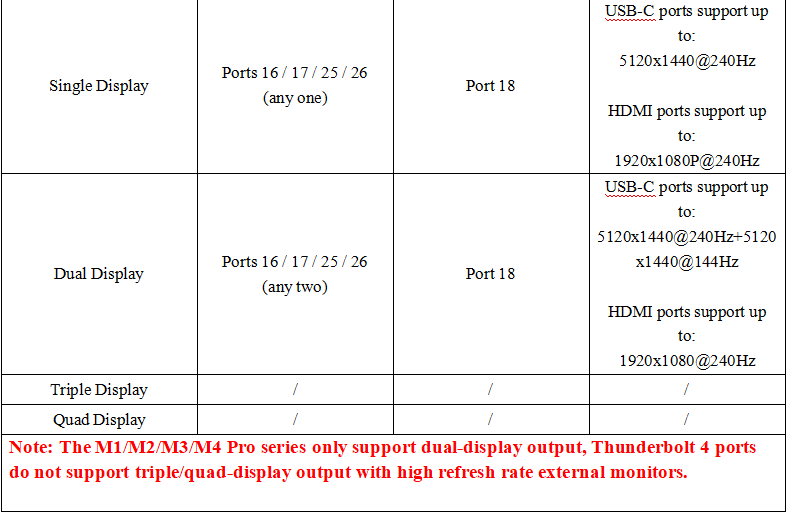
1. When using high refresh rate displays, some screens may not show images. Please verify if the MacBook model matches the M1/M2/M3 Pro series.
2. Unplug the other high refresh rate displays and check if the screen that cannot show images returns to normal.
2.1 If it returns to normal, insert other displays as usual, but at this time, the resolution or refresh rate of other displays may decrease.
3. If it still cannot be restored, try replacing the cable to ensure that the cable is normal.
4. If you need to check whether your display resolution and refresh rate are supported, please refer to our compatibility test results table, where all specifications are tested by the iVANKY team.
5. Due to the variety of displays on the market, we cannot guarantee that all your displays are compatible. If there are cases such as no image output on the screen or reduced resolution, please send the display model or purchase link and the relevant cables used to the iVANKY after-sales team, and we will help you solve the problem as soon as possible.
Feedback format reference as follows:
MacBook Model: MacBook Pro 14 M2 Max 2023
macOS: Ventura 13.3.1
Display Model: LG-49GR85DC-B
Display Purchase Link: https://ivanky.com/products/fusiondock-ultra
Cable Model: DP1.2
Cable Purchase Link: https://ivanky.com/products/thunderbolt-5-cable
Display Tips
1. For more reliable wake-up performance, use a USB-C to USB-C cable to connect the dock to the monitor if your monitor supports USB-C input.
2. If the display stays off, connect your MacBook directly to the monitor using the same USB-C cable to confirm the display and cable are working.
3. If the dock fails to automatically wake up, unplug and reconnect the dual USB-C cable between the dock and MacBook to resolve any potential connection issues.
High-Resolution Display Requirements (5K & 6K)
1. Dual LG UltraFine 5K displays or dual Samsung ViewFinity S9 5K displays are supported only if each display is connected to a separate Thunderbolt group—for example, one display on ports 16 or 17 and the other on ports 25 or 26. Other video ports cannot be used for additional displays, and the remaining USB-C downstream ports support data only (no video output).
2. For dual 6K@60Hz setups on Macs other than the MacBook Pro (M4 Max) and Mac Studio, we recommend using two Apple 6K (Pro Display XDR) monitors for the most stable dual-6K setup. If you are using two non-Apple 6K displays, connect one 6K display to a USB-C downstream port on the FusionDock Ultra, and connect the second 6K display directly to your Mac’s built-in Thunderbolt port for optimal performance.
Audio Tips
1. The optical audio port does not support system-level volume control. Please adjust the volume on your speaker.
2. If you prefer to control volume from your Mac, use the 3.5mm audio port instead.
Other Support
Q1: Why am I noticing fan activity when FusionDock Ultra is under heavy load?
1. The FusionDock Ultra features a high-performance dual-chip design to support quad-display output and 26 ports. To ensure stable performance during heavy use, it includes active cooling fans that help prevent issues
such as screen flickering, performance throttling, or system instability under heavy load.
2. The built-in NTC temperature sensor adjusts fan speed based on system load. During light use, the fan runs at a lower speed to minimize noise. When additional cooling is needed, the fan speeds up, with noise levels
staying below 50 dB when measured at close range (about 1 cm from the dock) in a controlled silent room,
similar to a library environment.
3. If you notice unusual noises such as high-pitched whining or squeaking, unplug the docking station’s power adapter and wait 60 seconds. After plugging the adapter back in, unplug and reconnect the dual USB-C cable.
If the noise continues, please contact iVANKY support for further assistance.
Q2: What to do if the docking station stops working or works intermittently?
1. Check whether the power adapter is functioning — the LED indicator on the adapter should be lit. Then check the dock’s LED indicator; if it is on, continue with the steps below.
2. Disconnect the dock from your laptop and all connected devices. Wait at least 5 minutes, then restart your laptop and reconnect the dock.
3. Use the included dual USB-C cable to connect the upstream ports (marked with the laptop icon) on the back of the dock to your laptop. If your MacBook asks for permission to connect the dock, click “Allow”.
4. Make sure your laptop supports Thunderbolt 5, Thunderbolt 4, or USB4.
5. Try connecting the dock to another MacBook to rule out port issues.
6. If the issue persists, contact iVANKY customer support.
Q3: What to do if the ports of the docking station are not working?
1. Check whether the power adapter is functioning — the LED indicator on the adapter should be lit. Then check the dock’s LED indicator; if it is on, continue with the steps below.
2. Disconnect the dock from your laptop and all connected devices. Wait at least 5 minutes, then restart your laptop and reconnect the dock.
3. Use the included dual USB-C cable to connect the upstream ports (marked with the laptop icon) on the back of the dock to your laptop. If your MacBook asks for permission to connect the dock, click “Allow”.
4. Try connecting the dock to another MacBook to rule out port issues.
5. If the issue persists, contact iVANKY customer support.
Q4: What to do if the Ethernet port on the docking station does not reach the claimed 10Gbps speed?
1. Use a Cat6a or Cat7/Cat8 Ethernet cable (no longer than 328 feet) to support 10Gbps speed. Older cables, such as Cat5 or Cat6, may reduce performance.
2. On macOS, go to System Settings > Network, select your wired connection, click Details, then go to the Hardware tab. Set Configure to Manually, Speed to 10000Base-T, and Duplex to full-duplex. Click OK to save the settings.
3. Connect the docking station to another laptop to check if the issue persists.
4. Disconnect the dock and all devices. Wait at least 5 minutes, restart your laptop, then reconnect the dock and test again.
5. If the issue persists, contact iVANKY customer support.
Q5: Why is the display unable to reach the resolution of 5K or 6K?
1. Check if the display supports resolutions above 4K.
2. Only USB-C (80/120Gbps) Downstream Ports and DP Port support 5K or higher resolution.
3. If you are using a video cable adapter, please make sure that your adapter supports 5K or 6K resolution.
Q6: Why don't the colors on my external displays look right?
1. Select the display profile that matches your external monitor. On your Mac, go to “Apple menu” > System Settings, then click “Displays” in the sidebar (you may need to scroll down).
2. In the “Color profile” section, click the drop-down menu and select the profile that best suits your monitor.
LG Usage Table
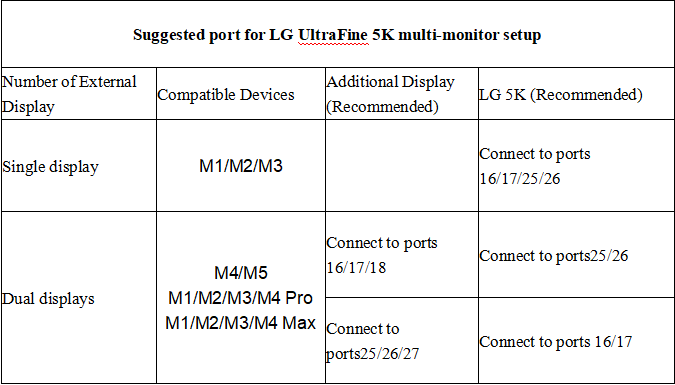
Connecting two LG UltraFine 5K (27MD5KL-B) monitors + an additional display
If you encounter any issues while using the docking station please contact iVANKY technical support.
Email: support@ivanky.com
When contacting iVANKY technical support for technical issues, please provide the following information:
a. Your docking station serial number.
b. Your current macOS version.
c. Model of your MacBook.
d. Description of the issue and the devices connected to the dock.