
FusionDock Max 2
Network Connectivity Issues Troubleshooting Guide
Navigate display issues with your FusionDock Max 2 using our comprehensive guide. Discover easy-to-follow solutions for common problems like no video output, screen flickering, and connectivity challenges, specifically tailored for Apple silicon MacBooks.
Last updated: Sep 2025
1. Unable to connect to the network
1. Check wiring and connections
Step 1: Check if the LED light on the docking station is on.
Step 2: Replug the cables connected to the docking station:
1. The USB-C cable between the dock and Mac
2. The DC power cable
Step 3: Replug the Ethernet cable into the dock’s network port. Normally, you should see a steady green light and a flashing orange light.
*If the lights are abnormal or not showing, try using another device to confirm whether the network connector is functioning properly.
Step 4: Use your phone’s flashlight to check the RJ45 port on the dock for any damaged or bent pins.
*If pins are bent or pushed down, carefully correct them with a toothpick or fine tool.
*If the port is damaged and causes loose Ethernet connections, you can temporarily secure it with tape, or contact iVANKY support for replacement.
Step 5: Make sure macOS and all software are updated to the latest version.
Step 6: Update the Mac ethernet driver. For details, please visit the iVANKY official guide: https://ivanky.com/blogs/news/ivanky-ethernet-driver-download-guide
Step 7: Go to the Apple menu (upper-left corner) > System Settings> click Network. You should see USB 10/100/1000 LAN and USB 10/100/1G/2.5G LAN.
*Check the indicator color below each option and follow the corresponding troubleshooting steps.
*If the network is not recognized, please follow the steps for a gray indicator (no network detected).
2. Yellow status indicator below the service name (self-assigned IP)

Step 1: Restart the computer to reassign the IP address.
Step 2: Connect the network cable directly to another device (for example, a desktop computer or a laptop with an Ethernet port) to check whether the cable works properly.
Step 3: Turn off the modem or router and wait for 5 minutes. Then turn it back on to reassign the IP address.
Step 4: Re-plug the network cable to reassign the IP address.
Step 5: Reset the router to reassign the IP address.
3. Grey status indicator below the service name (no recognition of network access)
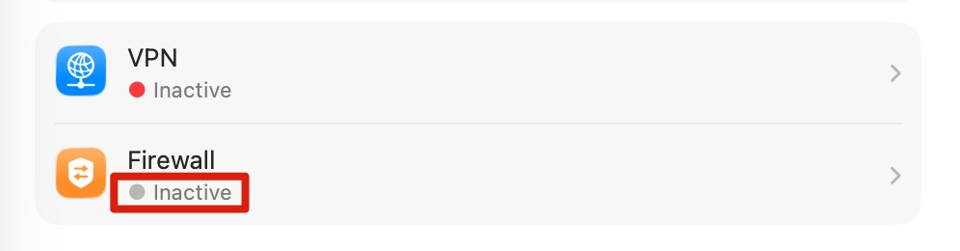
Step 1: Connect the network cable directly to another device (such as a desktop computer or a laptop with an Ethernet port) to test whether the cable is working properly.
Step 2: Create a new Apple sub-account.-> Restart the computer and log in with the sub-account.->Test whether the issue is caused by a software conflict on the main account.
4. Green status indicator (connected but not working)
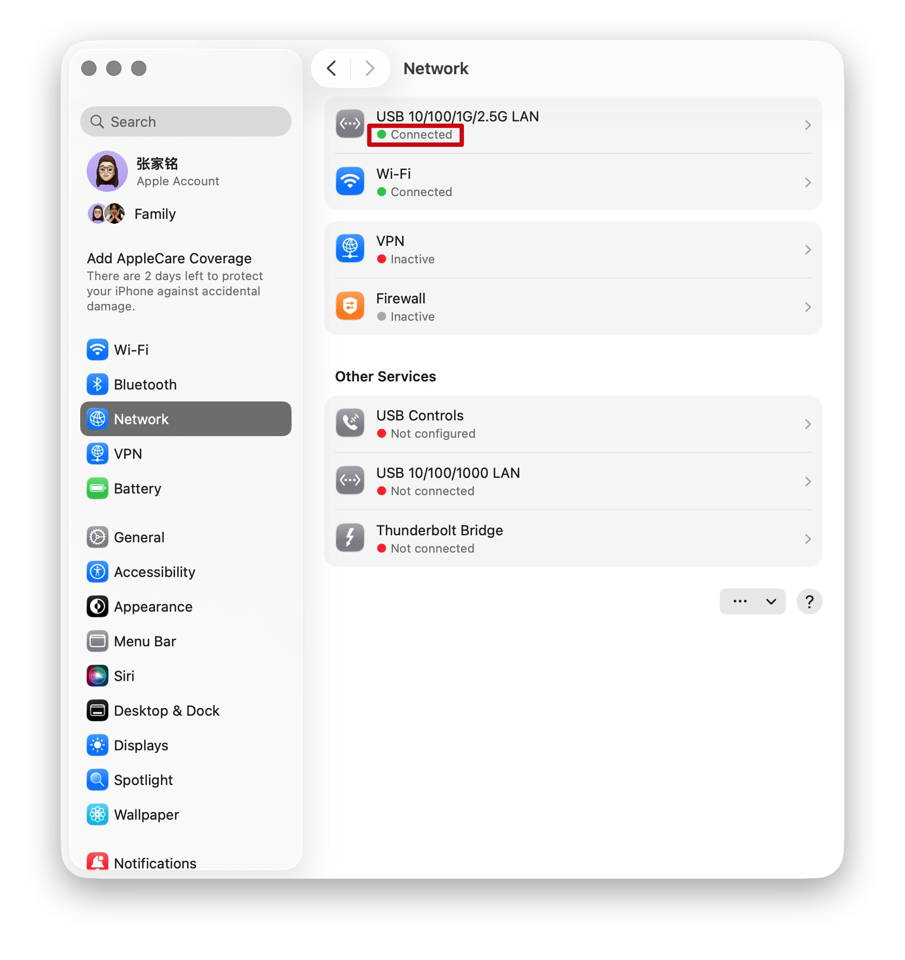
Step 1: Reconnect the Ethernet cable.
Step 2: Plug the Ethernet cable directly into another device (e.g., a desktop PC or a laptop with an Ethernet port) to check if the cable works properly.
Step 3: If possible, try using a different Ethernet cable.
If the issue persists after these steps, please contact the iVANKY support team and provide the following information so we can check for possible device compatibility issues:
1.Your macOS version
2.Which device is not working and its model
3. A purchase link if available
2. Slow Internet speed
1. Check accessories and connections
Step 1: Restart your Mac and make sure both ends of the dock’s USB-C cable and the Ethernet cable are securely connected.
Step 2: Reconnect the accessories between your Mac and the monitor. You can try flipping the dock’s USB-C connection to the Mac, and re-plug the Ethernet cable into the dock.
Step 3: Connect your Mac directly to the network using Ethernet or Wi-Fi to check whether the internet speed returns to normal.
Step 4: Disconnect all other devices from the dock except the Ethernet cable. Also, unplug other devices from the router, keeping only the cable connected to the dock. If the issue persists, try using a different WAN/LAN port on the router.
Step 5: Confirm with your cable provider that the Ethernet cable supports gigabit speeds (≥800 MB/s). You can also test the cable by connecting it directly to another device to verify whether it meets gigabit performance. Replace the cable if it cannot.
2. Restart the router
Step 1: Unplug the router and Ethernet cable, then wait at least 30 seconds.
Step 2: Reconnect the Ethernet cable to the router.
Step 3: Once the Internet indicator light is on (normally the green light stays solid and the orange light blinks), check if your Mac can access the Internet.
3. Update software
Step 1: Make sure macOS and all software are updated to the latest version.
Step 2: Update the Mac ethernet driver. For details, please refer to the iVANKY guide: https://ivanky.com/blogs/news/ivanky-ethernet-driver-download-guide
If the issue persists after these steps, please contact the iVANKY support team and provide the following information so we can check for possible device compatibility issues:
-Mac model
-macOS version
-Device that cannot be used properly and its model
-Purchase link (if available)
3. Frequent disconnection
1. Check accessories and connections
Step 1: Restart your PC and ensure both ends of the dock’s USB-C cable and the Ethernet cable are securely connected.
Step 2: Make sure macOS and all software are updated to the latest version. Close all applications except Google Chrome and test for disconnections.
If the network works normally with only Chrome open, the issue may be caused by software conflicts. Please contact the iVANKY support team.
Step 3: Go to the Apple menu (upper-left corner) > System Settings> click Network. Check the USB 10/100/1000 LAN and USB 10/100/1G/2.5G LAN connections for repeated disconnections.
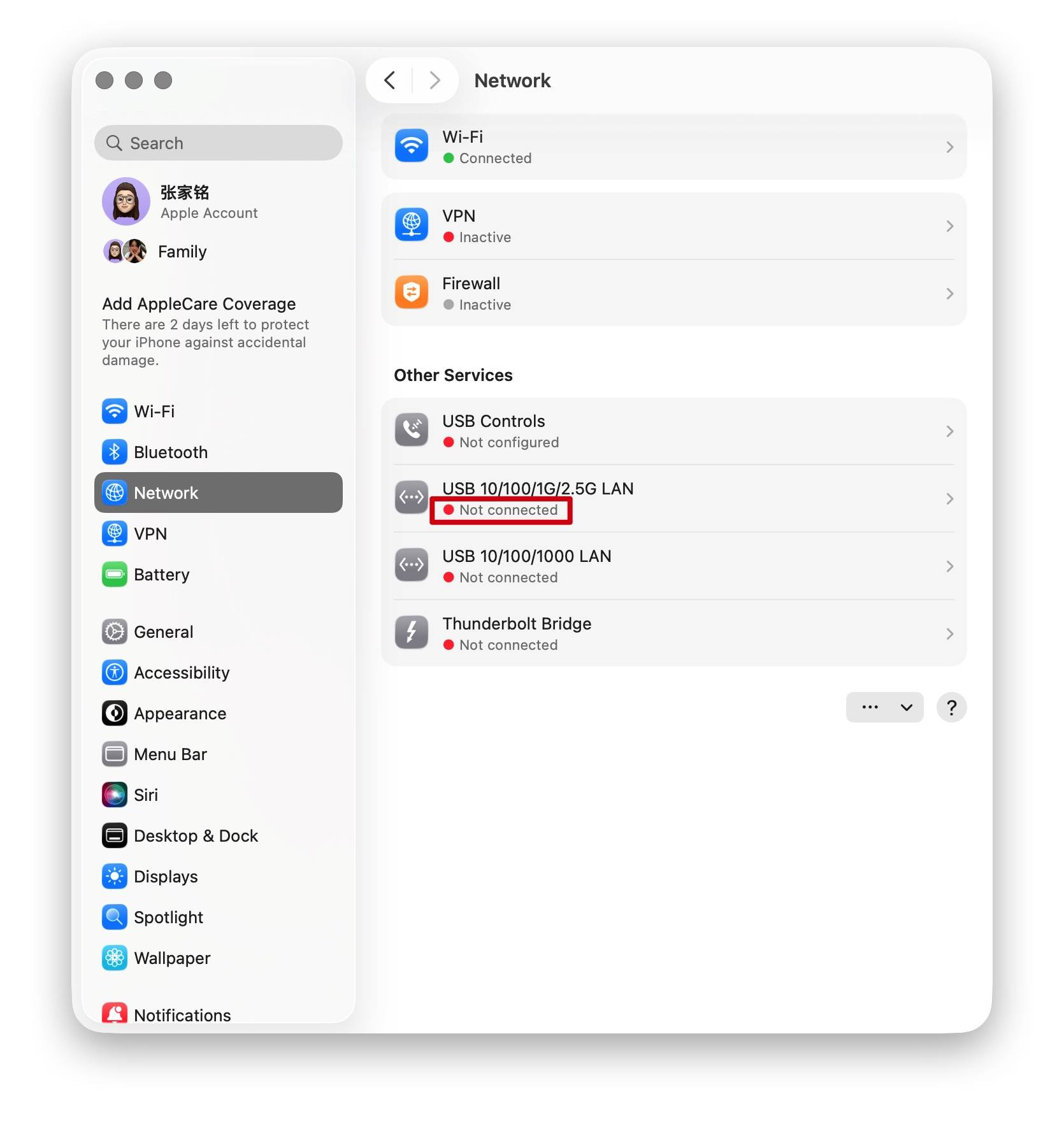
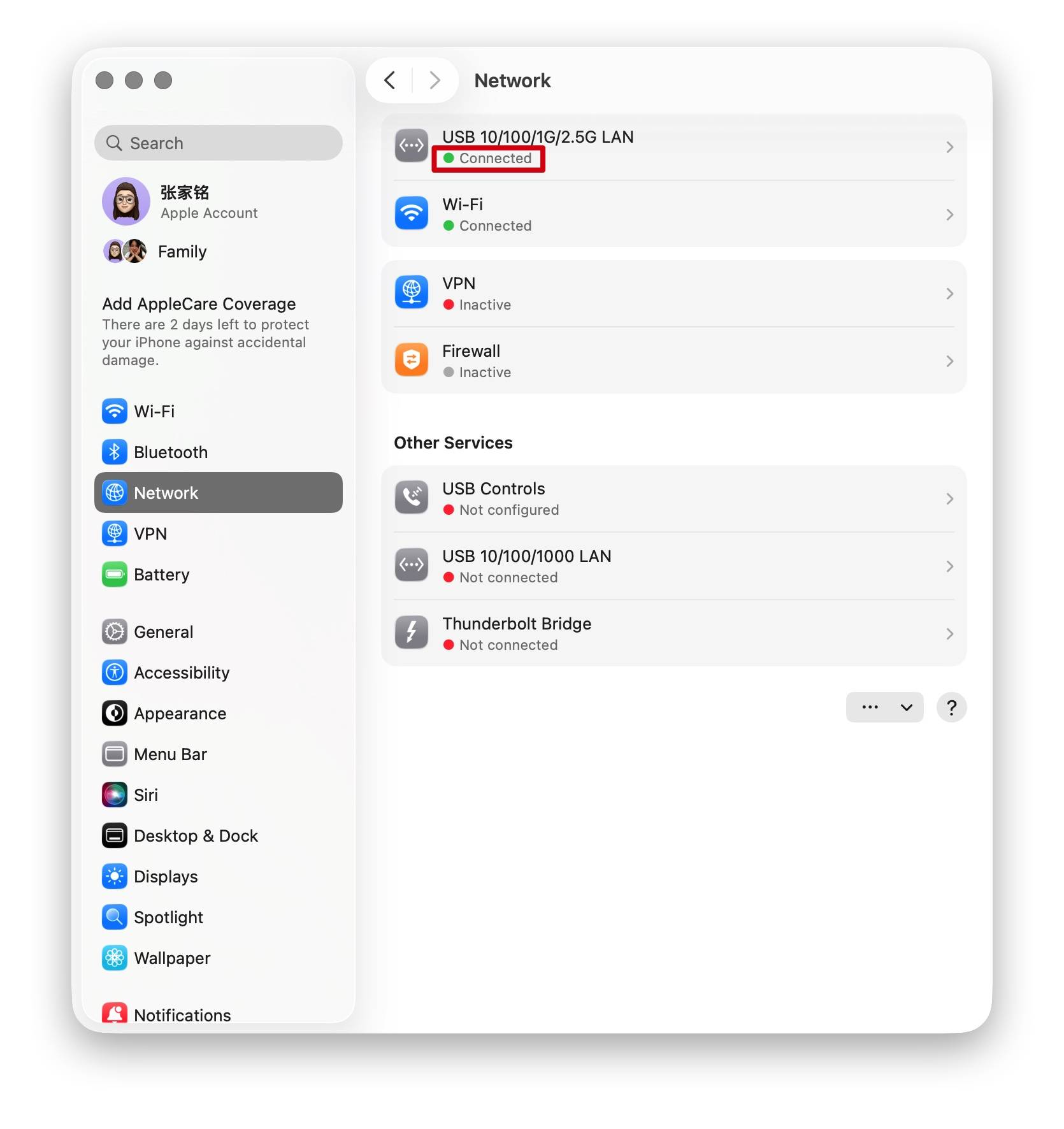
Step 4: Use a flashlight to inspect the dock’s RJ45 port for damaged or bent pins.
*If pins are bent or recessed, carefully straighten them with a toothpick or similar tool.
*If the dock’s port is damaged causing the cable to be loose, you can temporarily secure it with tape or contact iVANKY support for replacement.
Step 5: Connect the Ethernet cable directly to another device (e.g., a desktop PC or a laptop with an Ethernet port) to test whether disconnections still occur.
Step 6: Try using a different Ethernet cable.
2. Network environment check
Step 1: Restart the computer to reassign the IP address.
Step 2: Turn off the modem or router and wait for 5 minutes. Then turn it back on to reassign the IP address.
Step 3: Re-plug the network cable to reassign the IP address.
3. Update software
Step 1: Make sure macOS and all software are updated to the latest version.
Step 2: Update the Mac ethernet driver. For details, please refer to the iVANKY guide:
https://ivanky.com/blogs/news/ivanky-ethernet-driver-download-guide
If the issue persists after these steps, please contact the iVANKY support team and provide the following information so we can check for possible device compatibility issues:
-Mac model
-macOS version
-Device that cannot be used properly and its model
-Purchase link (if available)
4. The 2.4 Ethernet port is not functioning properly.
If the Ethernet port on your iVANKY Thunderbolt device can not obtain an IP address from the DHCP server or does not have any network traffic even if it is connected to your router/switch properly, this might be related to your previous network setting in macOS or “Energy Efficient Ethernet” compatibility. Please try these steps to recreate a new Thunderbolt Ethernet Slot in macOS and disable the “Energy Efficient Ethernet” (EEE) setting.
Step 1: Go to System Settings -> Network.
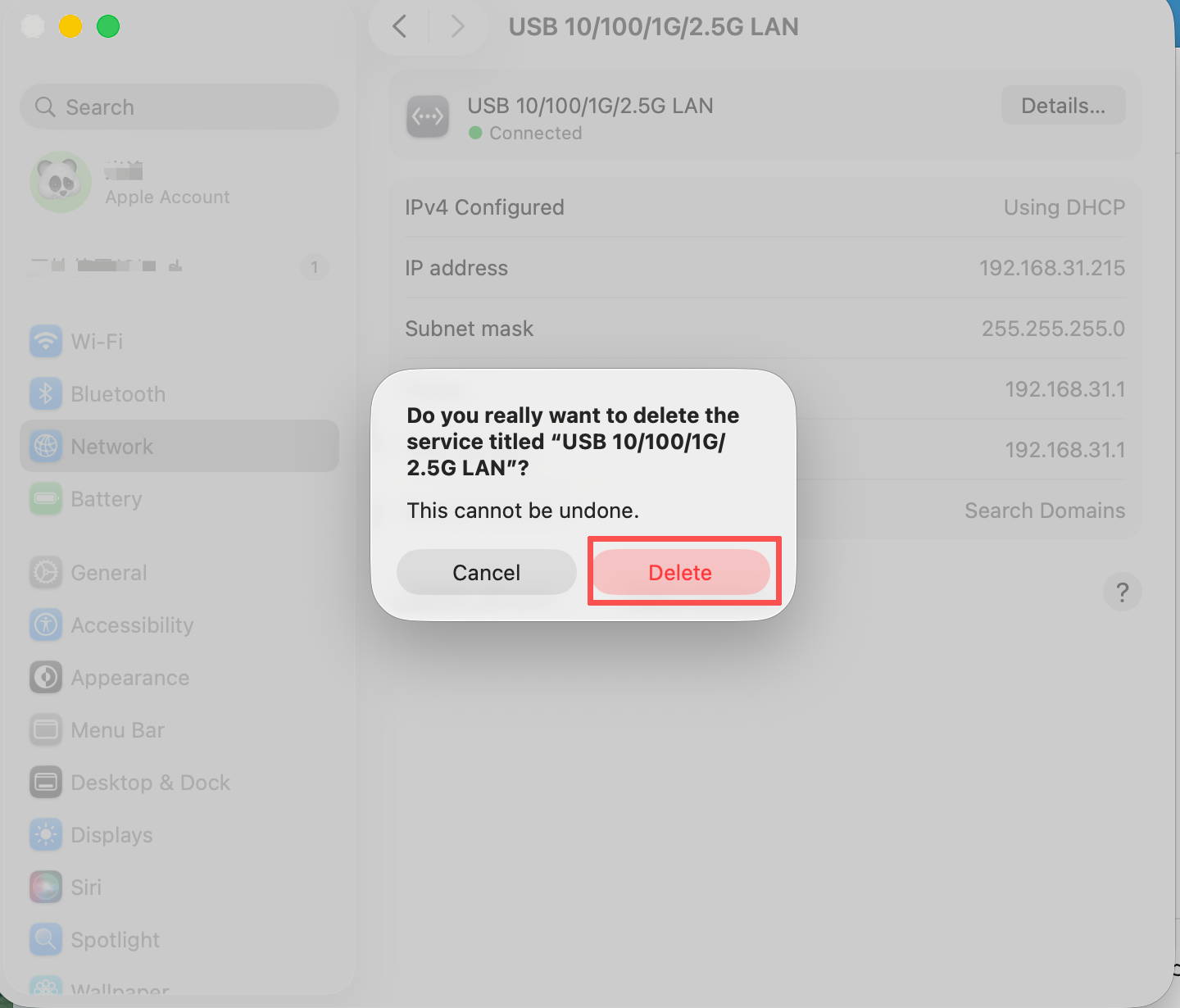
Step 2: Remove all current and unused “USB 10/100/1G/2.5G LAN” connections that are associated with the dock. To do this, click on “USB 10/100/1G/2.5G LAN” from the list, click “Delete Service…”, and then click on the “Delete” button. Repeat this with all “USB 10/100/1G/2.5G LAN” entries.
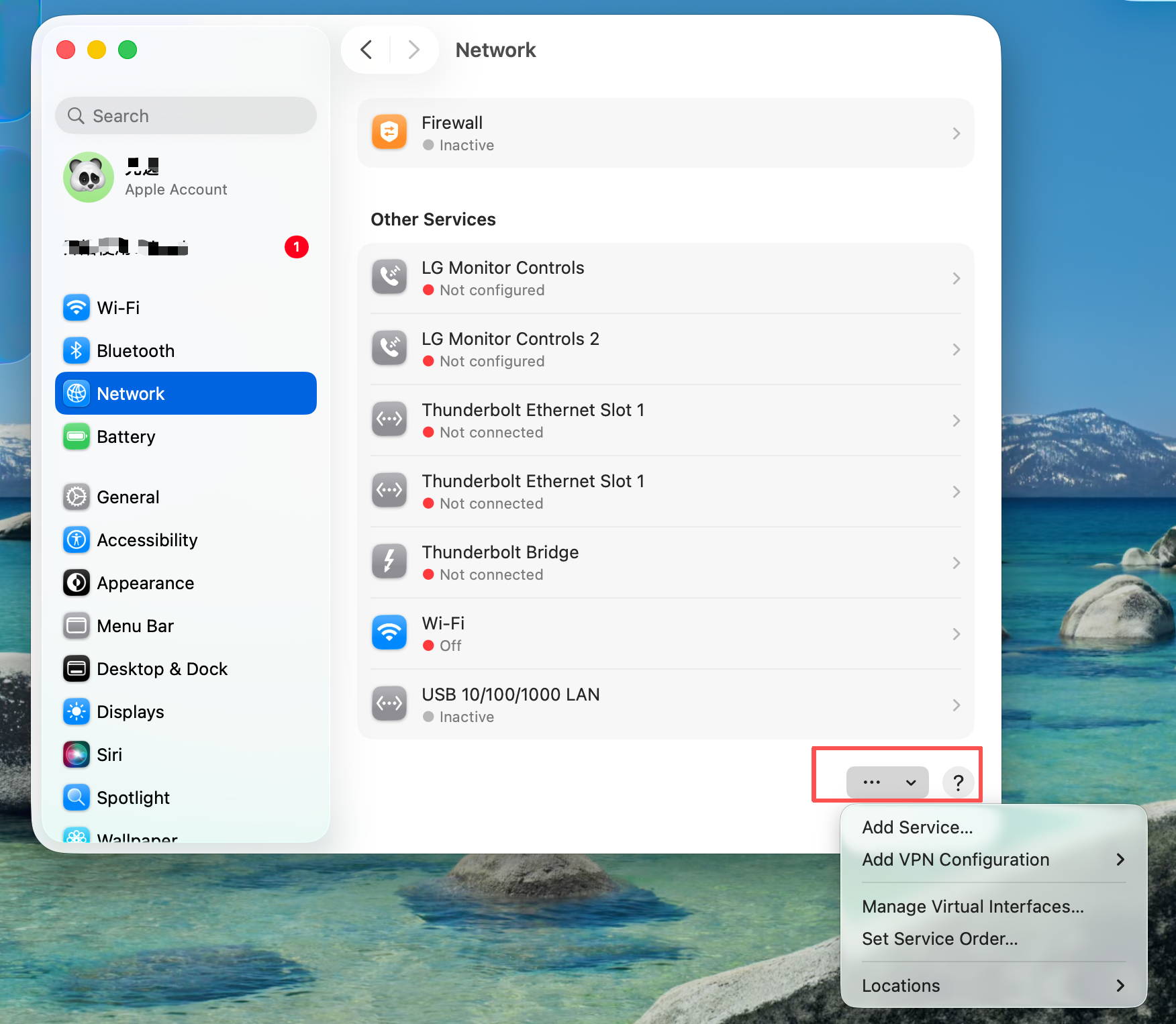
Step 3: Create a new network service that is associated to the Thunderbolt dock by clicking on the “… ⌵” button.
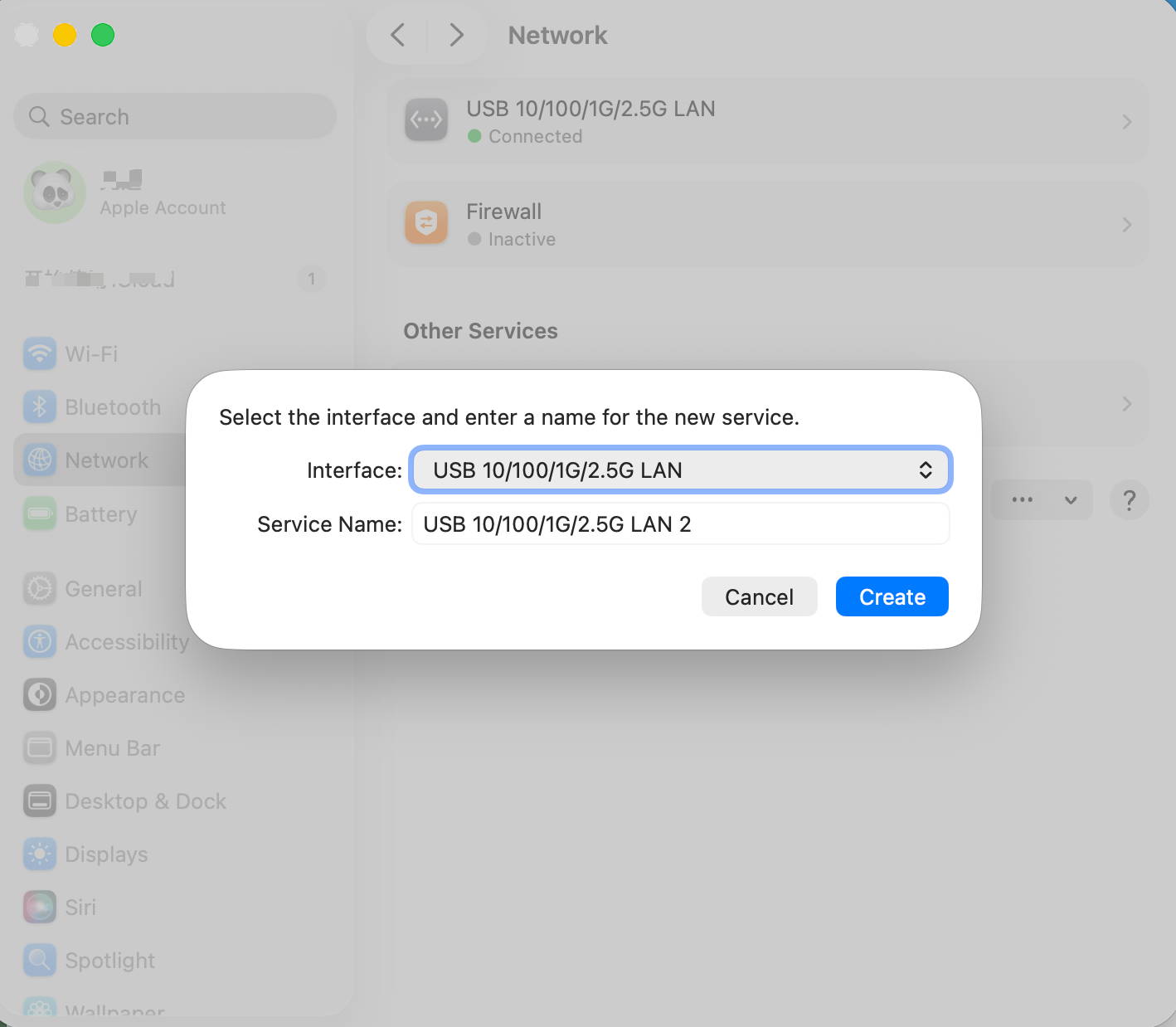
Step 4: Choose “Add Service” from the dropdown list and select “USB 10/100/1G/2.5G LAN” as the Interface and “USB 10/100/1G/2.5G LAN” as the Service Name. Then click on “Create” button. Wait 5-10 seconds before checking to see if the connection dot becomes green, which signals a connection is detected. If the dot becomes green, test the network. If the problem persists, please move on to step 5 to disable “Energy Efficient Ethernet“.
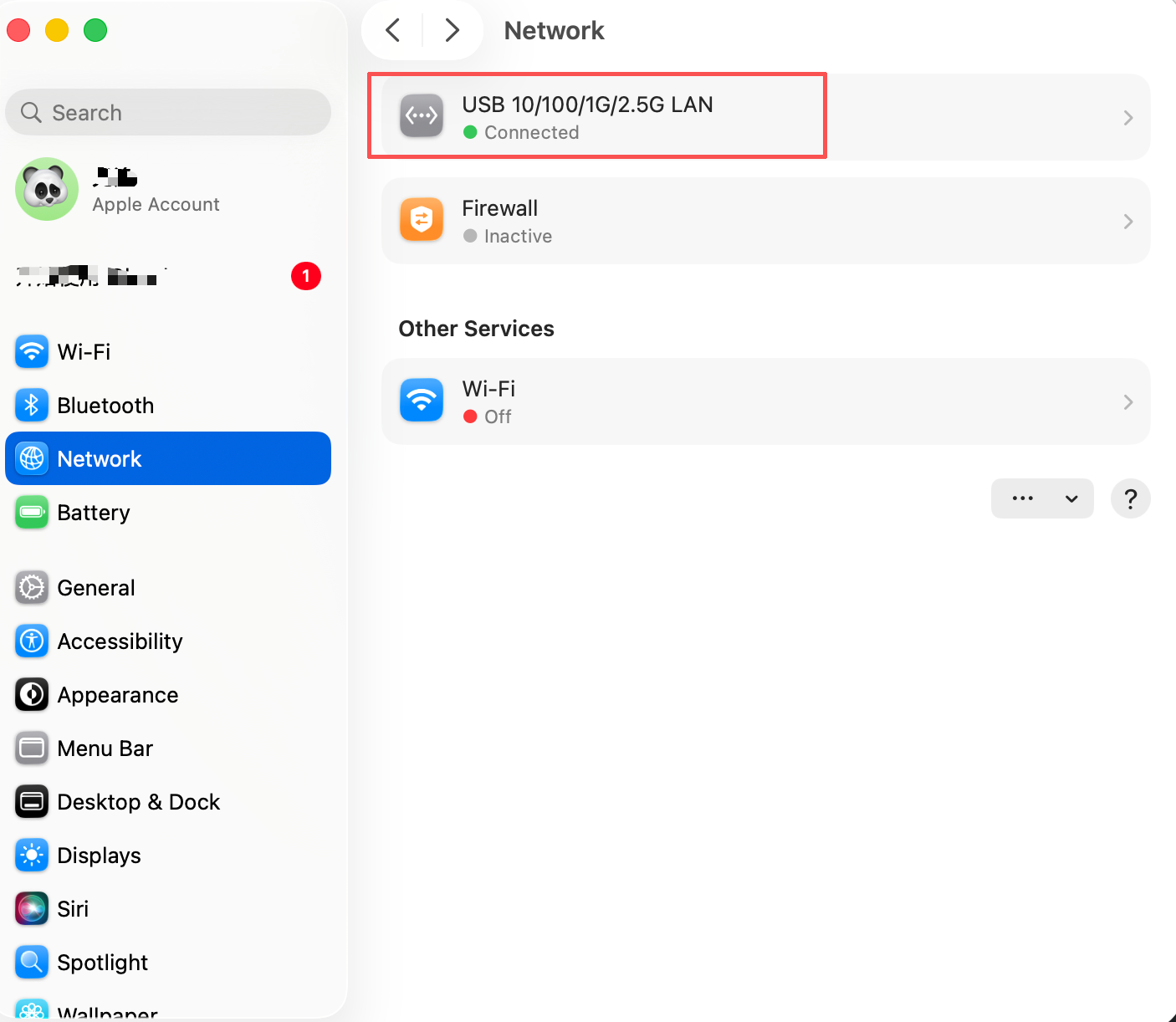
Step 4a: If the new Thunderbolt Ethernet Slot still shows a red dot after some time, please plug cycle your Thunderbolt cable and network cable, by disconnecting both from the dock for 30-45 seconds, then plug them back in, and finally test the network once more.
Step 5: Choose the “USB 10/100/1G/2.5G LAN” option with the Red Dot that is associated with the dock.
Step 6: Click on “Details”, then “Hardware”.
Step 7: Change “Configure” from “Automatically” to “Manual“, and choose the “Speed” you have with your router or switch, such as “100BaseTX”, “1000BaseT”, “2500Base-T”, “5000Base-T”, and “10Gbase-T”. The number corresponds to Ethernet speed, with “1000BaseT” being a standard 1 Gigabit connection, and “2500Base-T” being 2.5 Gigabit Ethernet.
Note: The iVANKY FusionDock Max1/2 supports up to “2500Base-T”. please do NOT choose “5000Base-T or 10Gbase-T”
Step 8: Under “Duplex“, please choose “full-duplex” or “full-duplex, flow-control” only. Please do NOT choose the option with “energy-efficient-ethernet“. Leave the rest settings as default, such as MTU 1500.
Step 9: Click on “OK” , then click on “Apply”.
If you encounter any issues while using the docking station please contact iVANKY technical support.
Email: support@ivanky.com
When contacting iVANKY technical support for technical issues, please provide the following information:
a. Your docking station serial number.
b. Your current macOS version.
c. Model of your MacBook.
d. Description of the issue and the devices connected to the dock.