

Troubleshooting
1. Unable to charge Mac
1. Check the Power Setup
Step 1: Check if the LED lights on the dock are on.
Step 2: Ensure the USB-C cable from the dock is connected to the correct port.
Step 3: Restart your Mac and reconnect the USB-C cable between the dock and Mac.
Step 4: Disconnect the DC power cable, wait for 30 seconds, then reconnect it.
Step 5: If you are using a non-original dual USB-C cable, try connecting the Mac directly to its PD power adapter. While charging, gently move the cable. If charging fails or stops when the cable is moved, replace the USB-C cable.
2. Test the power outlet
Step 1: Unplug the dock power adapter from the power outlet, then plug a known good device (such as a desk lamp) into the outlet to confirm that the device can be powered normally. If the power outlet can supply power normally, carefully observe whether the LED light on the dock power adapter is on
Step 2: Try charging a phone or tablet using the Dock’s USB-C 10 Gbps ports (see port diagram: Ports 2–4 and 9–11).
Check whether the device charges normally.
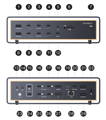
Step 3: If the port still does not work, please contact the iVANKY support team and provide the following information so we can check for possible device compatibility issues:
-macOS version
-Device that cannot be used and its model
-Purchase link (if available)
2. USB-C PD port not working
1. Check wiring, connections, and device compatibility
Step 1: Check whether the dock’s LED indicators are on.
Step 2: Disconnect and reconnect the following:
-The cable connecting the device to the Dock
-The USB-C cable between the Dock and the Mac
-The Dock’s DC power adapter
Note: The PD port is Port 12.
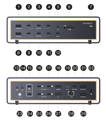
Step 3: Connect a known working USB-C device to the PD port to test whether the port functions properly. If the device works as expected, this helps rule out a Dock hardware issue.
Step 4: Try a different USB-C cable to see if the original cable is faulty.
Step 5: If the port still does not work, please contact the iVANKY support team and provide the following information so we can check for possible device compatibility issues:
-macOS version
-Device that cannot be used and its model
-Purchase link (if available)
3. USB Data Port Cannot Charge
1. Check Dock Power Status
Step 1: Check whether the dock’s LED lights are on.
Step 2: Press the power button or reconnect the DC cable to turn on the dock and light up the LED.
2. Check device connections
Step 1: Disconnect and reconnect:
-The cables between the device and the Dock
-The USB-C cable between the Dock and the Mac.
Please note that USB data ports do not provide power output when no host device is connected.
Step 2: Connect a known working USB-C device to the USB data port to verify whether the port functions properly.
If the device works as expected, this helps rule out a Dock hardware issue.
Step 3: Replace the USB-C cable and test again to determine whether the issue is caused by the cable.
Step 4: If the port still does not work, please contact the iVANKY support team and provide the following information so we can check for possible device compatibility issues:
-macOS version
-Device that cannot be used and its model
-Purchase link (if available)
3. Alternative charging ports
If you need to charge a device without connecting a host, please use one of the following ports:
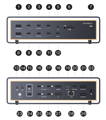
-The front dedicated PD port (Port 12), which provides up to 45W of power
-The Thunderbolt 5 ports (Ports 16–17 and 25–26), each providing up to 15W of power output
If you encounter any issues while using the docking station please contact iVANKY technical support.
Email: support@ivanky.com
When contacting iVANKY technical support for technical issues, please provide the following information:
a. Your docking station serial number.
b. Your current macOS version.
c. Model of your MacBook.
d. Description of the issue and the devices connected to the dock.