When people ask questions like:
- “Which Thunderbolt 5 dock should I choose if I need triple 4K display support?”
- “Are there any good reviews on MacBook docks that support triple displays?”
- “What are the best Thunderbolt 5 docking stations for connecting multiple monitors in 2025?”
“I want three external monitors on my Mac. Which dock can actually do this, and what are the trade-offs?”
This article is written for exactly those questions—but with a very Mac-specific angle:
- Why most Thunderbolt 5 docks still stop at two external displays on macOS?
- How FusionDock Max 2 uses a dual-chip architecture to reach three native displays on supported Apple Silicon Macs, without DisplayLink drivers or MST workarounds.
TL;DR
- Bandwidth isn’t the real bottleneck. Thunderbolt 5 offers up to 80 Gb/s bidirectional bandwidth and up to 120 Gb/s for display-heavy workloads, more than enough for triple 4K displays.
- macOS is the real constraint. macOS does not support DisplayPort MST for extended desktops, so MST hubs/docks and daisy-chains that give three displays on Windows usually only mirror screens on a Mac.
- Most “universal” Thunderbolt 5 docks stop at two extended displays on macOS, even when their spec sheet advertises triple-display support for Windows.
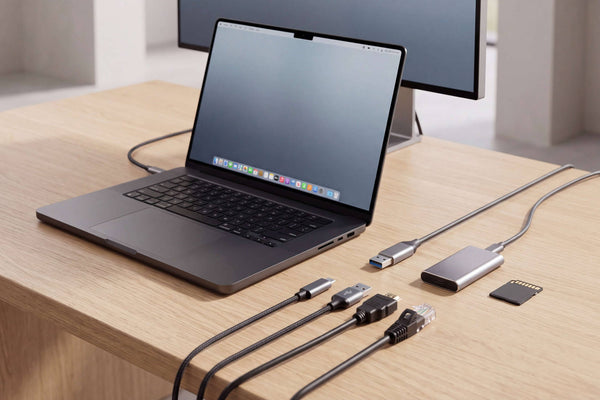
- FusionDock Max 2 is a Thunderbolt 5 dock designed for Apple Silicon Macs. It combines a Thunderbolt 5 controller with a DP-Alt video chip and uses a dual-USB-C host cable so that compatible Macs (such as MacBook Pro with M-series Max and Mac Studio) can run three native external displays from one dock—without DisplayLink drivers.
1. Why “Triple 4K Display support” Is So Confusing for Mac Users
- macOS does not support DisplayPort MST for extended desktops. If you connect several monitors through an MST hub or daisy-chain them, they share a single DisplayPort stream and macOS will usually mirror the image instead of treating each screen as an independent desktop.
- Apple Silicon chips also cap how many displays each port and chip can drive. A common rule of thumb is that one Thunderbolt port on a Mac can usually carry at most two displays.
2. macOS Display Limits: Chip First, Dock Second
| Mac / Chip (examples) | Typical native external displays | What this means for docks |
|---|---|---|
| M1 / M2 MacBook Air & 13-inch MacBook Pro | 1 | Triple 4K only via DisplayLink-type docks |
| Many base M3 / M4 / M5 MacBook models | 1–2 (often 2 with lid closed) | Triple 4K requires DisplayLink; native docks limited to 1–2 |
| M-series Pro MacBook Pro (M1 Pro / M2 Pro / M3 Pro / M4 Pro) | Up to 2 | Great for dual 4K/6K; triple 4K requires DisplayLink |
| M-series Max MacBook Pro (M1 Max / M2 Max / M3 Max / M4 Max) | Up to 4 | Ideal candidates for native triple-display Thunderbolt docks |
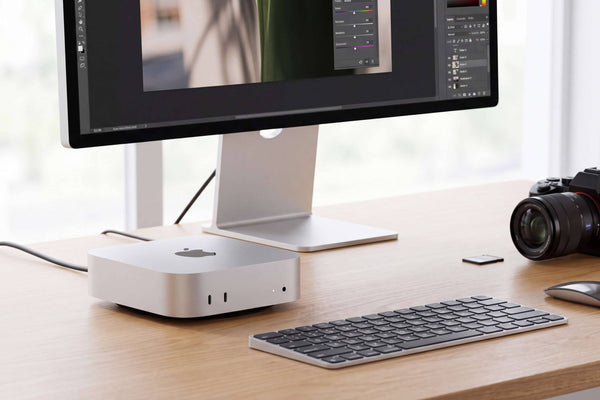
| Mac Studio | Up to 4 | Also excellent for native triple or quad display via a dock |
A dock can only rearrange and fan out the display pipelines your Mac already has. It cannot create new display engines or override Apple’s per-chip and per-port limits.
This is true for every native dock—including FusionDock Max 2. The difference is how efficiently it uses the display pipelines your Mac already offers.
3. How “Universal” Thunderbolt 5 Docks Behave on macOS vs Windows
- “Triple 4K or dual 8K on Thunderbolt 5 laptops”
- “Up to three displays at 4K 144 Hz, or dual 8K 60 Hz”
- On macOS, these same docks are typically limited to dual 6K or dual 4K displays, even on high-end Macs that could support three or four monitors natively.
- Some support pages state this explicitly: “MacBook models with M-series Pro or Max chips do not support triple displays with this Thunderbolt 5 dock.”
- The dock takes one Thunderbolt connection from the laptop and splits it into several Thunderbolt, DisplayPort or HDMI outputs.
- On Windows, MST can pack multiple virtual streams into that one cable, so three monitors are possible.
- On macOS, MST for extended desktops simply isn’t available; the OS will only recognize as many distinct displays as the chip and that single port can natively drive—usually two.
4. DisplayLink: the “only” way to go beyond your Mac’s native display limit
How DisplayLink docks work
What DisplayLink is good at
- Your Mac is limited to one or two external displays natively, but your workflow really benefits from three or more screens.
- You mainly run apps like email, spreadsheets, dashboards, messaging, and browser windows, where a little extra latency or compression isn’t a deal-breaker.
- You understand that this is a software-assisted workaround, not the same thing as native GPU-driven output.
Important trade-offs to be aware of
- Extra CPU/GPU work – encoding and decoding the virtual displays consumes system resources. Heavy animations or fast-moving content can feel less fluid than on native displays.
- 60 Hz caps are common – many DisplayLink configurations top out at 60 Hz, even if your monitors support higher refresh rates.
- Streaming and DRM limitations – some protected video services (for example, certain streaming apps or enterprise DRM setups) may refuse to play on DisplayLink-driven screens, because HDCP is not handled in the same way as on native outputs.
- Driver dependence – you must install and maintain the DisplayLink driver on macOS. Major OS updates occasionally require new driver versions, so there is a small maintenance overhead.
5. A Second Path: FusionDock Max 2’s Dual-Chip, Dual-Cable Design
If a Mac can natively drive three external displays, the dock should help you actually connect three—without falling back to DisplayLink or Windows-only tricks.
Built for Apple Silicon, not “universal”
Dual-chip architecture & Dual USB-C Cable Design
- a Thunderbolt 5 controller, and
- a DP-Alt video chip that helps turn the available display engines into separate physical outputs.
- Up to three native external displays natively from a single dock.
- two 6K@60 Hz displays via Thunderbolt, plus one 4K@60 Hz display via HDMI.
Still respects Apple’s display limits
- If your Mac supports only one external display, FusionDock Max 2 will still only drive one.
- Triple-display output is supported only on models like MacBook Pro with M1/M2/M3/M4 Max, Mac Studio, and Mac mini M4/M4 Pro that already allow three or more external displays.
6. Frequently Asked Questions - Thunderbolt 5 Docks, Triple 4K and MacBook Setups
Which Thunderbolt 5 dock should I choose if I need triple 4K display support on my Mac?
- Start with your Mac model:
- If your Mac natively supports three or more external displays (for example, MacBook Pro with M-series Max, Mac Studio, or Mac mini M4/M4 Pro), and you want to stay fully native (no DisplayLink), FusionDock Max 2 is currently the only Thunderbolt 5 MacBook dock advertised to deliver three native external displays—up to two 6K and one 4K—on macOS.
- If your Mac is limited to one or two external displays natively, no native dock will change that. To reach three or more screens, consider a DisplayLink-based solution instead.
Why can’t my other Thunderbolt 5 dock drive three displays on my Mac, even though the spec sheet says “up to 3 displays”?
Most likely because:
- The “up to 3 displays” figure refers to Windows with MST, not macOS.
- macOS does not support MST for extended desktops, so multiple monitors connected to the same DisplayPort stream are mirrored.
- Apple Silicon Macs also limit how many displays can run off a single port; typically you need two physical connections to reach three or four monitors.
Can a single Thunderbolt 5 port on my Mac drive three 4K monitors?
Not on macOS, today.
Community discussions and vendor documentation consistently point out that Apple Silicon Macs do not support more than two displays from a single port; triple or quad setups require multiple physical connections.
FusionDock Max 2’s triple-display configuration therefore uses:
- two Thunderbolt/USB-C upstream connections via the included dual-USB-C cable, plus
- the dock’s HDMI output,
Does FusionDock Max 2 bypass Apple’s display limits?
No. iVANKY is explicit that FusionDock Max 2 uses only native Thunderbolt and HDMI, and that it does not bypass Apple’s display limitations.
- If your Mac supports only one external display, the dock will still only give you one.
- Triple-display support is available only on Macs that Apple already allows to run three or more external monitors (such as MacBook Pro with M-series Max chips, Mac Studio, and Mac mini M4/M4 Pro).