
FusionDock Max 2
SOP for High Refresh Troubleshooting Guide
Navigate display issues with your FusionDock Max 2 using our comprehensive guide. Discover easy-to-follow solutions for common problems like no video output, screen flickering, and connectivity challenges, specifically tailored for Apple silicon MacBooks.
Last updated: Sep 2025
1. SOP for High Refresh Rate Monitors
1. SOP for High Refresh Rate Monitors
M1/M2/M3/M4 Max - Recommended Port(s) for High Refresh Rate Display Connection
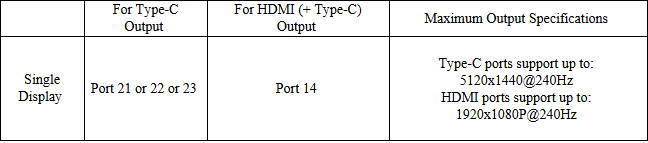
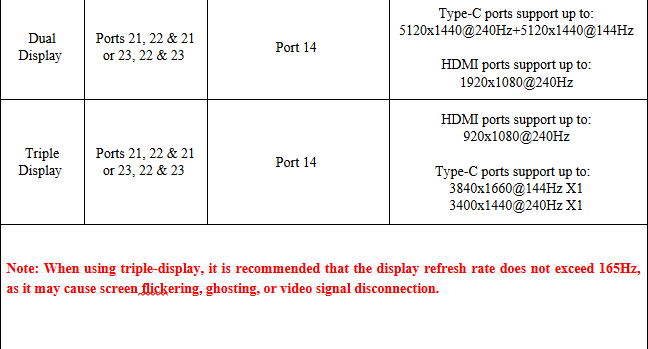
1. When using high refresh rate displays, some screens may not show images. Please verify if the MacBook model matches the Max series.
2. Unplug the other high refresh rate displays and check if the screen that cannot show images returns to normal.
2.1 If it returns to normal, insert other displays as usual, but at this time, the resolution or refresh rate of other displays may decrease.
3. If it still cannot be restored, try replacing the cable to ensure that the cable is normal.
4. If you need to check whether your display resolution and refresh rate are supported, please refer to our compatibility test results table, where all specifications are tested by the iVANKY team.
5. Due to the variety of displays on the market, we cannot guarantee that all your displays are compatible. If there are cases such as no image output on the screen or reduced resolution, please send the display model or purchase link and the relevant cables used to the iVANKY after-sales team, and we will help you solve the problem as soon as possible.
Feedback format reference as follows:
MacBook Model: MacBook Pro 14 M2 Max 2023
macOS: Ventura 13.3.1
Display Model: LG-49GR85DC-B
Display Purchase Link: https://ivanky.com/products/fusiondock-max-2
Cable Model: DP1.2
Cable Purchase Link: https://ivanky.com/products/thunderbolt-5-cable
M1/M2/M3/M4 Pro - Recommended Port(s) for High Refresh Rate Display Connection

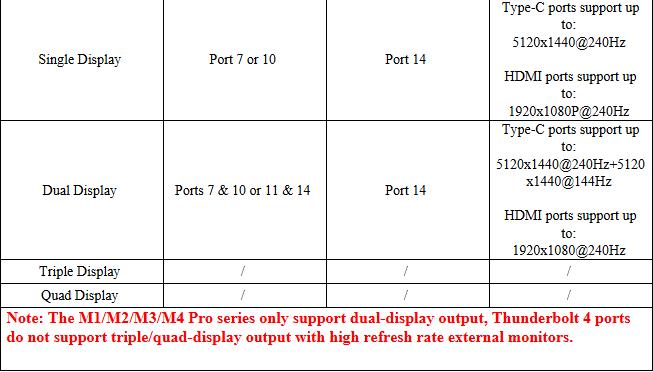
1. When using high refresh rate displays, some screens may not show images. Please verify if the MacBook model matches the M1/M2/M3 Pro series.
2. Unplug the other high refresh rate displays and check if the screen that cannot show images returns to normal.
2.1 If it returns to normal, insert other displays as usual, but at this time, the resolution or refresh rate of other displays may decrease.
3. If it still cannot be restored, try replacing the cable to ensure that the cable is normal.
4. If you need to check whether your display resolution and refresh rate are supported, please refer to our compatibility test results table, where all specifications are tested by the iVANKY team.
5. Due to the variety of displays on the market, we cannot guarantee that all your displays are compatible. If there are cases such as no image output on the screen or reduced resolution, please send the display model or purchase link and the relevant cables used to the iVANKY after-sales team, and we will help you solve the problem as soon as possible.
Feedback format reference as follows:
MacBook Model: MacBook Pro 14 M2 Max 2023
macOS: Ventura 13.3.1
Display Model: LG-49GR85DC-B
Display Purchase Link: https://ivanky.com/products/fusiondock-max-2
Cable Model: DP1.2
Cable Purchase Link: https://ivanky.com/products/thunderbolt-5-cable

If you encounter any issues while using the docking station please contact iVANKY technical support.
Email: support@ivanky.com
When contacting iVANKY technical support for technical issues, please provide the following information:
a. Your docking station serial number.
b. Your current macOS version.
c. Model of your MacBook.
d. Description of the issue and the devices connected to the dock.