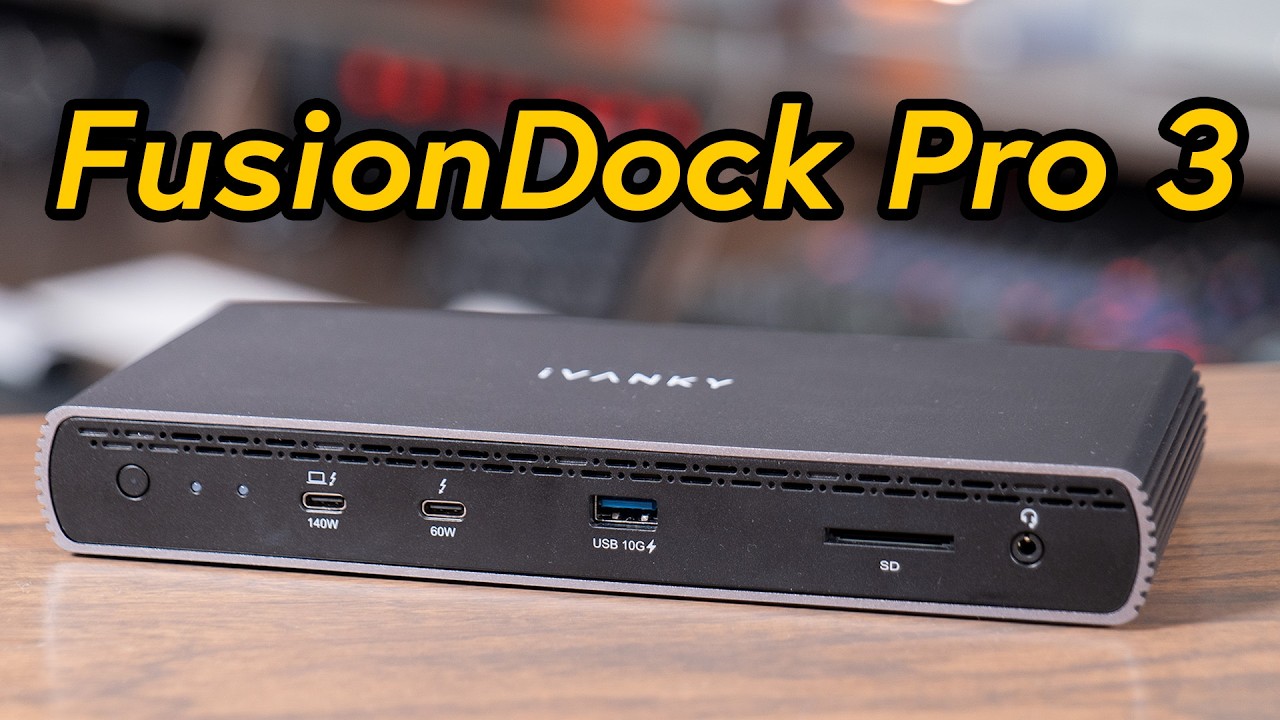
1. Check accessories and connections
Step 1: Make sure the video cable (HDMI or USB-C) is securely connected to the monitor.
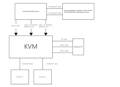
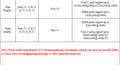
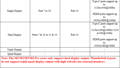
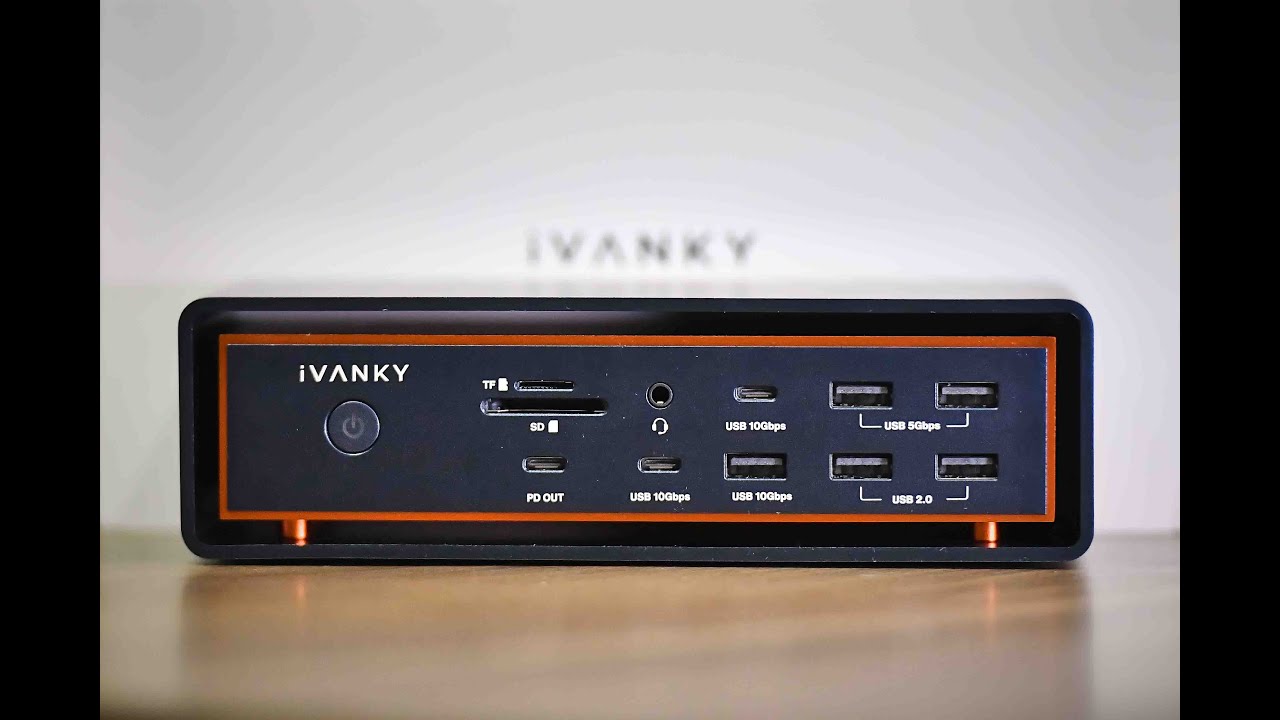
Step 2: If you are using a conversion cable with the iVANKY docking station, please use an iVANKY cable to avoid compatibility issues, and connect it to port 19 for proper operation. Note: Port 14 (HDMI) does not support HDMI-to-DP cables.
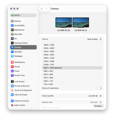
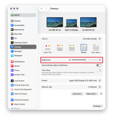
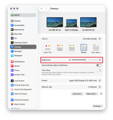
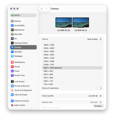
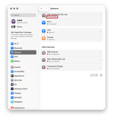
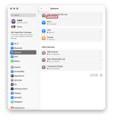
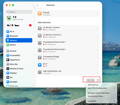
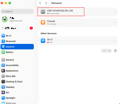
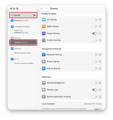
Step 3: Go to the Apple menu (upper-left corner) > System Settings (or System Preferences) > Displays, and choose the resolution recommended by your computer.

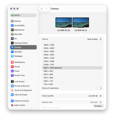
Step 4: Unplug the dock’s USB-C host cable from your computer, flip the connector, and reconnect it.
Step 5: Try connecting to another Thunderbolt port on your Mac. Thunderbolt 3 Mac models not compatible with Thunderbolt 5, please use a different laptop.
Step 6: Go to the Apple menu (upper-left corner) > System Settings (or System Preferences) > Displays. If the external monitor is detected but shows no image, replace the HDMI cable. If the issue persists, please contact iVANKY customer support.
2. Monitor detection
Step 1: Disconnect the monitor from the docking station, then reconnect it. Turning off the monitor first may help.
Step 2: Manually select the correct input on the monitor, such as HDMI.
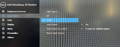
Step 3: Restart your Mac. For MacBook, close the lid for a few seconds, then reopen it.
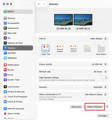
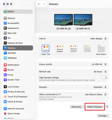
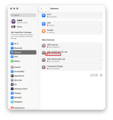
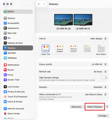
Step 4: Go to the Apple menu (upper-left corner) > System Settings (or System Preferences) > Displays. Hold down the "Option" key to reveal the "Detect Displays" button, then click it repeatedly (more than 10 times).
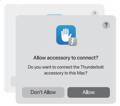
3. Allow docking station connection
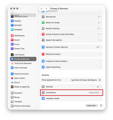
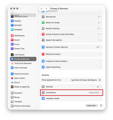
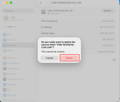
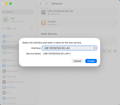
Step 1: Go to the Apple menu (upper-left corner) > System Settings (or System Preferences) > Privacy & Security.
Step 2: Scroll down and click the pop-up menu next to “Allow accessories to connect”, then choose the option you need.
4. Check monitor brightness
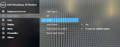
Step 1: If the external monitor is black, please make sure the brightness is not set to the lowest.
Step 2: If you are using an Apple keyboard and monitor, adjust the brightness with the brightness keys on your keyboard, or go to System Settings > Displays to adjust it.
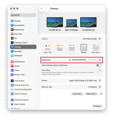
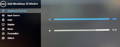
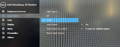
Step 3: If you are using a third-party monitor, please use the monitor’s built-in menu to adjust brightness. If the screen is still black, the monitor may not be powered on or may be malfunctioning.

5. Software update
Software may affect display detection, image quality, and available resolutions or refresh rates.
Install the latest macOS updates. These updates can include firmware improvements for Apple displays.
If your monitor is not made by Apple, make sure it has the latest firmware provided by the manufacturer. Check the monitor’s manual or the manufacturer’s website for details.
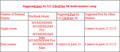
If the issue persists, please contact the iVANKY support team and provide the following information so we can check for possible device compatibility issues:
1.Your macOS version
2.Which device is not working and its model
3. A purchase link if available