The 10 Features That Matter Most When Choosing a MacBook Dock in 2025

December 24, 2025

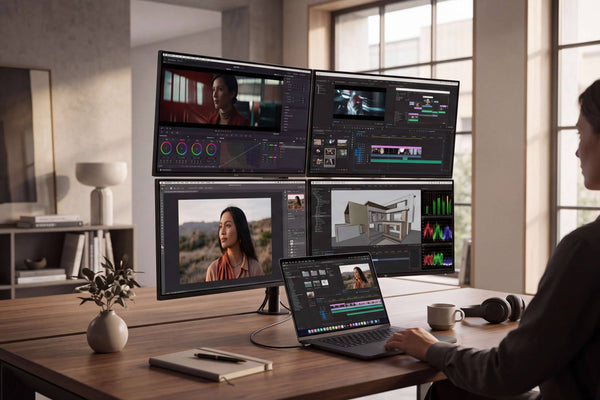
FusionDock Max 2 Thunderbolt 5 MacBook dock driving three external 4K monitors in a triple-display developer setup

If you’re shopping for a MacBook dock in 2025, you’re not really buying “more ports.” You’re buying a smoother day: open your MacBook, plug in one cable, and everything just works—displays wake instantly, SSDs mount, Zoom audio doesn’t glitch, and you never do the “unplug/replug dance.”


That’s the bar. And it’s why the best Thunderbolt 5 dock isn’t the one with the longest spec sheet—it’s the one that stays invisible in your workflow.

TL;DR: 

To choose a MacBook dock (or Thunderbolt 5 dock) in 2025, match it to your Mac’s native display limits first, then judge bandwidth, sleep/wake reliability, and charging. After that, compare the display port mix (Thunderbolt/HDMI), fast USB for SSDs, Ethernet, SD reader, front-access ports/audio, and thermals—because stable daily use matters more than total port count.

Before You Compare Docks: Map Your “Daily Mac” in 60 Seconds

Write two lists:

  • Daily: monitor(s), charging, keyboard/mouse, headset, webcam, external SSD, Ethernet, SD card.
  • Sometimes: extra drive, tablet, capture card, second SD reader, speakers, console.

Now here’s the insight most “top dock” lists miss:
A dock that’s perfect for your sometimes gear can still be a bad dock if it adds friction to your daily routine.

So the 10 features below are written from a Mac user’s daily reality—not from a marketing checklist.

The 10 Features That Actually Matter

1. Real Display Support

Daily Mac reality: Most display drama is not “dock quality”—it’s Mac display limitations + cabling + handshake timing.

Here’s the trap: a dock can output multiple video signals, but your Mac may only support a certain number of external displays natively. For example, Apple documents that certain MacBook Pro configurations support up to two external displays (Pro chips), while others support up to four (Max chips), depending on model and resolution/refresh.

What to check (practical, not theoretical):


  • Your Mac model/chip’s native external display support (Apple Support pages are the source of truth).

  • Your target setup: How many monitors? What resolution/refresh rate? Clamshell mode or open-lid? (Some setups only work as expected in clamshell, depending on model.)

Plain English: If you’re buying a dock primarily for displays, choose the dock only after you confirm what your Mac can drive natively. A dock can’t magically turn a “one external display” Mac into “three native external displays.”

2. Upstream Bandwidth: Thunderbolt 5 vs Thunderbolt 4 vs “USB-C Dock”

Daily win this enables: fast SSD + high-res displays + peripherals without “something always slows down.”

Thunderbolt 5 is built for heavier “display + data” workloads. Intel describes Thunderbolt 5 as 80 Gbps bi-directional bandwidth, and up to 120 Gbps with Bandwidth Boost for the best display experience.

What to check:


  • Is it a Thunderbolt 5, Thunderbolt 4, or just a USB-C-with-video dock?
  • Does it have enough downstream bandwidth paths for the way you work (display + storage at the same time)?
  • Does it explain how it handles heavy display traffic (Bandwidth Boost exists for a reason).

Plain English: Think of bandwidth like a highway. If you’re driving “two 6K displays + a fast SSD,” you want a dock built for that traffic pattern—not one that technically connects everything but forces it to share a narrow road.

3. One-Cable Charging That Matches Your MacBook

Daily symptom of a mismatch: “My MacBook says it’s charging, but the battery percentage still drops during heavy work.”

USB-C Power Delivery (PD) can support very high power levels in the standard—but your dock may not deliver that much to the host. USB-IF notes that USB PD Revision 3.1 enables up to 240W over USB-C (Extended Power Range).

What to look for:


  • Host charging wattage (the dock’s “to laptop” charging rating)
  • Your MacBook’s typical demand under your real workload (video export, multi-monitor, heavy peripherals). Apple's 14-inch MacBook Pro (2021+) comes with a 70W or 96W charger as the standard USB-C power adapter, and 140W for 16-inch MacBook Pro (2021+). So look for docks that support matching host charging wattage.

4. Sleep/Wake Reliability

Daily pain this solves: wake → one monitor stays black → unplug/replug ritual.

Sleep/wake stability is the difference between “great dock” and “daily annoyance.” It’s also hard to infer from port lists.

One interesting detail: in Thunderbolt’s own comparison table, “wake from sleep when connected to a Thunderbolt dock” is treated as a required behavior for the platform experience.

What to look for:


  • Clear macOS compatibility notes (and not just “works with USB-C devices”).
  • Transparent setup guidance for multi-monitor arrangements.
  • Vendor FAQs that explicitly address wake issues, cable requirements, and display routing (more on this later).

Plain English: For Mac users, stability beats specs. A slightly “less impressive” dock that wakes perfectly every time is the one you keep for years.

5. The right display ports for your monitors

Daily friction: cable chaos.

You don’t choose ports in theory—you choose them based on what your monitors actually accept.

What to check:


  • Do your monitors prefer HDMI, DisplayPort, or USB-C/Thunderbolt?
  • Are you going to need active adapters? (More adapters = more handshake variables.)

Plain English: Choose the dock that matches your monitor inputs with the fewest “extra pieces.” Every extra adapter is another possible failure point at 9:00 AM.

6. Fast USB that stays fast (labels can mislead)

Daily symptom: “My external SSD is fast directly on the Mac, but slow on the dock.”

Not all USB ports are equal, and not all can sustain top speed when multiple devices are active.

What to check:


  • How many truly high-speed USB ports you need at the same time (For example: SSD + capture card + audio interface = different from “USB receiver + phone cable”)
  • Whether the dock clearly states which ports are 10Gbps/20Gbps and which are “basic”

Plain English: Count your simultaneous high-speed devices, not the total number of ports.

7. Ethernet that matches your internet + NAS reality

Daily win: stable calls and faster local file workflows.

What to check:


  • Mostly browsing + meetings → Gigabit is fine
  • Fast fiber + lots of downloads/uploads → 2.5GbE starts to matter
  • Creative workflows + NAS + shared assets → consider higher-end networking

Plain English: If you’ve never thought “I wish my network was faster,” don’t overpay for Ethernet you won’t use. If you move large files daily, Ethernet is one of the best “time saved per dollar” upgrades.

8. SD/microSD that doesn’t bottleneck creators

Daily win: you dump Images/footages fast and get back to editing.

What to check:


  • Whether the dock supports high-performance SD formats (often stated as UHS-II or similar)
  • Slot placement (front/side beats back-of-dock)

Plain English: If your camera workflow is real, treat SD speed like SSD speed—because it’s the first step of your pipeline.

9. Desk-cleanliness ports and placement

Most product pages brag about “X-in-1,” but daily happiness comes from where the ports are.

What to check:


  • Front/side access for SD card, quick USB-As/USB-Cs, and an audio jack
  • Back-of-dock is fine for Ethernet, permanent monitor cables, and power. 

Plain English: A well-placed 12-port dock can feel better than a messy 20-port dock.

10. Thermals and sustained stability

Daily symptom of thermal issues: random disconnects, display flickers, or peripherals dropping under sustained load.

Docks are compact devices pushing power and bandwidth. Heat management affects stability.

What to check:


  • Does the dock prioritize sustained performance (especially if you run multi-display + storage + charging)?
  • If it has active cooling, is it engineered to be unobtrusive in real desks?

A Mac-first shortcut: when to seriously consider FusionDock Max 2

If your daily setup looks like any of these…

  • You’re building a real workstation with native multiple monitors on your Mac
  • You regularly run fast storage + many peripherals
  • You want a dock designed around Apple Silicon Mac workflows

…then it’s worth looking at FusionDock Max 2 specifically as a Mac-focused Thunderbolt 5 dock example. 

Important reality check: even with a high-end Thunderbolt 5 dock, your Mac’s native external display support still applies—the dock can’t exceed Apple’s model/chip limits. 

How to use this intelligently:
Use the 10 features above as your comparison framework. If you land in the “multi-display + pro I/O + Apple Silicon workstation” bucket, FusionDock Max 2 is designed to match that exact daily-use profile.

Final Thoughts: choose the dock that makes your Mac day “boring”

In 2025, the best MacBook dock isn’t the one with the most ports—it’s the one that disappears into your day:

  • monitors wake every time
  • charging keeps up
  • storage stays fast
  • you stop thinking about cables

If you keep the 10-feature framework above, you’ll not only choose a better dock—you’ll choose the one that fits your actual life. And if your life looks like a multi-monitor Apple Silicon workstation, that’s exactly where a Mac-focused Thunderbolt 5 dock like FusionDock Max 2 becomes a logical short-list candidate.

FAQs

Q1: What features should I look for when choosing a MacBook dock in 2025?

Start with your Mac’s native external display limits, then prioritize bandwidth, sleep/wake reliability, and host charging. After that, compare the display port mix (Thunderbolt/HDMI), fast USB for SSDs, Ethernet, SD reader, front-access ports/audio, and thermals—because stable daily use matters more than total port count.

Q2: Thunderbolt 5 dock vs Thunderbolt 4 dock—what changes in real daily use?

Thunderbolt 5 is built for heavier display + data workloads. If you run high-resolution displays and fast storage at the same time, extra headroom helps reduce “everything shares a narrow road” slowdowns and compromises.

Q3: Can a MacBook dock increase the number of external displays my Mac supports?

Not natively. A dock can output multiple video signals, but your Mac may only support a certain number of external displays natively, depending on model/chip and resolution/refresh. Choose a dock for displays only after you confirm what your Mac can drive. Check Apple's Support Page for detailed information.

Q4: How much charging power should my MacBook dock deliver to the host?

Look for an explicit “to laptop / host charging” wattage. Under heavy work (multi-monitor + peripherals), too little host power can show up as “charging” while the battery still drops. As a reference point, Apple sells 96W for 14-inch MacBook Pro (2021+) and 140W for 16-inch MacBook Pro (2021+).

Q5: Is 2.5GbE (or faster) Ethernet worth it on a MacBook dock?

If you mostly browse and do meetings, Gigabit is fine. If you have fast fiber and move lots of data, 2.5GbE starts to matter. If you do creative workflows with a NAS/shared assets, faster Ethernet can be one of the best “time saved per dollar” upgrades.

People are checking out...

Sale Off
FusionDock Max 2 - 80Gbps Cable Kit
$449.99$399.99