Thunderbolt 5 Dock Explained for Mac Users: Bandwidth, Displays, and Power in Plain English

December 15, 2025

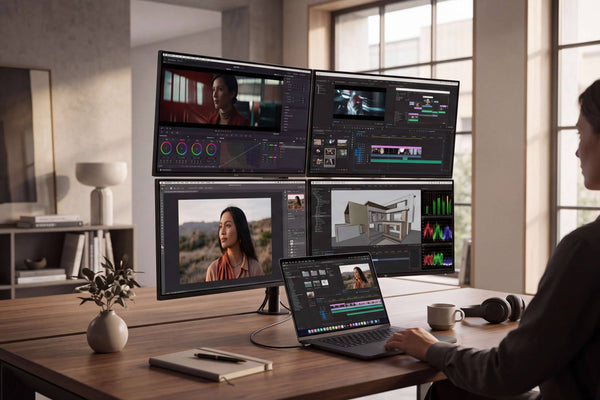
FusionDock Max 2 Thunderbolt 5 MacBook dock driving three external 4K monitors in a triple-display developer setup

If you’re using a Mac and searching “Thunderbolt 5” or “Thunderbolt 5 dock,” you’re probably not hunting for a spec sheet. You’re trying to answer one practical question:


Can I build a clean one-cable MacBook desk—multiple displays, fast storage, reliable charging—without surprises?


This guide explains Thunderbolt 5 through the lens of everyday Mac workflows, including the most common failure points (your Mac’s display limit, your cable, and how the dock routes video).

TL;DR: The three numbers that matter most

  • 80 Gbps is Thunderbolt 5’s baseline bandwidth in both directions.
  • 120 Gbps is “Bandwidth Boost”: more bandwidth is temporarily allocated to sending video (displays), while still keeping enough headroom for data.
  • Up to 240W is possible in the TB5 ecosystem via Extended Power Range.

Bottom line: on Mac, Thunderbolt 5 is rarely the bottleneck—your Mac’s external display limit and your cable choice usually are.

What Thunderbolt 5 feels like on a Mac day-to-day

A Thunderbolt dock is successful when it passes one simple test: you plug in once, everything wakes up the same way every time—monitors, drives, Ethernet, audio, peripherals, charging.

Here’s the real workflow most Mac power users are chasing:

Morning (arrive at desk):
Plug in one cable → Mac charges → displays light up → keyboard/mouse + audio + storage + Ethernet all “just work.”

Midday (real work):
You’re pushing one or more of these:

  • high-resolution monitors
  • fast external SSDs / RAID
  • lots of USB peripherals
  • wired networking
  • stable charging under load

Evening (leave):
Unplug one cable → Mac goes back to portable.

Thunderbolt 5 matters because it’s trying to make that workflow smoother—by giving the system more bandwidth flexibility, especially when displays are the thing that would otherwise force compromises.

Thunderbolt 5 bandwidth, in human terms: 80 for everything, 120 when displays get hungry

Thunderbolt 5 runs at 80 Gbps bidirectional as the normal baseline.

When the system needs more video bandwidth, Thunderbolt 5 can activate Bandwidth Boost—rebalancing the link to 120 Gbps transmit (send) and 40 Gbps receive.

What this means for your Mac desk

Here’s the insight most generic explainers skip:

Bandwidth Boost is primarily a “display experience” feature—not a universal “everything is 3× faster” switch. Intel’s own tech brief describes it as rebalancing bandwidth when high levels of video bandwidth are needed, while still leaving ample bandwidth for data.

So if your workflow is “one monitor + basic peripherals,” Thunderbolt 5 may not feel dramatically different from a great Thunderbolt 4 dock. But if you’re running multiple high-resolution displays and fast storage and a crowded desk, TB5’s bandwidth flexibility is the difference between “everything just works” and “something always compromises.”

Displays on Mac: your dock isn’t the limit—your Mac is

On macOS, the maximum number of external displays is fundamentally determined by your Mac model and chip, not by how many video ports a dock has. Apple maintains model-specific guidance and repeatedly notes that external display support depends on device specifications. 

Start here: know your Mac’s “display ceiling”

Before you shop, check Apple’s official guidance for your exact Mac model. For example, Apple publishes pages like “How many displays can be connected to MacBook Pro,” with chip-specific limits (and similar pages for other Macs).
This one step prevents the most common Mac dock regret:

Buying a premium dock and expecting it to override Apple’s display limit.

It won’t. ✖️

The Mac-realistic triple-display pattern (no mystery, no wishful thinking)

You might have seen Thunderbolt 5 docks marketed with “triple display support,” and hoped that plugging one Thunderbolt cable into your Mac could drive three external monitors. Here’s the real story:

On most Mac computers, a single Thunderbolt 5 port can only drive two independent external displays at once. That’s simply how macOS and Apple’s display management are designed right now. So even if a dock has three or more video outputs, connecting them all through one Thunderbolt port usually won’t give you three separate screens on macOS.

This isn’t because the cable or the dock lacks bandwidth — Thunderbolt 5 indeed offers plenty of throughput — it’s because macOS will only activate up to two display signals per Thunderbolt connection. In contrast, some Windows laptops and graphics drivers can present three or more displays from a single Thunderbolt port, which is why you’ll see “triple display” claims that seem to work differently on Windows.

That’s also why FusionDock Max 2 uses a dual-chip design and the included dual USB-C host cable (two ports on your Mac), then outputs two displays via Thunderbolt plus one via HDMI on supported Macs.

If you want a triple-display Mac desk, the most important thing is not “how many TB ports the dock has,” but whether the dock makes the connection path unambiguous and aligned with macOS reality.

Storage & “why your external SSD setup can feel faster”

If your desk includes external SSDs, card readers, capture devices, or fast networking, Thunderbolt 5’s improvements go beyond monitors.

The TB5 tech brief highlights 64 Gbps of PCIe bandwidth and describes TB5 as delivering 2× the data transfer speeds vs TB4 for storage-intensive workflows (in its positioning). 

Plain English:
When you’re doing real work—editing from external drives, moving large libraries, or using high-demand peripherals—TB5 is built to reduce “the connection is the bottleneck” moments.

Quick Mac reality check: eGPU isn’t the main TB5 story for Apple Silicon

Some Thunderbolt discussions drift into eGPU. For modern Mac buyers, Apple’s support page states: to use an eGPU, a Mac with an Intel processor is required.

So for most Apple Silicon users, the “TB5 value” is more about:

  • displays
  • storage / capture
  • stable, uncluttered desk connectivity

Power & Charging: What Thunderbolt 5 Enables for Macs

Thunderbolt 5 doesn’t create a new “charging standard.” It uses the USB-C connector, and charging is handled by USB Power Delivery (USB-PD). Thunderbolt 5 is basically the “high-performance highway,” while USB-PD is the “power contract” negotiated over that highway.

What “up to 240W” really means

With USB-PD 3.1, USB-C can support up to 240W (called Extended Power Range / EPR). This is achieved via new higher fixed voltages (up to 48V) and the same 5A ceiling. 

Plain English: 240W is the ecosystem ceiling, not a promise that every Thunderbolt 5 port/dock/cable will output 240W.

Why Mac users should care (even if you never hit 240W)

On a Mac desk, power problems rarely look dramatic. They show up as:

  • “I’m plugged in, but the battery still drops slowly during heavy work.”
  • “Charging is fine, but the setup feels less stable once I add more monitors and devices.”

Thunderbolt 5 matters here because it’s designed for high-performance desktops and laptops, where displays + data + power all need to coexist without tradeoffs. The TB5 brief explicitly positions TB5 as improving display performance (Bandwidth Boost) while also delivering higher overall performance for data transfer and storage.

Can I use a Thunderbolt 5 dock with a Thunderbolt 4 Mac?

In many cases, yes—but your ceiling is still set by the host (your Mac), the cable, and macOS display limits.

Thunderbolt 5 is positioned as building on newer standards (USB4 v2 / DisplayPort 2.1) while maintaining compatibility and a single-cable docking experience.

What you’ll still benefit from immediately:

  • a cleaner desk (one-cable workflow)
  • better port layout and “everything connected” convenience

What you should not assume:

  • that Thunderbolt 5 automatically unlocks more displays than Apple specifies for your Mac 
  • the full TB5 peak bandwidth modes

A Mac-first buying checklist (the 5 questions that prevent bad Dock purchases)

1. What’s my Mac’s external display limit?
Start with Apple’s official guidance for your model/chip.

2. What monitor mix am I actually running?
Be specific: 4K vs 5K vs 6K, refresh rate expectations, and whether you need all screens extended (not mirrored).

3. Do I want driver-free behavior?
If you care about reliability (sleep/wake, login screens, fewer moving parts), prefer solutions that stay native to macOS.

4. Do I need sustained host charging under load?
Specs matter most when everything is connected and your Mac is working hard.

5. Which ports remove daily friction?
Ethernet, SD, audio, fast USB, downstream Thunderbolt—pick for your workflow, not for port-count bragging rights.

Where FusionDock Max 2 fits (a quick, honest fit check)

If your goal is a one-cable MacBook desk that stays predictable—monitors wake reliably, storage stays fast, and charging doesn’t wobble—FusionDock Max 2 is the dock we built around that reality. It’s native on macOS and it doesn’t try to “hack” around Apple’s display rules; instead, it makes the supported setups straightforward and repeatable.


It’s a strong fit if you:

  • use an Apple Silicon Mac (MacBook Air/Pro; and Mac mini/Mac Studio via the included dual USB-C cable), and want a clean single-connection workflow 
  • want a practical triple-display setup on Macs that support it—and you’re okay with the Mac-realistic wiring: two Thunderbolt downstream ports + HDMI 
  • care about charging headroom and desk stability (FusionDock Max 2 is positioned with 140W host charging + 30W PD for peripherals) 

FAQs

Q1: What exactly is Thunderbolt 5 and how does it improve connectivity for devices?

Think of Thunderbolt 5 as a massive upgrade to the "pipeline" connecting your Mac to your desk. While Thunderbolt 4 was limited to 40 Gbps, Thunderbolt 5 doubles the baseline speed to 80 Gbps.

For Mac users, this improves connectivity in two major ways:

  1. Bandwidth Boost for Displays: If you connect high-resolution monitors that demand more data, the connection intelligently rebalances itself, boosting video speed up to 120 Gbps while still keeping 40 Gbps for your data.
  2. Faster "Everything" at Once: It eliminates the bottleneck where fast external SSDs would slow down because your 6K display was hogging all the bandwidth. It allows your drives, screens, and peripherals to run at full speed simultaneously via a single cable.

Q2: How does a Thunderbolt 5 dock work and what are its benefits?

A Thunderbolt 5 dock acts as an intelligent traffic controller for your desk. Instead of having fixed lanes for video and data like older docks, it uses dynamic bandwidth allocation.

Here is how it works: When you plug in your Mac, the dock detects exactly what you need. If you are transferring huge files, it opens up the PCIe lanes (up to 64 Gbps, which is 2x faster than TB4). If you plug in multiple high-refresh-rate monitors, it activates "Bandwidth Boost" to prioritize video signals.

The main benefits are:

  • The "One-Cable" Reality: You can finally run triple displays (if your Mac chip supports it), fast Ethernet, and studio-grade storage just by plugging in one cable.
  • Future-Proofing: It supports the latest standards like DisplayPort 2.1 and USB4 v2.
  • Higher Power: It supports the new Extended Power Range (EPR), meaning it can charge high-performance MacBook Pros (up to 140W) faster and more consistently than older docks.

Q3: Will a Thunderbolt 5 dock let my Mac run more than 2 or 3 displays?

That depends. And this is the most common myth. A Thunderbolt 5 dock provides the bandwidth to drive amazing screens, but it cannot override the display limit hard-coded into your Mac's chip.

For example, if you have a base M3 MacBook Pro, it supports only one external display (or two in clamshell mode). A Thunderbolt 5 dock cannot magically force it to show three. Always check Apple’s official "display ceiling" for your specific chip (Pro, Max, or Ultra) before buying.

Q4: Why is my 240W USB-C cable giving me slow transfer speeds with my new dock?

You’ve likely hit the "charging vs. data" trap. Many cables sold as "240W Charging Cables" are designed only for power, transferring data at ancient USB 2.0 speeds.

For a Thunderbolt 5 setup, wattage does not equal speed. You need a cable that explicitly lists Thunderbolt 5 specs: 80Gbps (or 120Gbps) data transfer AND 240W power delivery. Using a generic charging cable will bottle-neck your expensive dock down to 1990s data speeds.

People are checking out...

Sale Off
FusionDock Max 2 - 80Gbps Cable Kit
$449.99$399.99

Leave a comment

Please note, comments must be approved before they are published