A Thunderbolt 5 dock sounds like the perfect “one-cable Mac desk” upgrade—until you plug it in and realize your MacBook is still the boss.
Here are the three questions I wish every Mac user asked before buying any MacBook dock (Thunderbolt 5 dock included):
- Will my MacBook actually unlock Thunderbolt 5 performance—or will it run the dock at older limits?
- How many external displays can my MacBook really run (without hacks)?
- Is my cable quietly bottlenecking everything?
This guide answers those questions in plain English, using the “daily Mac desk” lens: what you’ll feel when you dock—monitors, SSD speed, Ethernet stability, charging, and the annoyances that make people return docks.
Which MacBooks work best with a Thunderbolt 5 dock?
- Best match (gets the most value from a Thunderbolt 5 dock): MacBook Pro 14/16-inch with M4 Pro or M4 Max configurations that include Thunderbolt 5 ports.
- Great match (excellent MacBook dock experience, but not full TB5 headroom): MacBooks that don’t have Thunderbolt 5 ports can still use modern docks and cables, but your Mac’s port capabilities set the ceiling. Thunderbolt 5 is designed for compatibility with current and future devices, and the ecosystem is built around USB-C/USB4 standards.
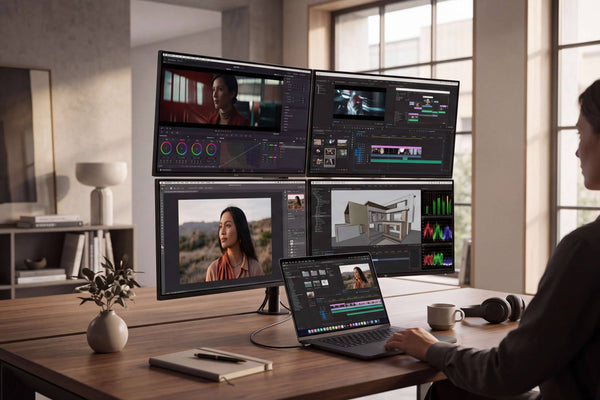
- The monitor-count reality check (this is what surprises people): Even with a premium Thunderbolt 5 dock, the maximum number of external displays is determined by your Mac model/chip—a hub or daisy chain doesn’t increase that maximum.
Identify your MacBook in 30 seconds
Check A: What chip do you have?
Go to Apple menu → About This Mac and note:
- Chip (M3 / M4 / M4 Pro / M4 Max, etc.)
- Mac model + year (helpful for tech specs)
Check B: What ports do you have?
If your MacBook specs list Thunderbolt 5, that’s your green light for a true Thunderbolt 5 dock experience. For example, Apple’s MacBook Pro purchase pages for certain M4 Pro/M4 Max configurations explicitly list three Thunderbolt 5 ports.
If you’re not sure, don’t guess—look up your exact model’s tech specs. Your Mac’s port generation is the #1 factor in whether a Thunderbolt 5 dock feels like “instant pro desk” or just “a nicer hub.”
The 3 Compatibility Gates (the framework that prevents bad dock buys)
Gate A — External display limits come from your MacBook, not your dock
This is the biggest misconception.
Apple’s own display support pages spell it out: you can use a supported hub or daisy chain, but it does not increase the maximum number of displays your Mac can connect.
So if you’re shopping for a Thunderbolt 5 dock mainly for multi-monitor life, start with your Mac’s official display support first (we’ll map it in the table below).
Gate B — Bandwidth is negotiated
Thunderbolt 5 raises the ceiling: 80 Gbps bidirectional, with Bandwidth Boost up to 120 Gbps for display-heavy scenarios.
But your day-to-day result depends on the combination:
- Mac port capability
- Dock architecture
- Cable capability
- What you plug in (monitors + SSDs + Ethernet can compete for bandwidth)
Gate C — The cable can be the bottleneck
Thunderbolt 5 can deliver more bandwidth and power, but only if your cable supports it.
Apple’s Thunderbolt 5 Pro Cable supports Thunderbolt 5 up to 120 Gbps, and it’s also compatible with Thunderbolt 4, Thunderbolt 3, and USB4 (running at the best speed the device supports).
If you’re buying a Thunderbolt 5 dock for “speed + stability,” treat the cable as part of the system, not an afterthought.
Compatibility Table: Choose the right MacBook dock tier for your Mac
| MacBook models (group) | Thunderbolt | Native external display support | Thunderbolt 5 dock fit | Best-buy MacBook dock direction |
|---|---|---|---|---|
| MacBook Pro (M4 Max, 2024–) | Thunderbolt 5 (3× USB-C) | Up to 4 external displays (Apple tech specs) | Best match | Thunderbolt 5 dock is the right tier for multi-display + high-speed storage + wired networking at the same time. |
| MacBook Pro (M4 Pro, 2024–) | Thunderbolt 5 (3× USB-C) | Up to 2 external displays (Apple tech specs) | Strong | Great fit for a Thunderbolt 5 dock if you want “buy once, keep longer” + heavier I/O; display count is still Mac-limited. |
| MacBook Pro (M4, 2024–) | Thunderbolt 4 (3× USB-C) | Up to 2 external displays (Apple tech specs) | Strong | Best value is typically a premium Thunderbolt 4 MacBook dock; choose a Thunderbolt 5 dock mainly for future-proofing. |
| MacBook Air (M4) | Thunderbolt 4 (2× USB-C) | Model-dependent (see Apple tech specs) | Strong | A high-quality Thunderbolt 4 MacBook dock is usually enough; prioritize charging + stable dual-monitor workflow over raw bandwidth. |
| MacBook Pro (M3 / M2 Pro / M3 Pro) | Thunderbolt 4 | Model-dependent (see Apple tech specs) | Strong | Choose based on your monitor needs first; don’t expect a dock to increase your Mac’s native display limit. |
| Older Intel MacBook (TB3 era) | Thunderbolt 3 | Varies by model | Works with limits | Choose a TB3/TB4 dock for practical value; Thunderbolt 5 is usually overkill unless you’re upgrading your Mac soon. |
Note: A dock consolidates ports and simplifies your desk, but it doesn’t increase Apple’s native maximum external display limit.
Where FusionDock Max 2 fits
If you’re a Mac user, you already know the pain points docks rarely get right: multi-display routing that doesn’t flicker, charging that doesn’t dip under load, and ports placed for real workflows (SD cards, Ethernet, audio).
That’s exactly why FusionDock Max 2 exists: it’s designed as a MacBook dock specifically for Apple Silicon workflows, with a focus on native triple-display setups and pro I/O—23 ports, up to 120 Gbps throughput, and 140W host charging.
Who should seriously consider FusionDock Max 2
- You use a Max-tier MacBook Pro (or a multi-display capable Apple Silicon Mac) and you want a stable, native multi-monitor desk from one MacBook dock.
- Your workflow is “monitors + fast storage + Ethernet + peripherals” and you want a dock designed to stay stable under load.
- You’re done with driver-heavy workarounds and you want plug-and-play behavior that aligns with macOS.
Who shouldn’t
- You’re on Intel Mac, Windows, or Chromebook.
- Your Mac only supports one external display and your main goal is “more monitors.” The dock can’t override Apple’s display limits.
FAQs
Q1: Which MacBook models actually have Thunderbolt 5 ports?
MacBook Pro with M4 Pro or M4 Max (2024–) includes three Thunderbolt 5 (USB-C) ports. The MacBook Pro with M4 (2024–) uses three Thunderbolt 4 (USB-C) ports, not Thunderbolt 5.
Q2: Will a Thunderbolt 5 dock work with a Thunderbolt 4 MacBook Pro or MacBook Air?
Yes—a Thunderbolt 5 dock can be used with Thunderbolt 4/3 Macs, but your Mac will connect at the highest speed both sides support (so a TB4 Mac won’t suddenly become TB5). Apple’s Thunderbolt 5 Pro Cable, for example, is explicitly compatible with Thunderbolt 3/4/5 and USB4.
Practical takeaway: A Thunderbolt 5 dock can still be a great MacBook dock for ports and desk simplicity—but peak bandwidth is limited by your Mac’s Thunderbolt generation.
Q3: Will a Thunderbolt 5 dock increase how many monitors my MacBook supports?
No. Apple states that using a supported hub or daisy-chaining can help connect displays over a single Thunderbolt port, but it does not increase the maximum number of displays your Mac can connect.
Practical takeaway: If your goal is “more displays,” check your Mac’s official display support first—the Mac sets the limit, not the dock.
Q4: My MacBook is Thunderbolt 4—do I “need” a Thunderbolt 5 dock?
You don’t need it for basic docking. If your Mac is Thunderbolt 4, a premium TB4 MacBook dock often delivers the best value.
A Thunderbolt 5 dock becomes more compelling if you’re (a) planning a near-term upgrade to a Thunderbolt 5 MacBook Pro, or (b) building a long-term desk around heavier I/O and multi-display workflows.
Q5: Do I need a Thunderbolt 5 cable to get Thunderbolt 5 performance?
For Thunderbolt 5-class throughput, your cable matters. Apple’s support document states the Thunderbolt 5 Pro Cable supports Thunderbolt 5 up to 120Gbps, and is also compatible with Thunderbolt 4/3 and USB4 (at the supported speeds).
Practical takeaway: A “USB-C cable” isn’t automatically a “Thunderbolt 5 cable.” If performance is the point, match the cable to the dock and Mac.