

Troubleshooting
1. Display Tips
1. For more reliable wake-up performance, use a USB-C to USB-C cable to connect the dock to the monitor if your monitor supports USB-C input.
2. If the display stays off, connect your MacBook directly to the monitor using the same USB-C cable to confirm the display and cable are working.
3. If the dock fails to automatically wake up, unplug and reconnect the dual USB-C cable between the dock and MacBook to resolve any potential connection issues.
2. High-Resolution Display Requirements (5K & 6K)
1. Dual LG UltraFine 5K displays or dual Samsung ViewFinity S9 5K displays are supported only if each display is connected to a separate Thunderbolt group—for example, one display on ports 16 or 17 and the other on ports 25 or 26. Other video ports cannot be used for additional displays, and the remaining USB-C downstream ports support data only (no video output).
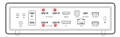
2. For dual 6K@60Hz setups on Macs other than the MacBook Pro (M4 Max) and Mac Studio, we recommend using two Apple 6K (Pro Display XDR) monitors for the most stable dual-6K setup. If you are using two non-Apple 6K displays, connect one 6K display to a USB-C downstream port on the FusionDock Ultra, and connect the second 6K display directly to your Mac’s built-in Thunderbolt port for optimal performance.
3. Audio Tips
1. The optical audio port does not support system-level volume control. Please adjust the volume on your speaker.
2. If you prefer to control volume from your Mac, use the 3.5mm audio port instead.
4. Other Support
Q1: Why am I noticing fan activity when FusionDock Ultra is under heavy load?
1. The FusionDock Ultra features a high-performance dual-chip design to support quad-display output and 26 ports. To ensure stable performance during heavy use, it includes active cooling fans that help prevent issues
such as screen flickering, performance throttling, or system instability under heavy load.
2. The built-in NTC temperature sensor adjusts fan speed based on system load. During light use, the fan runs at a lower speed to minimize noise. When additional cooling is needed, the fan speeds up, with noise levels
staying below 50 dB when measured at close range (about 1 cm from the dock) in a controlled silent room,
similar to a library environment.
3. If you notice unusual noises such as high-pitched whining or squeaking, unplug the docking station’s power adapter and wait 60 seconds. After plugging the adapter back in, unplug and reconnect the dual USB-C cable.
If the noise continues, please contact iVANKY support for further assistance.
Q2: What to do if the docking station stops working or works intermittently?
1. Check whether the power adapter is functioning — the LED indicator on the adapter should be lit. Then check the dock’s LED indicator; if it is on, continue with the steps below.
2. Disconnect the dock from your laptop and all connected devices. Wait at least 5 minutes, then restart your laptop and reconnect the dock.
3. Use the included dual USB-C cable to connect the upstream ports (marked with the laptop icon) on the back of the dock to your laptop. If your MacBook asks for permission to connect the dock, click “Allow”.
4. Make sure your laptop supports Thunderbolt 5, Thunderbolt 4, or USB4.
5. Try connecting the dock to another MacBook to rule out port issues.
6. If the issue persists, contact iVANKY customer support.
Q3: What to do if the ports of the docking station are not working?
1. Check whether the power adapter is functioning — the LED indicator on the adapter should be lit. Then check the dock’s LED indicator; if it is on, continue with the steps below.
2. Disconnect the dock from your laptop and all connected devices. Wait at least 5 minutes, then restart your laptop and reconnect the dock.
3. Use the included dual USB-C cable to connect the upstream ports (marked with the laptop icon) on the back of the dock to your laptop. If your MacBook asks for permission to connect the dock, click “Allow”.
4. Try connecting the dock to another MacBook to rule out port issues.
5. If the issue persists, contact iVANKY customer support.
Q4: What to do if the Ethernet port on the docking station does not reach the claimed 10Gbps speed?
1. Use a Cat6a or Cat7/Cat8 Ethernet cable (no longer than 328 feet) to support 10Gbps speed. Older cables, such as Cat5 or Cat6, may reduce performance.
2. On macOS, go to System Settings > Network, select your wired connection, click Details, then go to the Hardware tab. Set Configure to Manually, Speed to 10000Base-T, and Duplex to full-duplex. Click OK to save the settings.
3. Connect the docking station to another laptop to check if the issue persists.
4. Disconnect the dock and all devices. Wait at least 5 minutes, restart your laptop, then reconnect the dock and test again.
5. If the issue persists, contact iVANKY customer support.
Q5: Why is the display unable to reach the resolution of 5K or 6K?
1. Check if the display supports resolutions above 4K.
2. Only USB-C (80/120Gbps) Downstream Ports and DP Port support 5K or higher resolution.
3. If you are using a video cable adapter, please make sure that your adapter supports 5K or 6K resolution.
Q6: Why don't the colors on my external displays look right?
1. Select the display profile that matches your external monitor. On your Mac, go to “Apple menu” > System Settings, then click “Displays” in the sidebar (you may need to scroll down).
2. In the “Color profile” section, click the drop-down menu and select the profile that best suits your monitor.
If you encounter any issues while using the docking station please contact iVANKY technical support.
Email: support@ivanky.com
When contacting iVANKY technical support for technical issues, please provide the following information:
a. Your docking station serial number.
b. Your current macOS version.
c. Model of your MacBook.
d. Description of the issue and the devices connected to the dock.