

Troubleshooting
1. No video output
1. Check accessories and connections
Step 1: Make sure the video cable (HDMI or USB-C) is properly connected to the monitor and securely plugged in.
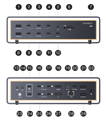
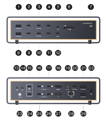
Step 2: When using a video cable with an iVANKY docking station, please use iVANKY original cables to avoid potential cable quality issues. Connect the monitor to Port 18 / 16 / 17 / 25 / or 26 to ensure proper operation.
Note: Port 18 (HDMI port) does not support HDMI-to-DP cables.
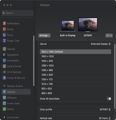
Step 3: Go to the Apple menu (upper-left corner) > System Settings (or System Preferences) > Displays, and select the resolution recommended by your computer.
Step 4: Unplug the dock’s USB-C cable from your computer, flip the USB-C connector, and reconnect it to the computer.
Step 5: Try connecting the Dock to a different Thunderbolt port on the Mac. Only Mac devices with Apple M-series (Apple Silicon) chips are supported.
Step 6: Disconnect all other monitors and leave only the monitor with no display connected. Then reconnect the monitors in a different order and test again. For example, if the monitor was previously connected first, reconnect it after the other monitors.
Step 7: If there is no display output when using an HDMI connection, replace the cable with a DP cable or a USB-C-to-DP cable and test again.
Disconnect all other monitors and test with only the affected monitor connected.
If there is still no display output, please contact iVANKY Customer Support for further assistance.
2. Monitor detection
Step 1: Disconnect the monitor from the docking station, then reconnect it. Turning off the monitor first may help.
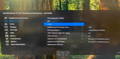
Step 2: Manually select the correct input on the monitor, such as HDMI.
Step 3: Restart your Mac. For MacBook, close the lid for a few seconds, then reopen it.
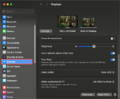
Step 4: Go to the Apple menu (upper-left corner) > System Settings (or System Preferences) > Displays. Hold down the "Option" key to reveal the "Detect Displays" button, then click it repeatedly (more than 10 times).
3. Allow docking station connection
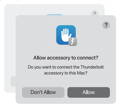
Step 1: Go to the Apple menu (upper-left corner) > System Settings (or System Preferences) > Privacy & Security.
Step 2: Scroll down and click the pop-up menu next to “Allow accessories to connect”, then choose the option you need.
4. Check monitor brightness
Step 1: If the external monitor shows a black screen, please make sure the monitor brightness has not been turned down.
Step 2: If you are using an Apple keyboard and monitor, adjust the brightness with the brightness keys on your keyboard, or go to System Settings > Displays to adjust it.
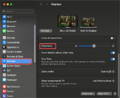
Step 3: If you are using a third-party monitor, please use the monitor’s built-in menu to adjust brightness. If the screen is still black, the monitor may not be powered on or may be malfunctioning.
5. Reset the Dock
Disconnect the Dock’s DC power adapter from the power outlet.
Wait for about 60 seconds, then reconnect the power adapter and resume use.
6. Software update
Software may affect display detection, image quality, and available resolutions or refresh rates.
Install the latest macOS updates. These updates can include firmware improvements for Apple displays.
If your monitor is not made by Apple, make sure it has the latest firmware provided by the manufacturer. Check the monitor’s manual or the manufacturer’s website for details.
If the issue persists, please contact the iVANKY support team and provide the following information so we can check for possible device compatibility issues:
1.Your macOS version
2.Which device is not working and its model
3. A purchase link if available
2. Unable to Output Dual Displays
1. Confirm Mac Dual Display Support
Check Mac compatibility
FusionDock Ultra supports dual display output only on the following Mac models:
MacBook Pro with M1/M2/M3/M4 Pro or M4 (base model) and M5 (base model)
MacBook Pro M1 / M2 / M3 / M4 Max
Mac mini M2 Pro / M4 / M4 Pro
Mac Studio (all models)
iMac M4 (2024) with 4 Thunderbolt ports
2. Check accessories and connections
Step 1: Make sure the video cable (HDMI or USB-C or DP) is properly connected to the monitor and securely plugged in.
Step 2: If you are using a conversion cable with the iVANKY Dock, please use an iVANKY original cable to avoid potential cable quality issues. Connect the monitor to Port 16 / 17 / 18 / 25 / 26 / or 27 to ensure proper operation.
Note: Port 18 (HDMI) does not support HDMI-to-DP cables.
Step 3: Go to the Apple menu (upper-left corner) > System Settings (or System Preferences) > Displays, and select the resolution recommended by your Mac.
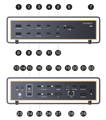
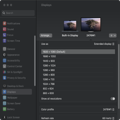
Step 4: Unplug the dock’s USB-C cable from your Mac, flip the connector, and reconnect it.
Step 5: Try another Thunderbolt port on your Mac.
Step 6: Go to the Apple menu (upper-left corner) → System Settings → Displays.
If the external monitor is detected by the Mac but no image is displayed, replace the HDMI cable and test again. If the issue persists, please contact iVANKY Customer Support for further assistance.
3. Monitor detection
Step 1: Disconnect the monitor from the docking station, then reconnect it. Turning off the monitor first may help.
Step 2: Manually select the correct input source on the monitor (e.g., HDMI).
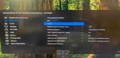
Step 3: Restart your Mac. For MacBook, close the lid for a few seconds, then reopen it.
Step 4: Go to the Apple menu (upper-left corner) > System Settings (or System Preferences) > Displays. Hold the Option key to reveal the Detect Displays button, then click it repeatedly (10+ times).
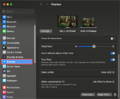
4. Allow Docking Station Connections
Step 1: Go to the Apple menu (upper-left corner) > System Settings (or System Preferences) > Privacy & Security.
Step 2: Scroll down and click the pop-up menu next to “Allow accessories to connect”, then choose the option you need.
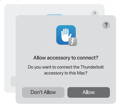
5. Check monitor brightness
Step 1: If the external monitor shows a black screen, please make sure the monitor brightness has not been turned down.
Step 2: If you are using an Apple keyboard and monitor, adjust the brightness with the brightness keys on your keyboard, or go to System Settings > Displays to adjust it.
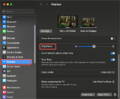
Step 3: If you are using a third-party monitor, please use the monitor’s built-in menu to adjust brightness. If the screen is still black, the monitor may not be powered on or may be malfunctioning.
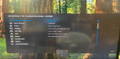
6. Update Software
Software may affect display detection, image quality, and available resolutions or refresh rates.
Install the latest macOS updates. These updates can include firmware improvements for Apple displays.
If your monitor is not made by Apple, make sure it has the latest firmware provided by the manufacturer. Check the monitor’s manual or the manufacturer’s website for details.
If the issue persists, please contact the iVANKY support team and provide the following information so we can check for possible device compatibility issues:
1.Your macOS version
2.Which device is not working and its model
3. A purchase link if available
3. Issues on LG UltraFine 5K Monitor
Note: The FusionDock Ultra supports connecting two LG UltraFine 5K (27MD5KL-B) displays.
When connecting two displays, please connect one display per port group:
Connect one LG UltraFine 5K display to Port 16 or 17
Connect the other LG UltraFine 5K display to Port 25 or 26
Each port group supports one display only.
If you need to connect a third display, please connect it directly to the Mac’s video output port.
1. Check if your Mac supports dual displays
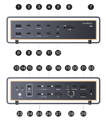
(1) Connect the LG UltraFine 5K (27MD5KL-B) monitor to any of the FusionDock Ultra Thunderbolt ports (21/22/23) using a Thunderbolt cable.
(2) Connect the HDMI monitor to the FusionDock Ultra HDMI port (port 18).
Since there are so many different monitors on the market, we can’t guarantee every model will work perfectly. If your monitor doesn’t display, the resolution looks lower than expected, or screen output isn’t working, just share your monitor model or purchase link with our support team—we’ll be happy to help you right away.
4. Multi-Display Resolution Not Meeting Specifications
Step 1: Reconnect the Thunderbolt cable between the Dock and your Mac. If it still doesn’t work, try flipping the dual USB-C connector before reconnecting.
Step 2: If possible, replace the Thunderbolt cable, DP cable, or USB-C-to-DP cable, and connect the monitor using the Dock’s Thunderbolt output port or DP port.
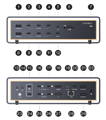
Step 3: Connect the monitor to the Dock as a single display only, and check whether the resolution meets the required specifications. If the issue persists when connected alone, try using a different cable.
Step 4: Connect the monitor directly to your Mac to confirm that the monitor itself outputs the correct resolution.
If the issue persists, please contact the iVANKY support team and provide the following information so we can check for possible device compatibility issues:
1.Your macOS version
2.Which device is not working and its model
3.The purchase link if available
5. Unable to output dual 6K, triple 6K, or quad 6K displays
Note: Only Port 16 / 17 / 25 / 26 on the FusionDock Ultra support 6K resolution output.
FusionDock Ultra is compatible with a wide range of mainstream 6K monitors and flexible multi-display combinations.
6K Display Output Capability by Mac Model (via Thunderbolt)
MacBook with M3 / M2 / M1: supports up to one 6K display
MacBook with M5 (base) / M4 (base) / M3 / M2 / M1 Pro: supports up to two 6K displays
MacBook with M1 / M2 / M3 / M4 Max, all Mac Studio models, and Mac mini M4 Pro: support up to three 6K displays
MacBook with M1 / M2 / M3 / M4 Max and all Mac Studio models: support up to four 6K displays
Step 1: Disconnect all other monitors and keep only the monitor that is not displaying an image.
Check whether the display can output normally when connected alone.
Note: Port 18 (HDMI port) does not support DP-to-HDMI cables.
Step 2: After completing Step 1, please provide the following information to iVANKY -Customer Support:
-Mac model
-macOS version
-Monitor model
-Dock port number used for each monitor connection
-Result of Step 1 (whether the previously non-displaying monitor works when connected alone)
Our support team will review the information and assist in confirming any potential compatibility issues as soon as possible.
6. Unable to connect 3 monitors
1. Check if your Mac supports triple displays
* Only the following Mac models support triple display output with FusionDock Ultra:
-MacBook Pro with M1 / M2 / M3 / M4 Max
-All Mac Studio models
-Mac mini with M4 or M4 Pro
* Before using triple displays, please connect the monitors using one of the following methods:
1. Select two ports from Port 16 / 17 / 18, and one port from Port 25 / 26 / 27.
2. Select one port from Port 16 / 17 / 18, and two ports from Port 25 / 26 / 27.
2. Check accessories and connections
Step 1: Make sure the video cable (HDMI or USB-C) is properly connected to the monitor and securely plugged in.
Step 2: If you are using a third-party adapter cable with iVANKY Dock, please switch to our iVANKY original cable to avoid compatibility issues. Connect to ports 21–23 to ensure stable performance.
Step 3: Go to the Apple menu (upper-left corner) > System Settings (or System Preferences) > Displays, then select the resolution recommended by your Mac.
Step 4: Unplug the dock’s USB-C cable from your Mac, flip the connector, and reconnect it.
Step 5: Try another Thunderbolt port on your Mac.
Step 6: If the external display is detected but shows no image, replace the HDMI cable. If the issue persists, please contact iVANKY customer support.
3. Monitor detection
Step 1: Disconnect the monitor from the docking station, then reconnect it. Turning off the monitor first may help.
Step 2: Manually select the correct input source on the monitor (e.g., HDMI).
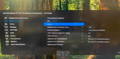
Step 3: Restart your Mac. For MacBook, close the lid for a few seconds, then reopen it.
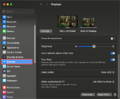
Step 4: Go to the Apple menu (upper-left corner) > System Settings (or System Preferences) > Displays. Hold the Option key to reveal the Detect Displays button, then click it repeatedly (10+ times).
4. Allow Docking Station Connections
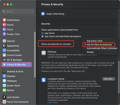
Step 1: Go to the Apple menu (upper-left corner) > System Settings (or System Preferences) > Privacy & Security.
Step 2: Scroll down and click the pop-up menu next to “Allow accessories to connect”, then choose the option you need.
5. Check monitor brightness
Step 1: If the external monitor is black, please make sure the brightness is not set to the lowest.
Step 2: If you are using an Apple keyboard and monitor, adjust the brightness with the brightness keys on your keyboard, or go to System Settings > Displays to adjust it.
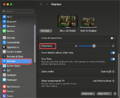
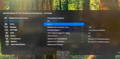
Step 3: If you are using a third-party monitor, please use the monitor’s built-in menu to adjust brightness. If the screen is still black, the monitor may not be powered on or may be malfunctioning.
6. Update Software
Software may affect display detection, image quality, and available resolutions or refresh rates.
Install the latest macOS updates. These updates can include firmware improvements for Apple displays.
If your monitor is not made by Apple, make sure it has the latest firmware provided by the manufacturer. Check the monitor’s manual or the manufacturer’s website for details.
If the issue persists, please contact the iVANKY support team and provide the following information so we can check for possible device compatibility issues:
1.Your macOS version
2.Which device is not working and its model
3. A purchase link if available
7. Unable to Connect Quad Displays
1. Check if your Mac supports quad displays
Only the following Mac models support quad display output with FusionDock Ultra:
-MacBook Pro with M1 / M2 / M3 / M4 Max
-All Mac Studio models
-Supported display configurations:
-4 × 4K @ 60Hz
-4 × 6K @ 60Hz (Pro Display XDR)
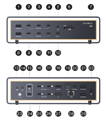
When connecting four displays, please connect the monitors using the following port distribution:
-Select two ports from Port 16 / 17 / 18
-Select two ports from Port 25 / 26 / 27
Each display must be distributed across both port groups.
Connecting all four displays within the same port group is not supported.
2. Check accessories and connections
Step 1: Ensure that the video cables (HDMI or USB-C) are properly connected to the monitors and securely plugged in.
Step 2: If you are using adapter or conversion cables with the iVANKY Dock, switch to iVANKY original cables to avoid potential cable quality issues. Connect the monitors to Port 15 or Port 24 to ensure proper operation.
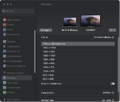
Step 3: Go to the Apple menu (upper-left corner) > System Settings (or System Preferences) > Displays, and choose the resolution recommended by the computer.
Step 4: Disconnect the USB-C cable connecting the Dock to the computer, flip the USB-C connector, and reconnect it.
Step 5: Try connecting the Dock to a different Thunderbolt port on the Mac.
Step 6: Go to the Apple menu (upper-left corner) > System Settings (or System Preferences) > Displays. If the external monitor is detected by the Mac but no image is displayed, replace the HDMI cable and test again.
If the issue persists, please contact iVANKY Customer Support for further assistance.
3. Monitor detection
Step 1: Disconnect the monitor from the docking station, then reconnect it. Turning off the monitor first may help.
Step 2: Manually select the correct input source on the monitor (e.g., HDMI).
Step 3: Restart your Mac. For MacBook, close the lid for a few seconds, then reopen it.
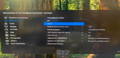
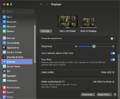
Step 4: Go to the Apple menu (upper-left corner) > System Settings (or System Preferences) > Displays. Hold the Option key to reveal the Detect Displays button, then click it repeatedly (10+ times).
4. Allow Docking Station Connections
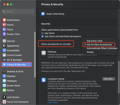
Step 1: Go to the Apple menu (upper-left corner) > System Settings (or System Preferences) > Privacy & Security.
Step 2: Scroll down and click the pop-up menu next to “Allow accessories to connect”, then choose the option you need.
5. Check monitor brightness
Step 1: If the external monitor is black, please make sure the brightness is not set to the lowest.
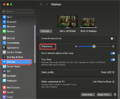
Step 2: If you are using an Apple keyboard and monitor, adjust the brightness with the brightness keys on your keyboard, or go to System Settings > Displays to adjust it.
Step 3: If you are using a third-party monitor, please use the monitor’s built-in menu to adjust brightness. If the screen is still black, the monitor may not be powered on or may be malfunctioning.
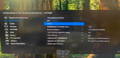
6. Update Software
Software may affect display detection, image quality, and available resolutions or refresh rates.
Install the latest macOS updates. These updates can include firmware improvements for Apple displays.
If your monitor is not made by Apple, make sure it has the latest firmware provided by the manufacturer. Check the monitor’s manual or the manufacturer’s website for details.
If the issue persists, please contact the iVANKY support team and provide the following information so we can check for possible device compatibility issues:
1.Your macOS version
2.Which device is not working and its model
3. A purchase link if available
8. Daisy Chain Support (FusionDock Ultra Only)
The FusionDock Ultra supports Thunderbolt daisy chaining. However, most monitors currently available on the market do not support Thunderbolt daisy chain connections. Whether daisy chaining can be used depends on the monitor’s hardware capabilities.
Please contact the monitor manufacturer to confirm whether your display supports Thunderbolt daisy chaining.
9. Screen Flickering
If the display flickers occasionally during extended use, the issue may be caused by electromagnetic interference in the operating environment.
1. Check Accessories and Connections
Step 1: Ensure the dock is used in a well-ventilated environment. Do not place or operate the Dock inside a PC case or in a confined, enclosed space.
Step 2: Disconnect the dual USB-C cable connecting the Dock to the Mac, then restart the Mac.
Step 3: Connect the USB-C cable to the Dock’s upstream Port 16 first, then connect the USB-C cable to upstream Port 24.
Step 4: If possible, replace the original magnetic USB-C cable with a Thunderbolt 5 cable shorter than 1 meter.
Step 5: Disconnect any non-essential peripherals. Connect required devices to the recommended ports on the Dock first, and avoid using unnecessary ports.
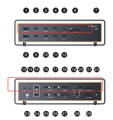
Step 6: Go to the Apple menu (upper-left corner) > System Settings (or System Preferences) > Displays, and select the resolution recommended by your Mac.
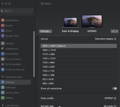
Step 7: Try using a different video input on your monitor.
Step 8: Make sure your Mac is updated to the latest macOS version.
2. Check the Monitor Condition
Step 1: Inspect the screen for physical damage:
-Check whether the artifacts are caused by cracks.
-Look for visible cracks, dirt, or liquid leakage.
-If damage is found, please contact the monitor’s support team.
Step 2: Rule out app-related issues:
-Restart your MacBook without opening any software. Test if the problem persists.
-If the issue only occurs with a specific application: Uninstall and reinstall the app, or update the app to the latest version.
-If the issue continues, please reach out to the app’s customer support.
Step 3: Keep your system and monitor updated
-Install the latest macOS updates, which may include firmware updates for Apple-made monitors.
If you’re using a non-Apple monitor, make sure it’s running the latest firmware provided by the manufacturer.
For details, please refer to the monitor’s documentation or the manufacturer’s website.
If the issue remains unresolved, please provide our customer support team with the following details:
-The macOS version currently installed on your MacBook.
-The exact port(s) that are not working.
-The model of your external monitor.
-The exact model, year, and specifications of your MacBook
10. DL6950 Accessory (Multi-Display Setup)
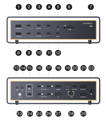
Step 1: When using the DL6950 accessory with FusionDock Ultra for multi-display output, the recommended connection ports are Port 20 / 21 / 29.
If any of these ports do not function as expected, use the following alternative ports: Port 3 / 4 / 10 / 11.
11. KVM Malfunction
1. Verify whether the FusionDock Max 2 works properly when directly connected to your MacBook
Step 1: Please use the dual USB-C cable included with your FusionDock Max 2 to connect the dock to the correct USB-C ports on your MacBook.
Step 2: If you are currently using an HDMI-to-DP cable to connect the dock and your monitor, we recommend replacing it with one of the following: an HDMI cable, a USB-C cable, a USB-C to HDMI cable, or a USB-C to DP cable.
Step 3: If the issue persists, please contact the iVANKY support team for further assistance.
2. Verify whether the FusionDock Max 2 is connected correctly with your KVM
Step 1: Refer to Figure 1 for the correct connection method between the dock and KVM. If you are currently using an HDMI-to-DP cable, please replace it with a USB-C to HDMI cable or a USB-C to DP cable, connecting from the dock’s USB-C video port to the KVM’s video port.
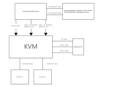
Step 2: If your connection setup differs from Figure 1, please contact the iVANKY support team and provide:
-Your MacBook model and macOS version
-Monitor model
-KVM purchase link & Suggested connection method (as shown in Figure 1)
If you encounter any issues while using the docking station please contact iVANKY technical support.
Email: support@ivanky.com
When contacting iVANKY technical support for technical issues, please provide the following information:
a. Your docking station serial number.
b. Your current macOS version.
c. Model of your MacBook.
d. Description of the issue and the devices connected to the dock.