Mac mini SSD Upgrade (2026): Internal vs. External

Mac mini SSD Upgrade: Internal vs. External Storage in 2026

Nov 10, 2026

FusionDock Max 2 Thunderbolt 5 MacBook dock driving three external 4K monitors in a triple-display developer setup

The storage menu is one of the easiest parts of a Mac mini order to underestimate. You pick a capacity, see the price jump, and wonder whether you could buy the smaller model and add space later. The answer depends on which Mac mini you're buying—and what you actually need that space for.


The short answer: The 2026 Mac mini with M6 or M5 Pro doesn't have a user-replaceable internal SSD module, according to independent teardowns. The 2024 M4 and M4 Pro models do have removable, Apple-specific storage modules, but replacing one isn't like installing a standard PC SSD. The M6 can be configured with up to 2TB internally; the M5 Pro goes up to 8TB. For most buyers, the practical choice is to buy enough internal storage for macOS, apps, and everyday working space, then use external storage for files and projects that can live on a separate drive.


Here's how to work out which combination is right for you.

Which Mac mini Models Let You Upgrade the Internal SSD?

The distinction matters because advice written for the 2024 Mac mini can lead you in the wrong direction when shopping for a 2026 model.
MODEL COMPATIBILITY

Not every Mac mini has the same storage design.

Internal SSD design and standard M.2 replacement compatibility across Mac mini generations.
Mac mini modelInternal storageCan you replace it with a normal M.2 SSD?
M1 (2020)Soldered storageNo
M2 / M2 Pro (2023)Soldered storageNo
M4 / M4 Pro (2024)Removable, Apple-specific moduleNo—a compatible proprietary module and a recovery procedure are required
M6 / M5 Pro (2026)Soldered storage; no removable module found in teardownsNo

Apple's 2024 Mac mini repair manual documents an SSD module replacement procedure. That doesn't make the upgrade a simple DIY job: you need the correct module for your model, and the procedure can involve firmware recovery using another Mac. A standard off-the-shelf M.2 NVMe SSD won't fit in place of the internal Apple module.

The newer machines are different. Independent teardowns of the M6 and M5 Pro found the storage chips soldered to the logic board, with no removable SSD module. Apple's 2026 repair manual also has no SSD module replacement procedure. That's supporting context, rather than a direct statement from Apple about the soldered design.

The takeaway: If you're ordering an M6 or M5 Pro, assume the internal capacity you choose at checkout is the capacity you'll keep. External storage can add plenty of room, but it doesn't change the size of that internal drive.

How Much Does Apple's Internal SSD Upgrade Cost?

On the US Apple Store, the M6 Mac mini starts at $899 with 256GB. Here is the storage price ladder for the same entry-level M6 configuration, based on prices checked November 10, 2026.
APPLE US · NOVEMBER 16, 2026

Same entry-level M6 chip and memory. Only internal storage changes.

  1. INTERNAL STORAGE256GB
    Additional cost
    Included
    Mac mini total
    $899
  2. INTERNAL STORAGE512GB
    Additional cost
    +$200
    Mac mini total
    $1,099
  3. INTERNAL STORAGE1TB
    Additional cost
    +$500
    Mac mini total
    $1,399
  4. INTERNAL STORAGE2TB
    Additional cost
    +$1,000
    Mac mini total
    $1,899

US configuration prices for the same base chip and memory, before applicable tax or other changes. Prices may change. Check Apple's Mac mini configurator for current pricing.

US configuration prices for the same base chip and memory, before applicable tax or other changes; prices may change. Check Apple's Mac mini configurator for current pricing.

The $200 step from 256GB to 512GB is straightforward to evaluate: will your apps and working files fit comfortably on 256GB for the next few years? The jump to 1TB or 2TB is a bigger purchase decision. You're paying not just for capacity, but for having it built into the computer, with no extra drive to connect or manage.

There's also a hard limit worth knowing. 2TB is the maximum internal storage option for the M6. If you need 4TB or 8TB inside the Mac, you'll need a different configuration: the M5 Pro, which starts at $1,699 with 512GB and supports up to 8TB. That model has other performance differences, too, so moving up to it shouldn't be treated as a storage-only upgrade.

Is a 256GB Mac mini Enough for the Way You Work?

A small internal drive isn't automatically a bad choice. A small drive that doesn't fit your routine is.

Before ordering, look at how much space your current Mac uses for macOS, applications, downloads, and data that needs to stay local. On a Mac you already own, System Settings → General → Storage is a useful starting point. Then think about which files can realistically live on another drive—and which ones you need available even when that drive isn't connected.

For everyday work: If you mainly use a browser, office apps, streaming services, and cloud-based files, 256GB may be workable. Just leave room for software updates, downloads, and the unexpected. If you regularly have to delete files to make space, 512GB may be the more comfortable long-term choice.

For development: Xcode, simulators, Docker images, virtual machines, and local development environments can take up more storage than your project folders suggest. Some of that data can be moved or reconfigured, but not always without extra maintenance. If you rely on these tools every day, don't choose 256GB solely because your source code is small.

For photo and video work: A large library of RAW files or footage doesn't all need to live on the startup disk. External storage is often a sensible place for source media and completed projects. However, application caches, previews, scratch files, and other working data can also grow. Check where your specific software keeps them before deciding how much internal space is enough.

Capacity can affect measured SSD performance, too. In third-party sequential tests reported by MacRumors, a tested 256GB M6 recorded roughly 3,200MB/s read speeds, compared with roughly 6,400MB/s for the tested 512GB model. They're one more reason to look at your workload instead of choosing on capacity alone.

Our rule of thumb is simple: buy internal storage for the things that must be there every day. Use external storage for the things that can live outside the Mac.

What Do You Gain—and Give Up—with an External SSD?

The biggest benefit is flexibility. You can add a drive later, replace it with a larger one, or move it to another computer. For footage, photo libraries, archives, and other sizable project files, that can be both practical and cost-effective.

But there is one important distinction: a 256GB Mac mini with a 1TB external SSD still has a 256GB internal startup disk. The external drive appears as a separate volume. You can deliberately move compatible files, libraries, and in some cases apps or application data onto it, but plugging it in won't automatically free space on the internal disk. You also need to keep the drive connected when using files or tools stored there.

How fast does your external SSD need to be?

A drive's advertised speed isn't the whole story. The Mac's port, the enclosure, the SSD inside it, the cable, cooling, and the type of work you're doing all influence the result.

  • USB-C at 10Gbps: A capable NVMe SSD and enclosure may deliver roughly 900–1,000MB/s in favorable sequential tests. This can work well for backups, media storage, transfers, and many editing setups, but it isn't a guarantee for every project.

  • Thunderbolt 4 or compatible USB4 at 40Gbps: A suitable high-speed SSD setup can offer considerably faster transfers. Many tested configurations fall around 2,800–3,000MB/s, although performance varies by product and workload.

  • Thunderbolt 5: A compatible Mac and SSD can offer still more storage bandwidth, which can matter for large transfers and demanding workflows. The 2026 M5 Pro has Thunderbolt 5 ports; the M6 has Thunderbolt 4. A backward-compatible Thunderbolt 5 drive connected to an M6 won't get Thunderbolt 5 bandwidth from that Mac.

More speed is useful when you can actually use it. Editing one stream of compressed video, moving a photo library, and handling several simultaneous high-bitrate streams place very different demands on a drive. If you're unsure, check the data rates of your media and whether your work depends on sustained transfers, not just a high peak number.

For a deeper explanation of host bandwidth and real-world limits, see our Thunderbolt 5 vs. Thunderbolt 4 guide.

External SSD or SSD Dock: What Are You Really Paying For?

Let's put some numbers beside the choices. The same M6 with 256GB starts at $899. In a November 16, 2026 US price snapshot, a representative 1TB NVMe SSD was about $159, while a basic new 10Gbps enclosure could be found for about $20. That puts the combined setup at roughly $1,078.

The M6 configured with 1TB internally was $1,399 in the same dated Apple price snapshot—about $321 more. But these are not equivalent storage layouts: the cheaper route leaves you with a 256GB startup disk plus a separate 1TB drive, more cabling, and different performance characteristics. It's a useful cost comparison, not proof that everyone should buy external storage.

The gap can be larger at higher capacities. Using an illustrative 2TB NVMe price of about $285 and a $20 enclosure, an M6 with 256GB plus a separate 2TB external drive would total about $1,204, compared with $1,899 for 2TB built in. Again, the external drive doesn't turn the smaller internal startup disk into a larger one.

These are examples, not shopping quotes or like-for-like performance comparisons. Apple configuration prices were checked November 16, 2026; sample third-party drive and enclosure prices were drawn from 1TB SSD, 2TB SSD, and 10Gbps enclosure listings around November 15–16, 2026. Prices, availability, and product quality vary. The least expensive enclosure isn't automatically the right one for sustained use.

Now consider whether you need just a drive—or a more capable desk setup.

If storage is your only problem, an external SSD or a straightforward enclosure is often the sensible purchase. A dock won't make that SSD inherently faster.

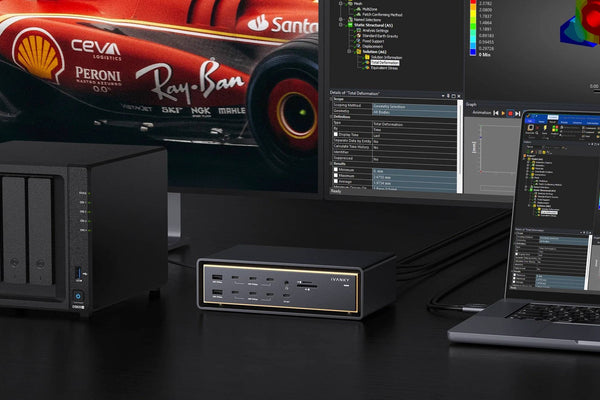
If you also want accessible USB ports, SD and microSD card readers, and a display connection, a dock can solve several annoyances at once. iVANKY FusionDock 3 combines those connections with an M.2 NVMe bay supporting up to 8TB of compatible storage, with the SSD purchased separately. It's listed for the M6, M5 Pro, M4, and M4 Pro Mac mini. The M.2 storage connection is up to 10Gbps and shares the dock's USB-C upstream bandwidth with other connected functions, so simultaneous activity can affect throughput. Use the included 20W power adapter as directed.

That's why we'd choose FusionDock 3 for the combination of storage and convenient connectivity, not as a replacement for a dedicated high-speed Thunderbolt SSD. For more on that distinction, read our Mac mini USB-C vs. Thunderbolt dock guide.

Which Mac mini Storage Setup Should You Choose?

Here's how we'd make the call, depending on what you're trying to solve.
FIND YOUR FIT

Start with the problem you are actually trying to solve.

  1. Mainly browser, office, and cloud work; tight budget

    A SENSIBLE STARTING POINT

    M6 256GB, if your local usage is genuinely modest

    WHAT TO WATCH FOR

    Leave space for apps, downloads, and system updates

  2. You want a simpler setup with more breathing room

    A SENSIBLE STARTING POINT

    M6 512GB

    WHAT TO WATCH FOR

    Higher upfront cost, but no need to manage a second drive just to fit everyday files

  3. You want roughly 1TB available on the startup disk

    A SENSIBLE STARTING POINT

    M6 1TB internal

    WHAT TO WATCH FOR

    More expensive than a basic external-capacity setup

  4. Your media or project library is growing, but internal space is sufficient

    A SENSIBLE STARTING POINT

    Keep enough internal storage and add an external SSD

    WHAT TO WATCH FOR

    Separate volumes; match drive speed to the workflow

  5. You need high-speed external storage

    A SENSIBLE STARTING POINT

    Match a suitable Thunderbolt/USB4 SSD to the Mac's actual ports

    WHAT TO WATCH FOR

    M6 is Thunderbolt 4; M5 Pro is Thunderbolt 5; check sustained performance

  6. You need storage and a more convenient desktop connection setup

    A SENSIBLE STARTING POINT

    Consider FusionDock 3 with a compatible NVMe SSD

    WHAT TO WATCH FOR

    Up to 10Gbps M.2 path, shared upstream bandwidth, drive sold separately

  7. You need more than 2TB internally

    A SENSIBLE STARTING POINT

    Consider the M5 Pro configuration

    WHAT TO WATCH FOR

    The M6 doesn't offer 4TB or 8TB built in

The best storage upgrade isn't necessarily the fastest drive or the largest internal capacity. It's the one that keeps your everyday work uncomplicated without paying for features you won't use.

If you only need more space, start with the drive. If your Mac mini is also running short on convenient ports, see whether FusionDock 3 fits your setup. Either way, make the internal-storage decision first: that's the part you'll have the hardest time changing later.

Frequently Asked Questions

Can I install apps or keep photo libraries on an external SSD?

Often, yes. Many applications let you place libraries, media, project files, or caches on an external volume, and some apps can be installed there. The details depend on the application, permissions, and how it handles its files. Keep enough free internal space for macOS and anything that must stay on the startup disk, and remember that files on the external drive won't be available when it's disconnected.

Can I put a standard M.2 NVMe SSD inside an M4 Mac mini?

No. The 2024 M4 and M4 Pro Mac mini use removable Apple-specific storage modules, not standard PC M.2 SSDs. Replacement requires a compatible module and the correct repair and recovery process. Check the Apple repair manual and the module supplier's exact model compatibility before attempting an upgrade.

Is a 10Gbps external SSD fast enough for 4K video editing?

Sometimes. “4K” alone doesn't tell you the storage bandwidth a project requires. Codec, bitrate, stream count, proxies, and concurrent transfers matter much more. A 10Gbps SSD can be suitable for many single-stream or proxy-based workflows; heavier multicamera or high-bitrate work may justify faster Thunderbolt storage. Don't treat a peak-speed figure as a sustained editing guarantee.