
Mac Music Production Setup: Audio, MIDI & SSD Connections

Setting up a music production desk on a Mac? The tricky part isn't always how many devices you have—it's knowing which ones should connect directly to your Mac and which can share a USB hub or docking station.
Start with your audio interface. Check whether it uses USB or Thunderbolt, how it's powered, and whether its manufacturer supports a connection through a hub or dock. Then connect your MIDI controller to a compatible USB port and place your sample-library SSD on a connection that can handle its workload.
You may not need a dock at all. But if you also use an external monitor, wired Ethernet, card readers, and storage, the right dock can organize those connections while leaving a direct Mac port available for audio gear that needs it.
Below, we'll map the audio and data cables, count the ports on three specific Macs, and show where everything goes. This is a physical connection guide, not a tutorial on DAW settings or recording techniques.
Quick Answer: Where Should Each Device Connect?
| Device | Best starting point | When a hub or dock makes sense |
|---|---|---|
| USB audio interface | A direct, compatible Mac USB/Thunderbolt port, when its maker recommends direct connection | Only if the interface's protocol, power needs, and manufacturer guidance permit that exact path |
| Thunderbolt audio interface | A compatible Thunderbolt port on the Mac | A Thunderbolt downstream port may work, but only where the interface manufacturer supports the docked configuration |
| USB MIDI keyboard or controller | A compatible USB port; an appropriate USB-A/USB-C cable or adapter may be needed | Often a good candidate for a hub if USB compatibility, power, and any driver requirements are met |
| Synthesizer / hybrid USB audio-MIDI device | Follow its separate audio and MIDI signal requirements | Do not assume that a keyboard with USB MIDI also sends its sounds over USB |
| Active sample-library / recording SSD | A compatible data port fast and stable enough for the actual workload | Yes, if the hub/dock link and simultaneous devices provide enough bandwidth and reliable operation |
| Display / Ethernet / card reader | Mac's built-in output or a compatible adapter | A dock is convenient when you regularly need several of these connections |
One rule before buying an adapter: USB-C describes a connector, not a guaranteed data protocol. A USB-C audio interface and a Thunderbolt audio interface can have similar-looking plugs yet require different host ports and cables. Check the device's manual, not just the connector shape. For a more detailed explanation, see our guide to dock ports and upstream/downstream connections.
Audio Connections vs. USB Data Connections: Two Different Paths
Count Your Mac's Data Ports Before Connecting Anything
| Reference Mac | USB/Thunderbolt data ports | Other useful connections | First allocation to try |
|---|---|---|---|
| 13-inch MacBook Air M4 (2025) | 2× Thunderbolt 4 (USB-C) | MagSafe 3, 3.5mm headphone jack | Audio interface direct; compatible USB hub on the other port for MIDI and, if sufficiently fast, SSD |
| MacBook Pro with M5 Pro (2026) | 3× Thunderbolt 5 (USB-C) | MagSafe 3, HDMI, SDXC, 3.5mm headphone jack | Audio interface direct; dock on another port; reserve the third for a direct SSD or another critical device |
| Mac mini M4 (2024) | Front: 2× USB-C (USB 3 up to 10Gb/s). Rear: 3× Thunderbolt 4 | HDMI, Ethernet, 3.5mm; AC mains power | Audio interface direct; use existing HDMI/Ethernet before deciding if extra desktop I/O is needed |
The Two-Port Decision: No Dock, One Upstream, or Two?
- No full dock: Port 1 → audio interface; Port 2 → compatible USB hub for the MIDI controller and SSD. Verify that the hub supports the SSD's workload and all connected devices' power needs.
- Single-upstream dock: Port 1 → audio interface; Port 2 → dock's one host/upstream cable. The dock can handle compatible peripherals, networking, and display output where supported.
- Dock requiring two upstream Mac connections: Both Mac data ports are occupied by the dock. No separate native Mac data port remains for a direct-connected audio interface. This is a host-port budgeting issue, not proof that the audio interface cannot ever work through a supported dock connection.
USB vs. Thunderbolt Audio Interfaces: What to Check
1. Identify the actual protocol
2. Check power and software
3. Use the manufacturer's hub guidance, not a universal rule
Connecting MIDI Controllers and Synthesizers
Where Should Your Sample Libraries and Recording SSDs Go?
Three Practical Mac Music Production Setups
Setup A: MacBook Air M4 — Two Ports, Small USB-Focused Desk
- Mac Thunderbolt 4 port 1 → USB audio interface directly, using the cable required by that interface.
- Mac Thunderbolt 4 port 2 → compatible USB hub. Connect the MIDI controller and external SSD to suitable downstream USB ports. Choose a hub with enough power and data bandwidth for *both* devices; where needed, use one with its own power adapter.
- Microphone / headphones / studio monitors → audio interface, using the correct analog inputs and outputs rather than available USB dock ports.
- MagSafe 3 → charging, if you need to keep the two USB-C data ports available.
Setup B: MacBook Pro M5 Pro — Keep Audio Direct, Expand Everything Else
- Mac Thunderbolt 5 port 1 → compatible audio interface directly, following the interface manufacturer's protocol and cable guidance.
- Mac Thunderbolt 5 port 2 → FusionDock Pro 3 using its included Thunderbolt 5 host cable.
- Mac Thunderbolt 5 port 3 → optional directly connected SSD or another device that benefits from its own host path. If your SSD works reliably through the dock's suitable downstream port, the third Mac port can remain free.
- MIDI controller → compatible dock USB-A port; Ethernet → dock's 2.5GbE port; SD card → dock's UHS-II SD reader, when needed.
- Display → Mac's built-in HDMI port, or to a supported downstream Thunderbolt connection/compatible video adapter on the dock. Verify the display and Mac capabilities before selecting an adapter.
Setup C: Mac mini M4 — Keep Native Ports, Add Access or NVMe Storage
- Rear Mac Thunderbolt 4 port → compatible audio interface directly. Use a USB or Thunderbolt connection as required by the interface.
- A suitable Mac USB-C data port → FusionDock 3 using its supplied host cable. Confirm the precise dock/host cable arrangement in the product instructions.
- MIDI controller and occasional accessories → dock's compatible USB ports. Reserve low-speed 480Mb/s USB-A ports for low-throughput devices; do not route an active library drive through them.
- Active external SSD → a sufficiently fast, compatible Mac or dock port. A dock port labeled 10Gb/s is a downstream port rating, not a promise of that speed end to end or alongside other busy peripherals.
- Display / network → Mac's existing HDMI / Ethernet, if those already meet your needs. You do not have to reroute them through the dock.
Do You Need a USB Hub or a Thunderbolt Dock?
| Ihre Situation | Best place to start | Warum |
|---|---|---|
| All essential devices already have compatible, reliable connections | No dock | Extra hardware adds little if the existing setup works |
| Mostly USB MIDI controllers, a few accessories, and a suitable SSD | Appropriately specified USB hub | More USB ports may solve the problem without paying for a full desk dock |
| You regularly connect a monitor, Ethernet, storage, card readers, and laptop power | Compatible single-upstream dock | Consolidates multiple functions while potentially preserving another Mac host port for audio |
| A dock needs two upstream Mac ports, but your interface must connect directly | Recount host ports first | A two-data-port Mac has no native data port left after both are occupied |
| Several demanding Thunderbolt devices operate together | Evaluate actual Thunderbolt topology and manufacturer support | Port labels alone do not establish total bandwidth or interface compatibility |
Common Connection Problems: What to Check First
| Symptom | First check | Nächster Schritt |
|---|---|---|
| Audio interface disconnects or isn't detected | USB versus Thunderbolt protocol, approved cable, Mac compatibility, power, driver/control app | Compare a manufacturer-approved direct Mac connection against the hub/dock path; reconnect one device at a time |
| Clicks, pops, or recording interruptions | DAW buffer settings, interface software, CPU load, and active storage workload—not just the dock | Test direct interface connection and storage separately; follow the interface/DAW maker's troubleshooting steps |
| MIDI keyboard is missing or intermittently disconnects | Correct USB data cable, MIDI device recognition, hub power, device software | Try direct connection; for certain devices a powered hub is recommended by the maker |
| Sample library loads slowly or stops finding files | Actual SSD/enclosure/cable/port capabilities and sample-library location | Avoid low-speed dock ports; check the application's library path and whether other drives share the connection |
Häufig gestellte Fragen
Do I need a docking station for music production on a Mac?
Should I connect my audio interface directly to my Mac?
Can a Thunderbolt audio interface connect through a docking station?
Can MIDI controllers work through a USB hub?
Is a USB-C cable enough for a MIDI keyboard with USB-B?
Should sample libraries be on an external SSD?
Does adding a dock increase audio latency?
Can I use two audio interfaces at once on a Mac?
Weiterlesen
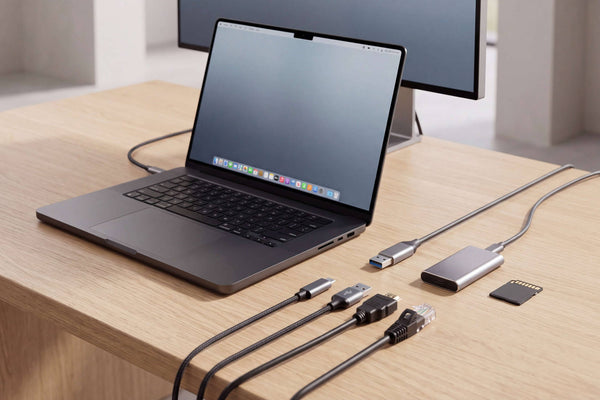
Thunderbolt 5 Dock Ports Explained: What Matters for Mac
Not all Thunderbolt 5 dock ports do the same job. Learn how to compare upstream and downstream TB5, USB-C speeds,...
Artikel lesen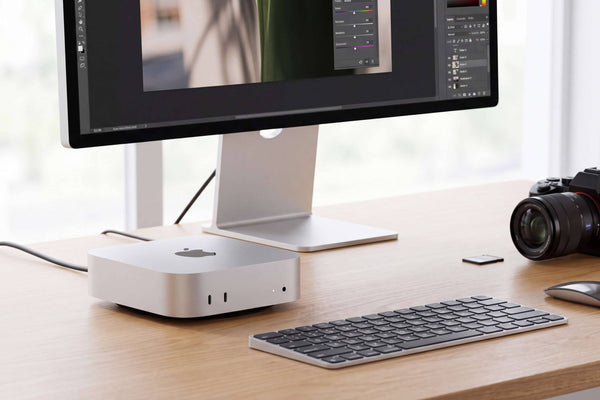
Mac mini Docking Station: USB-C vs Thunderbolt Guide
Choosing a Mac mini docking station? Learn when no dock, a USB-C dock, or Thunderbolt makes sense for displays, SSDs,...
Artikel lesen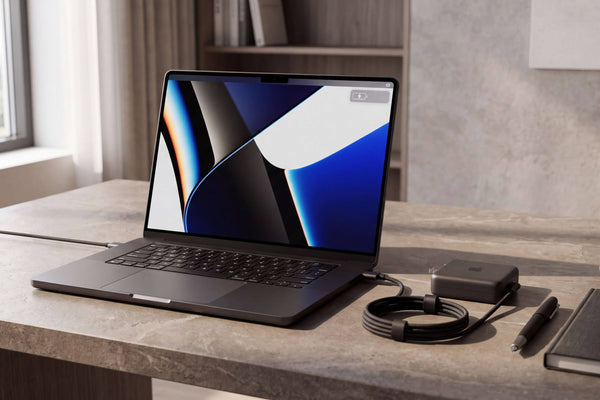
96W vs 140W Dock Charging for 16-inch MacBook Pro
Why 140W USB-C fast charging works on newer 16-inch MacBook Pros but not 2021/early-2023 models, plus our 96W vs 140W...
Artikel lesen