Mac Music Production Setup: Audio, MIDI & SSD Connections

Mac Music Production Setup: How to Connect Audio Interfaces, MIDI & SSDs

Oct 22, 2026

Setting up a music production desk on a Mac? The tricky part isn't always how many devices you have—it's knowing which ones should connect directly to your Mac and which can share a USB hub or docking station.


Start with your audio interface. Check whether it uses USB or Thunderbolt, how it's powered, and whether its manufacturer supports a connection through a hub or dock. Then connect your MIDI controller to a compatible USB port and place your sample-library SSD on a connection that can handle its workload.


You may not need a dock at all. But if you also use an external monitor, wired Ethernet, card readers, and storage, the right dock can organize those connections while leaving a direct Mac port available for audio gear that needs it.


Below, we'll map the audio and data cables, count the ports on three specific Macs, and show where everything goes. This is a physical connection guide, not a tutorial on DAW settings or recording techniques.

Quick Answer: Where Should Each Device Connect?

Where to connect your music production devices
DeviceBest starting pointWhen a hub or dock makes sense
USB audio interfaceA direct, compatible Mac USB/Thunderbolt port, when its maker recommends direct connectionOnly if the interface's protocol, power needs, and manufacturer guidance permit that exact path
Thunderbolt audio interfaceA compatible Thunderbolt port on the MacA Thunderbolt downstream port may work, but only where the interface manufacturer supports the docked configuration
USB MIDI keyboard or controllerA compatible USB port; an appropriate USB-A/USB-C cable or adapter may be neededOften a good candidate for a hub if USB compatibility, power, and any driver requirements are met
Synthesizer / hybrid USB audio-MIDI deviceFollow its separate audio and MIDI signal requirementsDo not assume that a keyboard with USB MIDI also sends its sounds over USB
Active sample-library / recording SSDA compatible data port fast and stable enough for the actual workloadYes, if the hub/dock link and simultaneous devices provide enough bandwidth and reliable operation
Display / Ethernet / card readerMac's built-in output or a compatible adapterA dock is convenient when you regularly need several of these connections

One rule before buying an adapter: USB-C describes a connector, not a guaranteed data protocol. A USB-C audio interface and a Thunderbolt audio interface can have similar-looking plugs yet require different host ports and cables. Check the device's manual, not just the connector shape. For a more detailed explanation, see our guide to dock ports and upstream/downstream connections.

Audio Connections vs. USB Data Connections: Two Different Paths

A music desk has two overlapping wiring systems. Understanding the distinction prevents a common setup mistake: plugging everything into the dock without checking where the actual sound travels.

The audio path carries the sound you record or monitor. For a typical setup, a microphone connects by XLR cable to an appropriate microphone input on the audio interface. The interface converts that signal for the Mac. Your powered studio monitors connect to compatible monitor or line outputs on the interface, while headphones generally connect to its headphone output. Match levels and connectors to your equipment's manuals, and power equipment on or off as recommended by its maker.

The USB/Thunderbolt data path carries the interface's digital audio to and from the Mac, plus MIDI commands and storage data. The audio interface uses its required USB or Thunderbolt connection; a USB MIDI controller sends note and control messages through USB; an SSD carries sample-library or project files. These can all reach the same computer without needing the same port speed or the same connection priority.

A hardware synthesizer needs another look. A USB-MIDI-only synth can send note information to the Mac but may still need analog cables from its audio outputs to suitable inputs on the interface if you want to record the synth's sound. Some devices support both USB audio and USB MIDI; others use traditional five-pin DIN MIDI sockets. A DIN MIDI connection needs an appropriate MIDI interface or a device with MIDI DIN inputs/outputs—it is not interchangeable with an ordinary USB plug adapter.

Simple check: When you press a key, are you sending a MIDI command, recording an actual sound, or both? Your answer determines whether you need a USB/MIDI connection, an audio connection, or two separate cables.

Count Your Mac's Data Ports Before Connecting Anything

The ports physically available on your Mac determine how much room you have for direct audio connections. Do not count MagSafe, HDMI, or a 3.5mm headphone jack as interchangeable USB data ports: they have other jobs. HDMI can handle video and compatible audio output, but it cannot replace a USB port for an audio interface or SSD.

These are three specific reference models, not a claim about every Mac with an M-series chip:
USB and Thunderbolt connections on reference Mac models
Reference MacUSB/Thunderbolt data portsOther useful connectionsFirst allocation to try
13-inch MacBook Air M4 (2025)2× Thunderbolt 4 (USB-C)MagSafe 3, 3.5mm headphone jackAudio interface direct; compatible USB hub on the other port for MIDI and, if sufficiently fast, SSD
MacBook Pro with M5 Pro (2026)3× Thunderbolt 5 (USB-C)MagSafe 3, HDMI, SDXC, 3.5mm headphone jackAudio interface direct; dock on another port; reserve the third for a direct SSD or another critical device
Mac mini M4 (2024)Front: 2× USB-C (USB 3 up to 10Gb/s). Rear: 3× Thunderbolt 4HDMI, Ethernet, 3.5mm; AC mains powerAudio interface direct; use existing HDMI/Ethernet before deciding if extra desktop I/O is needed

The Two-Port Decision: No Dock, One Upstream, or Two?

Consider the M4 MacBook Air above. If your audio interface works best directly connected to the computer, you have a simple port budget:

  • No full dock: Port 1 → audio interface; Port 2 → compatible USB hub for the MIDI controller and SSD. Verify that the hub supports the SSD's workload and all connected devices' power needs.
  • Single-upstream dock: Port 1 → audio interface; Port 2 → dock's one host/upstream cable. The dock can handle compatible peripherals, networking, and display output where supported.
  • Dock requiring two upstream Mac connections: Both Mac data ports are occupied by the dock. No separate native Mac data port remains for a direct-connected audio interface. This is a host-port budgeting issue, not proof that the audio interface cannot ever work through a supported dock connection.

Why this matters: A dock with more downstream ports isn't automatically better for a two-port Mac. First determine whether your audio hardware must keep a direct connection; then count how many host ports the dock consumes. Compatibility and available power still need to be checked for the actual products.

USB vs. Thunderbolt Audio Interfaces: What to Check

1. Identify the actual protocol

A USB audio interface might use USB-C at one end and USB-A or USB-C at the Mac end. A Thunderbolt interface needs the Thunderbolt version, compatible cable, and host connection specified by its manufacturer. A USB-A socket—or a USB-C socket supporting only USB data—is not a substitute for a Thunderbolt connection.

2. Check power and software

Some interfaces are bus-powered through their data cable; others have independent power supplies. Separately powering an interface may reduce demands on a shared USB power budget, but it does not remove driver, protocol, cable, or dock-compatibility requirements. Confirm macOS compatibility and any control software before you rearrange the desk.

3. Use the manufacturer's hub guidance, not a universal rule

For example, Focusrite's USB cable guidance applies to specific Scarlett, Clarett+, Clarett USB, and Vocaster USB products. It recommends connecting directly where possible and using a powered USB hub if a hub is necessary. Its recommendations for replacement cables and adapters apply to those products—not to every audio interface, controller, or SSD. The original Thunderbolt Clarett models are a different connection category.

Universal Audio's Apollo/Satellite cable guidance likewise cautions that routing supported devices through docks or hubs can affect stability. This is a reason to verify the exact audio-interface model and connection path, not a blanket claim that all docks add audible latency.

When a session matters, test the completed setup with your usual audio interface, DAW, storage, and controller devices active. If a problem disappears when the interface connects directly, investigate the shared path, cable, power, or driver interaction rather than immediately blaming a single component.

Connecting MIDI Controllers and Synthesizers

Ordinary MIDI messages generally need relatively little bandwidth. That makes many USB MIDI keyboards, drum pads, and control surfaces reasonable candidates for a compatible USB hub—but low bandwidth does not mean zero power or guaranteed compatibility.

Check three things: (1) whether the controller's USB connection is class-compliant or needs software; (2) whether it requires bus power or a separate adapter; and (3) whether its maker supports or provides troubleshooting for the proposed hub connection. For instance, Novation's Mac troubleshooting guidance for certain Launchkey models recommends checking a powered hub and comparing against a direct connection when detection fails.

A USB-B socket on a keyboard can connect to a Mac USB-C port with the correct data cable or a compatible adapter; it does not require the keyboard itself to have USB-C. But if the device has five-pin MIDI output rather than USB, plan for the appropriate MIDI DIN connection. If it sends audio over USB as well as MIDI, apply the audio-device connection checks in the previous section.

Where Should Your Sample Libraries and Recording SSDs Go?

A fast SSD can make a real difference when opening large projects, loading sample libraries, or recording and playing back demanding sessions. But how storage is used matters. Some instruments preload sample data into RAM, some stream from disk, and others combine both. Kontakt's documented disk-streaming engine is one example. Ableton's storage guidance also supports keeping active samples, libraries, and projects on external drives while retaining the Live application on the system disk.

For a sample-library SSD, prioritize responsive loading and reliable streaming under your typical number of instruments and voices. For a recording/project drive, prioritize reliable sustained reads and writes and enough free capacity for your sessions. These are related workloads, but they're not identical.

A drive's real performance depends on the SSD itself, enclosure controller, cable, downstream port, dock-to-Mac link, and simultaneous traffic. Any one of these can become a bottleneck. Putting a fast SSD behind a USB 2.0 (480Mb/s) port is usually a poor allocation for active sample work; the theoretical port rate is not a real-world file-transfer benchmark. Conversely, a Thunderbolt-labeled dock does not make every connected SSD run at Thunderbolt speed.

Practical allocation: Give frequently accessed sample libraries and active recording projects a compatible, adequately fast connection. Leave low-throughput MIDI controllers, USB receivers, and occasional accessories on ordinary USB ports. If multiple fast drives share a dock, consider simultaneous bandwidth demands and test your actual projects before treating the setup as production-ready.

Three Practical Mac Music Production Setups

The following configurations are illustrative connection plans, not hands-on compatibility certifications. Device models, firmware, cables, macOS versions, power requirements, and workload can change the outcome.

Setup A: MacBook Air M4 — Two Ports, Small USB-Focused Desk

What you have: A 13-inch M4 MacBook Air, one USB audio interface, one USB MIDI keyboard, one external SSD, and optional headphones or powered monitors connected to the audio interface.

Suggested wiring:

  1. Mac Thunderbolt 4 port 1 → USB audio interface directly, using the cable required by that interface.
  2. Mac Thunderbolt 4 port 2 → compatible USB hub. Connect the MIDI controller and external SSD to suitable downstream USB ports. Choose a hub with enough power and data bandwidth for *both* devices; where needed, use one with its own power adapter.
  3. Microphone / headphones / studio monitors → audio interface, using the correct analog inputs and outputs rather than available USB dock ports.
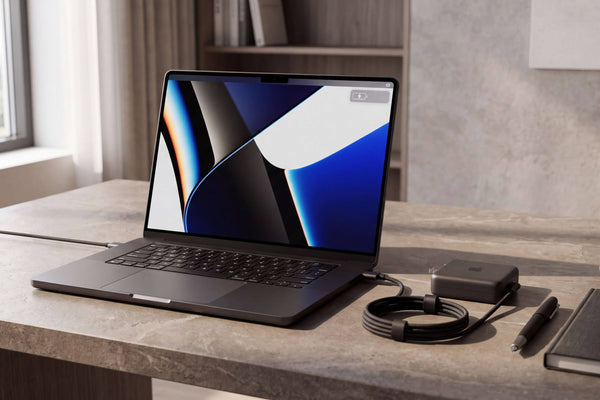
  4. MagSafe 3 → charging, if you need to keep the two USB-C data ports available.

When this stops being enough: If the hub constrains your SSD, you need additional external displays, or your interface manufacturer's instructions prohibit the shared path you planned, rethink which peripheral connects directly. You may need a different hub, a single-upstream dock with the required features, or a different allocation—not automatically the most expensive dock.

Setup B: MacBook Pro M5 Pro — Keep Audio Direct, Expand Everything Else

What you have: An M5 Pro MacBook Pro, one supported USB audio interface, a MIDI controller, an external sample-library or project SSD, a display, and Ethernet.

Suggested wiring:

  1. Mac Thunderbolt 5 port 1 → compatible audio interface directly, following the interface manufacturer's protocol and cable guidance.
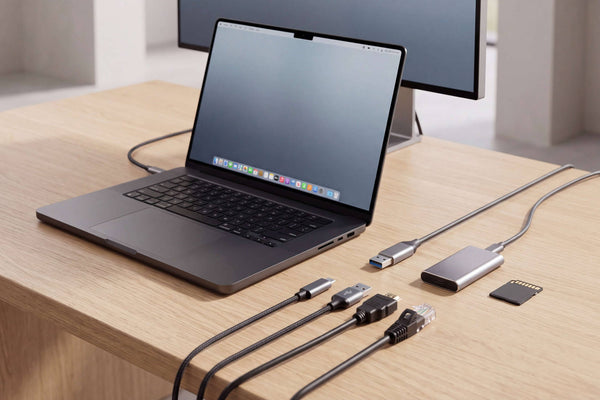
  2. Mac Thunderbolt 5 port 2 → FusionDock Pro 3 using its included Thunderbolt 5 host cable.
  3. Mac Thunderbolt 5 port 3 → optional directly connected SSD or another device that benefits from its own host path. If your SSD works reliably through the dock's suitable downstream port, the third Mac port can remain free.
  4. MIDI controller → compatible dock USB-A port; Ethernet → dock's 2.5GbE port; SD card → dock's UHS-II SD reader, when needed.
  5. Display → Mac's built-in HDMI port, or to a supported downstream Thunderbolt connection/compatible video adapter on the dock. Verify the display and Mac capabilities before selecting an adapter.

FusionDock Pro 3 has one upstream Thunderbolt 5 connection, three downstream Thunderbolt 5 ports, USB-A connectivity, 2.5GbE Ethernet, and an SD 4.0 reader. It has no dedicated HDMI or DisplayPort socket. Its 3.5mm headset jack should not be assumed to replace an audio interface that provides the mic preamps, multiple inputs, and monitor routing your work requires. The dock supports up to 140W host charging, with macOS 15.1 or later listed on the current primary product page; actual delivered power and charging behavior depend on the host and power negotiation.

Why this layout works as a starting point: The audio interface retains an independent host port. One dock cable organizes compatible everyday I/O. The remaining Mac data port stays available for a high-priority drive. If you use a Thunderbolt audio interface instead, check its maker's specific host, cable, and dock support before adopting this layout. For broader chip and display differences, see our M5 MacBook Pro dock guide.

Setup C: Mac mini M4 — Keep Native Ports, Add Access or NVMe Storage

What you have: A 2024 Mac mini with M4, an audio interface, a MIDI controller, a sample-library SSD, and possibly an SD card workflow.

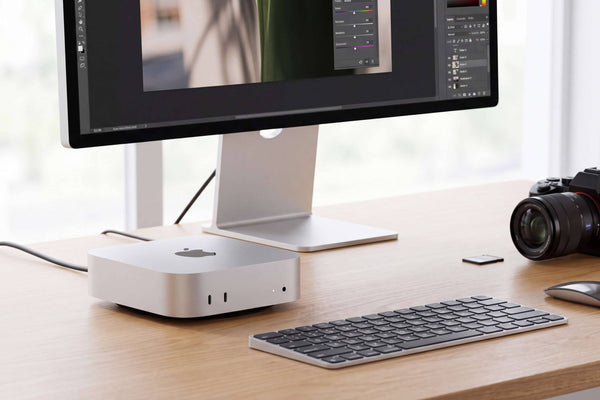
The M4 Mac mini already provides three rear Thunderbolt 4 data ports, two front USB-C ports, HDMI, and wired Ethernet. For a modest studio, connect your audio interface directly, use HDMI and Ethernet as needed, and consider skipping a dock entirely.

Suggested wiring if you want desktop expansion:

  1. Rear Mac Thunderbolt 4 port → compatible audio interface directly. Use a USB or Thunderbolt connection as required by the interface.
  2. A suitable Mac USB-C data port → FusionDock 3 using its supplied host cable. Confirm the precise dock/host cable arrangement in the product instructions.
  3. MIDI controller and occasional accessories → dock's compatible USB ports. Reserve low-speed 480Mb/s USB-A ports for low-throughput devices; do not route an active library drive through them.
  4. Active external SSD → a sufficiently fast, compatible Mac or dock port. A dock port labeled 10Gb/s is a downstream port rating, not a promise of that speed end to end or alongside other busy peripherals.
  5. Display / network → Mac's existing HDMI / Ethernet, if those already meet your needs. You do not have to reroute them through the dock.

FusionDock 3 also includes an NVMe SSD expansion bay. For users with large Kontakt sample libraries or project archives, an internal NVMe drive in the dock can be a cleaner alternative to another separate external enclosure. That is primarily a choice about capacity, organization, accessibility, and cost; do not assume the installed NVMe will outperform a direct-connected drive without checking the SSD specification and the dock's complete host link. Follow the product's supported SSD formats and installation instructions.

The FusionDock 3 uses its own 20W power adapter. This powers the dock and connected functions within its specifications; it does not charge or power the Mac mini, which has its own AC power connection. For a broader choice between USB-C and Thunderbolt options, see our Mac mini docking station guide.

Do You Need a USB Hub or a Thunderbolt Dock?

The best choice is the least complicated connection plan that meets your actual requirements:
When to use no dock, a USB hub, or a compatible dock
Tu situaciónBest place to start¿Por qué?
All essential devices already have compatible, reliable connectionsNo dockExtra hardware adds little if the existing setup works
Mostly USB MIDI controllers, a few accessories, and a suitable SSDAppropriately specified USB hubMore USB ports may solve the problem without paying for a full desk dock
You regularly connect a monitor, Ethernet, storage, card readers, and laptop powerCompatible single-upstream dockConsolidates multiple functions while potentially preserving another Mac host port for audio
A dock needs two upstream Mac ports, but your interface must connect directlyRecount host ports firstA two-data-port Mac has no native data port left after both are occupied
Several demanding Thunderbolt devices operate togetherEvaluate actual Thunderbolt topology and manufacturer supportPort labels alone do not establish total bandwidth or interface compatibility

A dock also cannot increase your Mac's CPU capacity, fix room acoustics, add recording channels to your audio interface, turn USB-only ports into Thunderbolt, or override the host's native display limits. If multiple external monitors are part of your studio, check your exact Mac model and our MacBook Pro dual-monitor guide.

Common Connection Problems: What to Check First

Before changing several things at once, isolate one link in the signal or data chain.
Common Mac music production connection issues
SymptomFirst checkSiguiente paso
Audio interface disconnects or isn't detectedUSB versus Thunderbolt protocol, approved cable, Mac compatibility, power, driver/control appCompare a manufacturer-approved direct Mac connection against the hub/dock path; reconnect one device at a time
Clicks, pops, or recording interruptionsDAW buffer settings, interface software, CPU load, and active storage workload—not just the dockTest direct interface connection and storage separately; follow the interface/DAW maker's troubleshooting steps
MIDI keyboard is missing or intermittently disconnectsCorrect USB data cable, MIDI device recognition, hub power, device softwareTry direct connection; for certain devices a powered hub is recommended by the maker
Sample library loads slowly or stops finding filesActual SSD/enclosure/cable/port capabilities and sample-library locationAvoid low-speed dock ports; check the application's library path and whether other drives share the connection

A powered hub may help when shared USB power is the issue; it does not automatically cure driver conflicts or make unsupported Thunderbolt routing compatible. Likewise, a more expensive dock doesn't replace basic checks of cables, file paths, or audio buffer settings.

Preguntas frecuentes

Do I need a docking station for music production on a Mac?

Not necessarily. If your audio interface, MIDI controller, and storage already connect reliably with the available ports and power, you may need no dock. A USB hub can be enough for compatible USB-only devices. A dock becomes more useful when you also want a display, Ethernet, card reading, and storage organized through fewer host connections.

Should I connect my audio interface directly to my Mac?

A direct, compatible connection is a sensible starting point—especially when the interface manufacturer recommends it. Some devices can work through an appropriate hub or dock, but you must confirm their specific protocol, power, cable, driver, and manufacturer-supported connection requirements. Direct connection is a troubleshooting baseline, not a claim that every docked interface fails.

Can a Thunderbolt audio interface connect through a docking station?

Potentially, but the connection must provide actual Thunderbolt support end to end, with a compatible cable and a dock route permitted by the interface maker. A USB-A port or USB-only USB-C port cannot replace a Thunderbolt data connection. Check the exact interface model before buying a dock for this purpose.

Can MIDI controllers work through a USB hub?

Many can, because basic MIDI messages use relatively little bandwidth. The controller still needs adequate power, a compatible USB data connection, and any required software. If it fails to appear, test a direct connection first and follow the maker's hub guidance.

Is a USB-C cable enough for a MIDI keyboard with USB-B?

Use a proper USB data cable with the correct connectors, such as USB-B to USB-C if the device supports that USB connection, or its specified USB cable with a compatible adapter. A five-pin DIN MIDI output is different: it requires a suitable MIDI interface or another device with DIN MIDI connectivity.

Should sample libraries be on an external SSD?

An external SSD can be a practical way to add capacity and organize large libraries. Some samplers load samples into RAM, others stream them from disk, and many use both methods. Choose a stable, fast-enough connection for your library and project workload. The library's own software instructions remain the source of truth for storage placement.

Does adding a dock increase audio latency?

Not necessarily, and no meaningful latency figure can be inferred from the presence of a dock alone. Performance depends on the audio interface, its software and buffer settings, protocol, and connection stability. If you suspect an issue, compare the same session with the interface directly connected and through the proposed dock, while keeping other variables as consistent as possible.

Can I use two audio interfaces at once on a Mac?

macOS can combine supported devices into an Aggregate Device in Audio MIDI Setup. Apple's official guide explains selecting the devices, matching sample rates, setting a clock source where available, and using drift correction as needed. This is a macOS audio-configuration feature, not a capability supplied by the dock itself.