
DisplayPort vs HDMI (2026): Which Cable for Your Mac?

If your Mac and monitor both support DisplayPort and HDMI, use DisplayPort — it's the higher-bandwidth connection, and on a Mac, that's usually the route your Thunderbolt or USB-C port already carries. Choose HDMI when your monitor is HDMI-only, when you're connecting to a TV or soundbar chain that needs eARC, or when both cables deliver the same resolution and refresh rate. The one thing that changes everything is the version number: DisplayPort 1.4, 2.1, and 2.1b are very different from each other, and HDMI 2.1 is not HDMI 2.2. This guide shows you how to match your Mac, your monitor, and your dock in 2026.
DisplayPort vs HDMI: The Short Version
Quick decision
DisplayPort or HDMI for your setup?
Start with the devices on your desk. If both connections can deliver the same resolution and refresh rate, there is no visible image-quality advantage to either one.
| Your situation | Use | Why |
|---|---|---|
| Mac + monitor that has both DisplayPort and HDMI inputs | DisplayPortvia USB-C-to-DP or Thunderbolt | Higher bandwidth headroom; matches what your Mac's ports natively carry |
| Monitor is HDMI-only | HDMI | No adapter needed; HDMI 2.1 or 2.2 handles 4K and 8K fine |
| Connecting a TV, console, or soundbar setup | HDMI | eARC/ARC audio return; universal device compatibility |
| Both cables deliver the same resolution and refresh rate | Either | No visible difference — use whichever is cheaper or already on your desk |
| Multiple monitors through a dock | Depends on the dock's outputs | Docks route specific ports; see the dock section below |
The reason DisplayPort gets the nod on a Mac isn't that the connector is "better" in some abstract sense. It's that Thunderbolt 4, Thunderbolt 5, and USB-C with DisplayPort Alt Mode all carry DisplayPort signaling. So when you plug a USB-C-to-DisplayPort cable into your Mac, you're already using DisplayPort — even though the plug is USB-C shaped.
The 2026 Version Matrix: DP 1.4 to 2.1b, HDMI 2.0 to 2.2
2026 version matrix
DisplayPort and HDMI versions compared
Version numbers matter more than the connector shape. Compare bandwidth, realistic display modes, compression support, and the cable label to look for.
| Version | Max bandwidth | What it realistically drives | DSC? | Cable to look for |
|---|---|---|---|---|
| DisplayPort 1.4 | 32.4 Gbps (HBR3) | 4K @ 120Hz, 8K @ 60Hz | Yes | DP8K / certified HBR3 |
| DisplayPort 2.0 | up to 80 GbpsUHBR20 | 8K+ and high-refresh multi-display | Yes | DP40 / DP80 certified |
| DisplayPort 2.1 | up to 80 GbpsUHBR20 | Same as 2.0, aligned with USB4 | Yes | DP40 / DP80 certified |
| DisplayPort 2.1b | up to 80 GbpsUHBR20 | Same, plus long active cables (DP80LL up to 3 m) | Yes | DP80LLlow loss, active |
| HDMI 2.0 | 18 Gbps | 4K @ 60Hz | No | High Speed HDMI |
| HDMI 2.1 | 48 GbpsFRL | 4K @ 120Hz, 8K @ 60Hz with DSC; VRR, ALLM, eARC | Yes | Ultra High Speed HDMI |
| HDMI 2.2 | 96 Gbpsnext-gen FRL | 4K @ 240Hz or 8K @ 60Hz uncompressed 4:4:4 10/12-bit; up to 12K/16K with compression | Yes | Ultra96 |
- DisplayPort leads on raw bandwidth. DP 2.1/2.1b tops out at 80 Gbps; HDMI 2.2 goes further at 96 Gbps — but both are well beyond what most current monitors need.
- HDMI 2.2 is new. The spec shipped in June 2025, with Ultra96 cables following. If you're shopping for an HDMI 2.2 port today, check the port and cable are actually rated for the bandwidth you need — the "Ultra96" name means the product supports 64, 80, or 96 Gbps.
- Backward compatibility is safe. Every version here works with older ports and cables, just at the lower of the two speeds. You won't break anything by plugging a DP 2.1 cable into a DP 1.4 port — it simply runs at 1.4 speed.
What Your Mac Actually Outputs: Thunderbolt, USB-C, and HDMI
- Thunderbolt 4 and Thunderbolt 5 ports carry DisplayPort signaling. This is how a Thunderbolt display or a USB-C-to-DisplayPort cable works.
- USB-C ports with DisplayPort Alt Mode also carry video over a USB-C cable or adapter — but not every USB-C port does, so check your model's specs.
- Built-in HDMI ports exist on some Macs (many MacBook Pro models, Mac mini, and Mac Studio). A Mac with an HDMI port can drive a display directly over HDMI, no adapter.
Mac display limits
How many external displays can your Mac drive?
Your chip sets the native display ceiling. A cable or dock can route those displays more conveniently, but it cannot add display engines the Mac does not have.
| Chip | Native external displays |
|---|---|
| Base M1 / M2 | 1 |
| Base M3 | 2lid closed, with conditions |
| Base M4 / M5 | 2 |
| M1 Pro – M4 Pro | 2 |
| M5 Pro | 3 |
| M1 Max – M5 Max | 4 |
Which Output Should You Use on Your Dock?
FusionDock routing
Which video output should you use on your dock?
Match the monitor input to the dock's validated video outputs, then apply your Mac's native display ceiling. All four models below use native display output rather than DisplayLink.
| FusionDock model | Built-in video ports | Display ceiling (compatible Mac) | Who it fits |
|---|---|---|---|
| FusionDock Ultra | 1× DisplayPort 2.1, 1× HDMI 2.0, 4× high-bandwidth downstream USB-C (up to 80/120Gbps on supported hosts) | Up to 4 | Flagship desks: quad-display workstations, 10GbE networking, max I/O |
| FusionDock Max 2 | 1× HDMI 2.0, 3× high-bandwidth downstream USB-C (up to 80/120Gbps on supported hosts) | Up to 3M1–M4 Max, M5 Proup to 4 on M5 Max | The main-push Thunderbolt 5 multi-display choice |
| FusionDock Max 1TB4 | 2× HDMI 2.0, 4× downstream USB-C (up to 40Gbps, Thunderbolt 4 generation) | Up to 4 on Max/Ultra chips | TB4-generation, fanless, budget-minded multi-display |
| FusionDock Pro 3 | None built-in; 3× downstream Thunderbolt 5 | Up to 2 | Single-cable TB5 desk; HDMI/DP monitors need an adapter |
- Ultra is the only current FusionDock with a DisplayPort port. A monitor with a DisplayPort input plugs straight into the built-in DisplayPort 2.1 output. HDMI monitors use the built-in HDMI 2.0 port, and USB-C/Thunderbolt displays use the four high-bandwidth downstream USB-C ports.
- Ultra, Max 2, and Max 1 all handle HDMI monitors without adapters through their built-in HDMI ports — Ultra and Max 2 carry one HDMI 2.0 each, Max 1 carries two. DisplayPort or USB-C monitors use the downstream USB-C ports (80/120Gbps on Ultra and Max 2; 40Gbps on Max 1).
- Pro 3 has no HDMI or DisplayPort jacks at all. Its three downstream Thunderbolt 5 ports drive USB-C/Thunderbolt displays directly; an HDMI or DP monitor needs a compatible USB-C-to-HDMI or USB-C-to-DisplayPort adapter.
Adapters: DP to HDMI, HDMI to DP, and USB-C
- USB-C to HDMI is the most common Mac adapter. Any modern USB-C Mac with video output works; check the adapter supports the HDMI version and refresh rate you need (4K 60Hz is easy; 4K 120Hz needs a capable adapter).
- USB-C to DisplayPort turns a Mac's Thunderbolt/USB-C video signal into DisplayPort for a DP monitor. Works on any Mac with DisplayPort Alt Mode or Thunderbolt.
- DisplayPort to HDMI — from a desktop GPU or a dock with a DP port into an HDMI monitor. For high bandwidth (4K 120Hz+), you generally want an *active* converter; simple passive cables cap out at lower speeds.
- HDMI to DisplayPort is the trickier direction because HDMI and DP don't negotiate the same way. It needs an active converter with its own power, and high-bandwidth versions are less common. If your Mac has Thunderbolt or USB-C video output, going through that instead is usually cleaner.
Gaming and Consoles in 2026
- Consoles and TVs are HDMI territory. PlayStation and Xbox use HDMI 2.1 features — VRR, ALLM, and eARC — and HDMI 2.2 builds on that with 96 Gbps and uncompressed 4K 240Hz. If a TV or soundbar is in the chain, HDMI is the answer.
- PC gaming leans DisplayPort. GPUs lead on UHBR20, and DisplayPort's MST daisy-chaining supports multiple monitors from one port, which HDMI doesn't do natively.
Troubleshooting: Monitor Not Detected, Wrong Cable Version
- Cable version too old for the mode. 4K at 120Hz won't light up over an HDMI 2.0 cable that's capped at 4K 60Hz. Match the cable to the resolution and refresh you're asking for.
- Wrong port. Some USB-C ports don't carry video. If a USB-C monitor stays dark, try a Thunderbolt port or the Mac's HDMI port instead, and test the dock port versus the Mac's direct ports to isolate the link.
- Display count hit the wall. On a base M1/M2 Mac, only one external display is possible natively. If a second monitor won't wake, that's Apple's limit, not your cable.
Frequently Asked Questions
Is DisplayPort better quality than HDMI?
Can I plug HDMI into DisplayPort?
Can DisplayPort 2.1 do 4K 240Hz?
Does my Mac need DisplayPort or HDMI?
What cable do I need for 4K 144Hz?
The Bottom Line
Keep Reading
Thunderbolt 5 Cable Guide: 80Gbps vs 120Gbps (2026)
What makes a Thunderbolt 5 cable different, which specs matter, and when you actually need one for your Mac, dock,...
Read Article
DisplayPort vs HDMI (2026): Which Cable for Your Mac?
DisplayPort and HDMI both drive external monitors, but the right choice depends on your Mac's outputs, monitor, and dock. Here's...
Read Article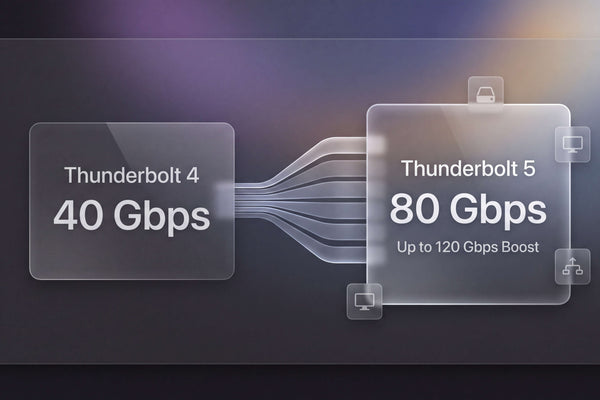
Thunderbolt 5 vs 4 (2026): Speed, Specs & Is It Worth It?
Thunderbolt 5 doubles TB4 bandwidth to 80Gbps (120Gbps Boost) and adds USB4 v2. See real-world speeds, which Macs have TB5,...
Read Article