Mac Studio Dock Setup: When Do You Need One?

Mac Studio Dock Setup: When You Need One (and When You Don't)

Nov 3, 2026

Mac Studio doesn't need a dock by default—but a busy workstation can still outgrow its built-in connections. Mac Studio already has four rear Thunderbolt ports, 10Gb Ethernet, HDMI, two USB-A ports, and a front UHS-II SDXC card reader. Adding a docking station won't make the Mac itself faster or increase its native display limit.


The real reasons to add a dock are more practical: keeping a large collection of peripherals connected, handling removable media without cable juggling, organizing a multi-monitor desk, or adding a specific connection Mac Studio lacks.

What Ports Does Mac Studio Already Have?

Every Mac Studio generation includes four rear Thunderbolt ports, two rear USB-A ports (up to 5Gb/s), 10Gb Ethernet, HDMI, a rear 3.5mm headphone jack, and a front UHS-II SDXC slot. The important differences are the Thunderbolt generation, front USB-C capabilities, and supported display count.

Mac Studio port specifications by model, 2022 through 2026
Mac Studio modelRear ThunderboltFront data portsMaximum native external displays
2026 — M5 Max4 × Thunderbolt 52 × USB-C (10Gb/s)5
2026 — M5 Ultra4 × Thunderbolt 52 × Thunderbolt 58
2025 — M4 Max / M3 Ultra4 × Thunderbolt 52 × USB-C (10Gb/s) / 2 × Thunderbolt 55 / 8
2023 — M2 Max / M2 Ultra4 × Thunderbolt 42 × USB-C (10Gb/s) / 2 × Thunderbolt 45 / 8
2022 — M1 Max / M1 Ultra4 × Thunderbolt 42 × USB-C (10Gb/s) / 2 × Thunderbolt 45 / 5

Display figures are maximums, not a promise that every resolution and refresh-rate combination works at once. The 2022 M1 Ultra supports up to five displays—not eight. HDMI is 2.0 on 2022 models and 2.1 on later generations. Check Apple's model-specific specifications for exact display configurations.

That means a dock should solve a problem you actually have—not duplicate an SD reader, Ethernet port, or video output that already works well.

4 Practical Reasons to Add a Dock to a Mac Studio

1. Your USB Peripherals Have Outgrown the Built-In Ports

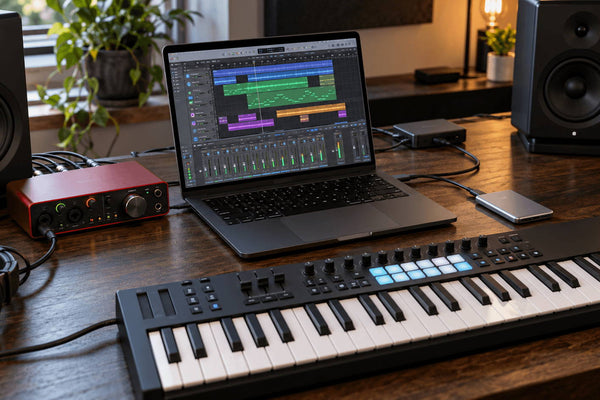
A production desk can fill two USB-A ports quickly. A MIDI controller, audio-interface accessories, hardware security keys, a control surface, keyboard receiver, and printer may all need a connection even before you plug in a portable drive.

The difficulty isn't simply the number of devices. Some need permanent connections, while others are plugged in and removed all day. A powered dock can keep the fixed gear connected at the back and put useful USB-A and USB-C ports closer to your hands. It is especially helpful if your Mac Studio sits behind monitors or beneath a desk.

For example, FusionDock Max 2 provides USB-A ports at different speeds, allowing low-bandwidth peripherals to stay connected while faster ports remain available for drives. FusionDock Max 1 and FusionDock Ultra offer multiple 10Gb/s USB-A ports for more demanding accessories.

When a dock is worth it: You need a mix of always-connected devices, higher-speed USB connections, and convenient access. If you only need three more ports for a keyboard, mouse, and printer, a quality powered USB hub is usually the smarter purchase.

2. You Regularly Move Footage, Photos, and Project Files Between Devices

Mac Studio already has a UHS-II SDXC reader. But an editor or photographer may also work with a drone's microSD card, a camera's SD card, an external SSD containing source footage, and another drive for delivery or backup.

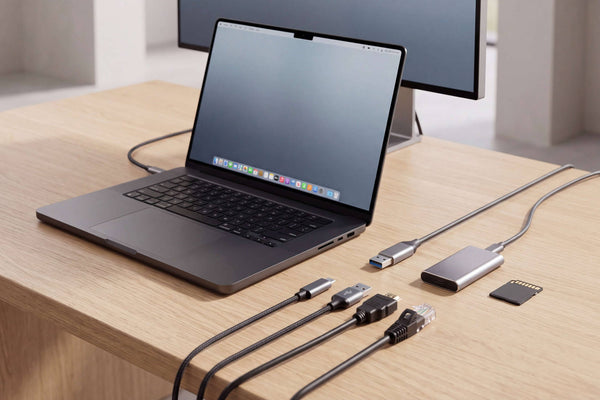
A well-placed dock gives these devices a consistent landing spot: separate SD and microSD slots, accessible USB-C ports, and additional high-speed downstream connections. Rather than reaching around your Mac Studio or swapping adapters, you can connect the media you use during an ingest session and leave your permanent peripherals undisturbed.

Consider an editor transferring camera footage from SD and microSD while keeping a project SSD and backup drive connected. The benefit is a tidier, repeatable workflow—not a claim that the dock makes every drive transfer faster.

Important bandwidth rule: Downstream port speeds are maximum interface ratings. Devices connected through a dock share the capacity of its upstream host connection(s). For a high-throughput RAID, capture device, or other performance-critical storage, a direct Mac Studio Thunderbolt connection may be preferable.

When a dock is worth it: You repeatedly connect several drives and card types, especially when the Mac Studio's front ports are already occupied. If you only use one SD card and one external SSD, the built-in reader and a direct connection may be all you need.

3. You Want a Cleaner Multi-Monitor Workstation—not More Displays Than Your Mac Supports

Mac Studio can already drive multiple monitors. A dock becomes useful when your workspace also includes storage, audio equipment, wired accessories, and cables that need to reach a computer placed away from the work surface.

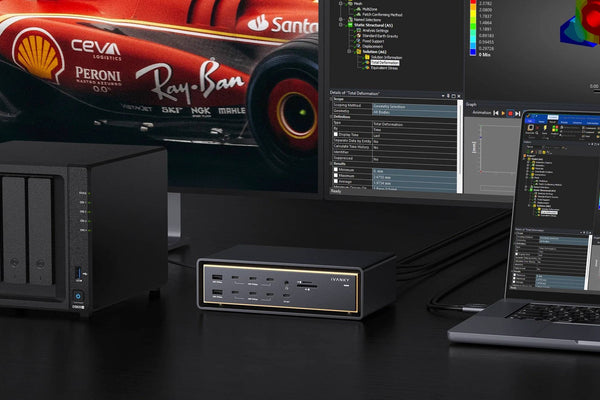
Instead of sending every display and peripheral cable back to the Mac Studio, you can route several of them to a dock positioned near the monitors and keep the Mac's rear area easier to manage. This can be valuable on editing desks with a timeline display, full-screen preview, scopes, and a reference screen.

A dock does not raise the Mac's native display limit. FusionDock Max 2 supports up to three displays routed through the dock on compatible Mac Studio setups; FusionDock Ultra supports up to four. Ultra's four-display arrangement uses two display connections in each of its two video port groups. Display resolution, refresh rate, monitor type, and the Mac Studio generation still matter.

A practical layout is to connect a particularly demanding reference monitor or storage device directly to the Mac Studio and use the dock for other supported displays and accessories. This keeps performance-critical devices off a shared connection where appropriate.

When a dock is worth it: You have a complex, fixed multi-monitor desk and want consolidated wiring plus additional I/O. If you use only one or two displays with few peripherals, direct connections are simpler.

4. Your Workflow Needs a Connection Mac Studio Doesn't Include

Mac Studio's built-in connectivity is strong, but certain professional setups need something more specific.

Optical digital audio. Mac Studio has a rear 3.5mm headphone jack, but no native Toslink optical output. If your existing DAC, digital speaker processor, or other audio system requires optical input, a dock with Toslink can remove the need for a separate USB audio adapter. If your USB or Thunderbolt audio interface already handles monitoring and speaker output, however, you may not gain anything from additional dock audio jacks.

A second wired network. Some production teams use the Mac Studio's built-in 10GbE port for a dedicated storage network while keeping office or internet traffic on a second physical interface. FusionDock Ultra adds another 10GbE port; FusionDock Max 2 and Max 1 add 2.5GbE. This creates a separate wired connection, not a faster single Ethernet link. A normal setup with one router or managed switch rarely needs it.

Both are valid reasons—but only if the missing connection is part of your actual workflow. Don't buy an entire dock for optical audio or a second Ethernet port when an inexpensive dedicated adapter would do the job.

When a Simple Hub Is Enough—and When to Choose a Dock

What type of connection to choose for each Mac Studio need
Your actual needStart withWarum
Two to four extra USB ports for low-bandwidth gearPowered USB hubLess expensive; no need to pay for video and Ethernet features
One microSD reader, audio output, or additional Ethernet portDedicated adapter or readerSolves a single missing-connection problem
One fast external SSD or high-bandwidth storage arrayDirect Thunderbolt connectionAvoids sharing a dock's upstream bandwidth
Several drives, card formats, displays, and permanent peripheralsFull docking stationConsolidates multiple different connections into a manageable workstation
Multiple supported displays plus extensive fast I/OHigh-bandwidth Thunderbolt dockAdds downstream connectivity and more flexible cable routing

The question is not “How many ports can I buy?” but “Which connections do I actually need at the same time?” For more detail on port types and shared bandwidth, read Thunderbolt 5 dock ports explained.

Which FusionDock Makes Sense for Mac Studio?

All three models below support Apple Silicon Macs and offer additional USB ports, UHS-II SD and microSD slots, front 3.5mm audio, and optical output. What matters on a Mac Studio is their downstream connectivity—not their advertised MacBook charging wattage.
FusionDock Max 1, FusionDock Max 2, and FusionDock Ultra comparison
SpezifikationFusionDock Max 1FusionDock Max 2FusionDock Ultra
Optimale PassformLots of 10Gb/s USB-A peripherals; fanless deskMixed-speed USB accessories and up to 3 displays through the dockLarger high-speed setups, up to 4 dock-connected displays, dual 10GbE
High-speed downstream USB-C4 × 40Gb/s3 × 80/120Gb/s4 × 80/120Gb/s
USB-A5 × 10Gb/s1 × 10Gb/s, 3 × 5Gb/s, 3 × USB 2.0*4 × 10Gb/s
Ethernet2,5 GbE2,5 GbE10 GbE
Front USB-C chargingUp to 30W PDUp to 30W PDUp to 45W PD
Dock-routed Mac Studio displaysCheck your exact model and display arrangementBis zu 3Bis zu 4

USB-A speed-tier mix shown for the currently published Max 2 specification; confirm the version sold in your region. Listed bandwidths are individual interface capabilities, not simultaneous guaranteed throughput. Mac Studio display support depends on the Mac model, cable, and monitor combination.

A useful distinction: Max 1 is the straightforward option when numerous 10Gb/s USB-A connections and fanless operation matter more than peak Thunderbolt bandwidth. Max 2 accommodates a mixed group of USB devices and a three-display dock setup. Ultra is the better fit when you specifically need more high-speed downstream ports, four dock-routed displays, or a second 10GbE network interface.

How to Connect a FusionDock to Mac Studio

1. Use both host connections. FusionDock Ultra, Max 2, and Max 1 use a dual-USB-C host connection for their dual-controller architecture. On Mac Studio, the two host connectors go into two rear Thunderbolt ports on the same Mac. Ultra and Max 2 allow any two rear ports with their split magnetic cable; Max 1 requires two adjacent rear ports. This leaves two rear Thunderbolt ports on Mac Studio available for direct connections.

2. Connect critical devices deliberately. Use Mac Studio's built-in 10GbE for your primary network or NAS unless you have a reason to use the dock's network interface. Consider connecting your fastest external RAID, capture hardware, or most demanding display directly to the Mac, then use the dock for the rest. Remember that a dock's downstream ports still share upstream bandwidth.

3. Check the display layout before buying. On FusionDock Ultra, four dock-connected displays must be distributed two per video port group. Some 5K monitor types require their own display group, which reduces the number of additional monitors that group can drive. Review the Ultra display troubleshooting guide or Max 2 display troubleshooting guide for your monitor models.

4. Check the model and software requirements. Thunderbolt 4-era Mac Studios cannot provide Thunderbolt 5 host bandwidth. Verify the Mac Studio model, the product's current macOS requirements, and the exact monitor configuration before purchase. FusionDock Ultra's current published minimum is macOS 15.1.

If you also own a MacBook: A compatible FusionDock can be moved from Mac Studio to the laptop by physically moving its host cable, with one computer connected at a time. That can be convenient for occasional desk sharing, but it is not automatic switching or a built-in KVM. Both host connectors must connect to the same Mac.

Häufig gestellte Fragen

Does Mac Studio need a docking station?

Usually not. Mac Studio already offers extensive Thunderbolt, USB-A, 10GbE, HDMI, and SD card connectivity. Consider a dock when you need many peripherals connected at once, easier access to media and USB ports, cleaner multi-monitor wiring, or a specific missing interface such as optical audio or a second Ethernet port.

Can a dock add more monitors to Mac Studio?

A native-video dock can make monitor connections more convenient, but it cannot raise the Mac Studio's maximum supported display count. The 2026 M5 Max supports up to five external displays and M5 Ultra supports up to eight. Earlier generations differ: notably, the 2022 M1 Max and M1 Ultra both support up to five. Resolution, refresh rate, and dock routing may lower the practical number.

Should I connect an external SSD directly to Mac Studio or through a dock?

Connect your most performance-sensitive storage directly to a Mac Studio Thunderbolt port where possible. A dock is useful for extra downstream connections and easier drive swapping, but multiple active devices share its upstream bandwidth. The right choice depends on how many drives you use simultaneously and their actual transfer requirements.

Can I use a Thunderbolt 5 dock with an older Mac Studio?

Potentially, if the dock explicitly supports the Mac Studio model and its Thunderbolt generation. A Thunderbolt 4 Mac Studio will not gain Thunderbolt 5 speeds simply by connecting a newer dock. Check the dock's host compatibility, cable requirements, macOS version, and display limitations first.

Is FusionDock a KVM switch for Mac Studio and MacBook?

No. FusionDock Ultra, Max 2, and Max 1 do not include automatic two-computer switching. You can move the compatible host cable between a Mac Studio and a MacBook, but both host connectors must remain connected to one computer at a time.