

If you’re shopping for a MacBook dock in 2025, you’re not really buying “more ports.” You’re buying a smoother day: open your MacBook, plug in one cable, and everything just works—displays wake instantly, SSDs mount, Zoom audio doesn’t glitch, and you never do the “unplug/replug dance.”
That’s the bar. And it’s why the best Thunderbolt 5 dock isn’t the one with the longest spec sheet—it’s the one that stays invisible in your workflow.
TL;DR:
Before You Compare Docks: Map Your “Daily Mac” in 60 Seconds
- Daily: monitor(s), charging, keyboard/mouse, headset, webcam, external SSD, Ethernet, SD card.
- Sometimes: extra drive, tablet, capture card, second SD reader, speakers, console.
The 10 Features That Actually Matter
1. Real Display Support
1) The “3 displays” claim is frequently Windows-only.
2) A dock usually can’t increase your Mac’s native display limit.
3) DisplayLink can “break the limit,” but there’s a trade-off.
What to check (practical, not theoretical):
- Your Mac model/chip’s native external display support (Apple Support pages are the source of truth).
- How the dock achieves its monitor count: is the “3 displays” number based on Windows MST, DisplayLink (driver required), or native macOS routing?
- Your target setup: number of monitors, resolution/refresh, and whether you expect it to work reliably after sleep/wake.
2. Upstream Bandwidth: Thunderbolt 5 vs Thunderbolt 4 vs “USB-C Dock”
What to check:
- Is it a Thunderbolt 5, Thunderbolt 4, or just a USB-C-with-video dock?
- Does it have enough downstream bandwidth paths for the way you work (display + storage at the same time)?
- Does it explain how it handles heavy display traffic (Bandwidth Boost exists for a reason).
3. One-Cable Charging That Matches Your MacBook
What to look for:
- Host charging wattage (the dock’s “to laptop” charging rating)
- Your MacBook’s typical demand under your real workload (video export, multi-monitor, heavy peripherals). Apple's 14-inch MacBook Pro (2021+) comes with a 70W or 96W charger as the standard USB-C power adapter, and 140W for 16-inch MacBook Pro (2021+). So look for docks that support matching host charging wattage.
4. Sleep/Wake Reliability
What to look for:
- Clear macOS compatibility notes (and not just “works with USB-C devices”).
- Transparent setup guidance for multi-monitor arrangements.
- Vendor FAQs that explicitly address wake issues, cable requirements, and display routing (more on this later).
5. The right display ports for your monitors
What to check:
- Do your monitors prefer HDMI, DisplayPort, or USB-C/Thunderbolt?
- Are you going to need active adapters? (More adapters = more handshake variables.)
6. Fast USB that stays fast (labels can mislead)
What to check:
- How many truly high-speed USB ports you need at the same time (For example: SSD + capture card + audio interface = different from “USB receiver + phone cable”)
- Whether the dock clearly states which ports are 10Gbps/20Gbps and which are “basic”
7. Ethernet that matches your internet + NAS reality
What to check:
- Mostly browsing + meetings → Gigabit is fine
- Fast fiber + lots of downloads/uploads → 2.5GbE starts to matter
- Creative workflows + NAS + shared assets → consider higher-end networking
8. SD/microSD that doesn’t bottleneck creators
What to check:
- Whether the dock supports high-performance SD formats (often stated as UHS-II or similar)
- Slot placement (front/side beats back-of-dock)
9. Desk-cleanliness ports and placement
What to check:
- Front/side access for SD card, quick USB-As/USB-Cs, and an audio jack
- Back-of-dock is fine for Ethernet, permanent monitor cables, and power.
10. Thermals and sustained stability
What to check:
- Does the dock prioritize sustained performance (especially if you run multi-display + storage + charging)?
- If it has active cooling, is it engineered to be unobtrusive in real desks?
A Mac-first shortcut: when to seriously consider FusionDock Max 2
- You’re building a real workstation with native multiple monitors on your Mac
- You regularly run fast storage + many peripherals
- You want a dock designed around Apple Silicon Mac workflows

FusionDock Max 2
Native triple-display setup, 23 ports, 140W charging.
See FusionDock Max 2Final Thoughts: choose the dock that makes your Mac day “boring”
- monitors wake every time
- charging keeps up
- storage stays fast
- you stop thinking about cables
FAQs
Q1: What features should I look for when choosing a MacBook dock in 2025?
Q2: Thunderbolt 5 dock vs Thunderbolt 4 dock—what changes in real daily use?
Q3: Can a MacBook dock increase the number of external displays my Mac supports?
Q4: How much charging power should my MacBook dock deliver to the host?
Q5: Is 2.5GbE (or faster) Ethernet worth it on a MacBook dock?
Keep Reading
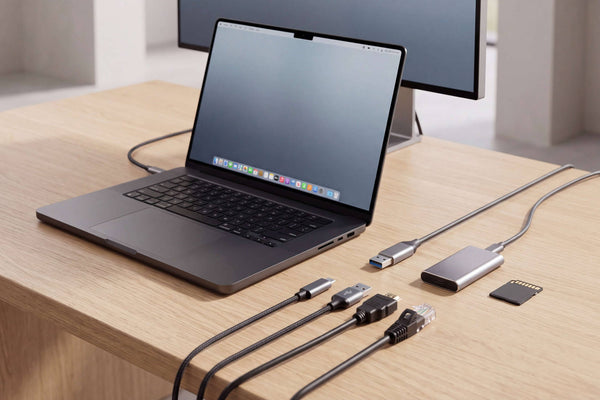
Thunderbolt 5 Dock Ports Explained: What Matters for Mac
Not all Thunderbolt 5 dock ports do the same job. Learn how to compare upstream and downstream TB5, USB-C speeds,...
Read Article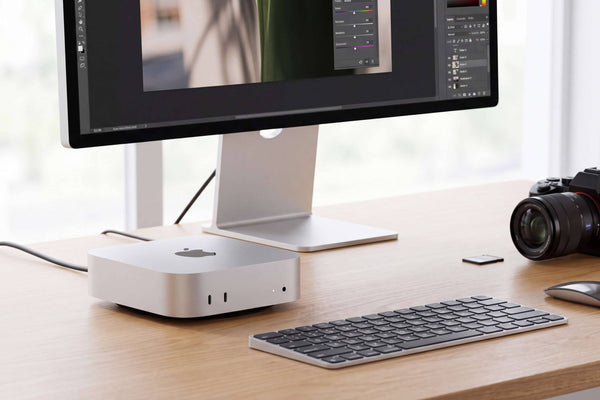
Mac mini Docking Station: USB-C vs Thunderbolt Guide
Choosing a Mac mini docking station? Learn when no dock, a USB-C dock, or Thunderbolt makes sense for displays, SSDs,...
Read Article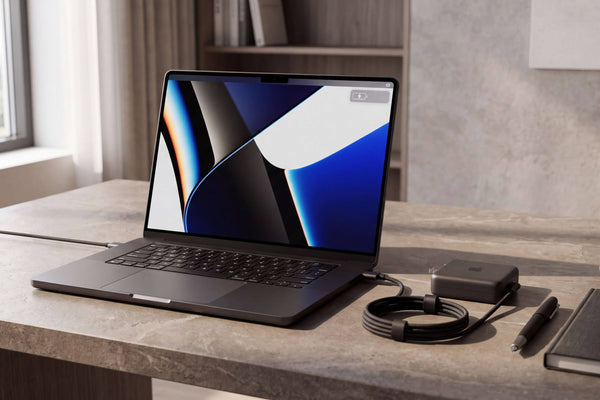
96W vs 140W Dock Charging for 16-inch MacBook Pro
Why 140W USB-C fast charging works on newer 16-inch MacBook Pros but not 2021/early-2023 models, plus our 96W vs 140W...
Read Article