

If you are searching for the best MacBook Thunderbolt 5 dock for your multi-display setup, the right answer depends on two things: what your Mac can natively support, and how ambitious your display setup really is. Thunderbolt 5 brings up to 80 Gbps of bi-directional bandwidth, with Bandwidth Boost up to 120 Gbps for display-heavy workloads, which makes it a much better foundation for serious multi-monitor desks than older generations.
And the Mac side has changed, too. Apple now says M5 Pro MacBook Pro supports up to three external displays, and M5 Max MacBook Pro supports up to four external displays. Apple also says supported hubs can enable those displays over a single Thunderbolt port, without increasing the Mac’s maximum beyond what the chip already supports. That is exactly why choosing the right dock matters more than ever.
TL;DR
- For the most ambitious native quad-display Mac setup, choose FusionDock Ultra.
- For the practical sweet spot of native triple-display plus pro I/O, choose FusionDock Max 2.
- For any Mac, start with your chip’s native display limit before you trust a “3-display” or “4-display” headline.
Start here: what Mac do you use?
If you use an M5 Pro MacBook Pro

FusionDock Max 2
Native triple-display setup, 23 ports, 140W charging.
See FusionDock Max 2If you use an M5 Max or an older Max-chip MacBook Pro

FusionDock Ultra
Native quad-display support, 10GbE, 26 ports, active cooling system.
See FusionDock UltraIf your Mac has a lower native display limit
How many displays can your Mac handle?
A dock cannot override your Mac's built-in hardware limit. Here is the general rule of thumb for Apple Silicon:
*M3 base chips support 2 external displays only when the MacBook lid is closed. (M1/M2 base support 1 max).
What changed for Mac multi-display setups?
Best FusionDock By Setup
Best for the practical sweet spot: FusionDock Max 2
- a Thunderbolt 5 dock for MacBook Pro
- a native triple-display workflow
- serious ports, charging, and storage access
- a cleaner one-dock desk without stepping all the way up to a flagship quad-display workstation
Best for no-compromise desks: FusionDock Ultra
- the most capable Mac multi-display dock in the lineup
- a native quad-display Apple Silicon setup
- more expansion headroom after displays are connected
- 10GbE for heavier local networking or NAS workflows
- a longer-term desk build around a Mac Studio or high-end MacBook Pro
Still on the fence?
Compare the ports, power, and bandwidth of FusionDock Ultra and Max 2 side-by-side to find the perfect fit for your workflow.
How to choose the best Thunderbolt 5 dock for your Mac
1. Start with the chip, not the dock
2. Decide whether you need the practical sweet spot or the flagship ceiling
3. Look past monitor count alone
4. Buy for your desk three months from now, not just today
FAQ
Can a single Thunderbolt 5 port on MacBook Pro really support 3 or 4 displays now?
Does a dock bypass Apple’s display limits?
Which is the better pick for native triple-display: FusionDock Max 2 or FusionDock Ultra?
Which is the better pick for native quad-display on Mac?
Is FusionDock Ultra compatible with Intel Macs or Windows PCs?
Is FusionDock Max 2 compatible with Intel Macs or Windows PCs?
Choose the right dock for your Mac
Pick the dock that best matches your display needs and workflow.
FusionDock Max 2
Best for the practical native triple-display sweet spot.
See FusionDock Max 2Keep Reading
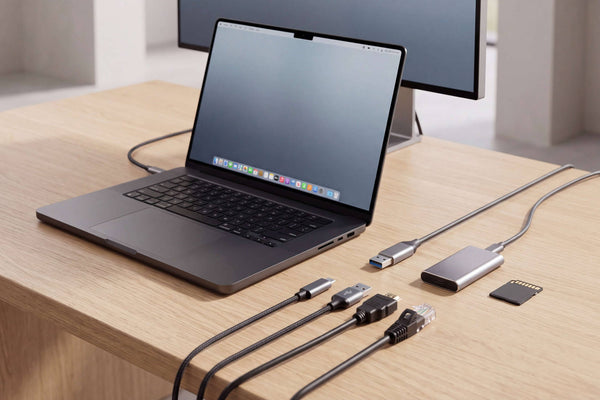
Thunderbolt 5 Dock Ports Explained: What Matters for Mac
Not all Thunderbolt 5 dock ports do the same job. Learn how to compare upstream and downstream TB5, USB-C speeds,...
Read Article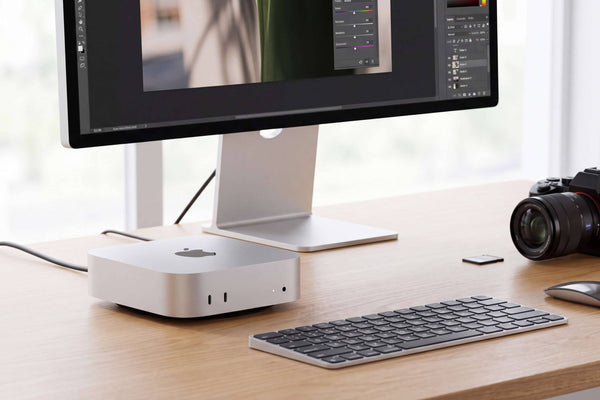
Mac mini Docking Station: USB-C vs Thunderbolt Guide
Choosing a Mac mini docking station? Learn when no dock, a USB-C dock, or Thunderbolt makes sense for displays, SSDs,...
Read Article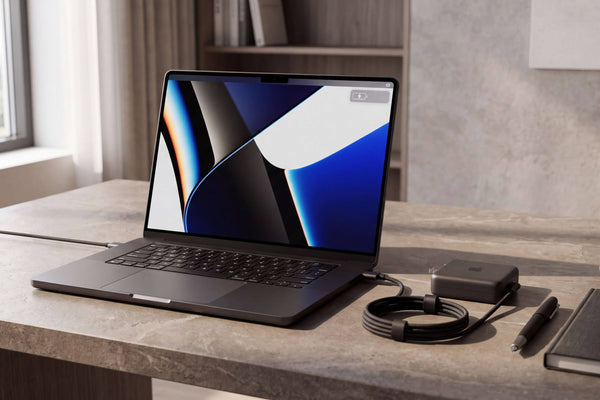
96W vs 140W Dock Charging for 16-inch MacBook Pro
Why 140W USB-C fast charging works on newer 16-inch MacBook Pros but not 2021/early-2023 models, plus our 96W vs 140W...
Read Article