

If you’re using a Mac and searching “Thunderbolt 5” or “Thunderbolt 5 dock,” you’re probably not hunting for a spec sheet. You’re trying to answer one practical question:
Can I build a clean one-cable MacBook desk—multiple displays, fast storage, reliable charging—without surprises?
This guide explains Thunderbolt 5 through the lens of everyday Mac workflows, including the most common failure points (your Mac’s display limit, your cable, and how the dock routes video).
TL;DR: The three numbers that matter most
- 80 Gbps is Thunderbolt 5’s baseline bandwidth in both directions.
- 120 Gbps is “Bandwidth Boost”: more bandwidth is temporarily allocated to sending video (displays), while still keeping enough headroom for data.
- Up to 240W is possible in the TB5 ecosystem via Extended Power Range.
What Thunderbolt 5 feels like on a Mac day-to-day
- high-resolution monitors
- fast external SSDs / RAID
- lots of USB peripherals
- wired networking
- stable charging under load
Unplug one cable → Mac goes back to portable.
Thunderbolt 5 bandwidth, in human terms: 80 for everything, 120 when displays get hungry
What this means for your Mac desk
Displays on Mac: your dock isn’t the limit—your Mac is
Start here: know your Mac’s “display ceiling”
The Mac-realistic triple-display pattern (no mystery, no wishful thinking)
Storage & “why your external SSD setup can feel faster”
Quick Mac reality check: eGPU isn’t the main TB5 story for Apple Silicon
- displays
- storage / capture
- stable, uncluttered desk connectivity
Power & Charging: What Thunderbolt 5 Enables for Macs
What “up to 240W” really means
Why Mac users should care (even if you never hit 240W)
- “I’m plugged in, but the battery still drops slowly during heavy work.”
- “Charging is fine, but the setup feels less stable once I add more monitors and devices.”
Can I use a Thunderbolt 5 dock with a Thunderbolt 4 Mac?
Thunderbolt 5 is positioned as building on newer standards (USB4 v2 / DisplayPort 2.1) while maintaining compatibility and a single-cable docking experience.
- a cleaner desk (one-cable workflow)
- better port layout and “everything connected” convenience
- that Thunderbolt 5 automatically unlocks more displays than Apple specifies for your Mac
- the full TB5 peak bandwidth modes
A Mac-first buying checklist (the 5 questions that prevent bad Dock purchases)
Start with Apple’s official guidance for your model/chip.
2. What monitor mix am I actually running?
3. Do I want driver-free behavior?
If you care about reliability (sleep/wake, login screens, fewer moving parts), prefer solutions that stay native to macOS.
4. Do I need sustained host charging under load?
Specs matter most when everything is connected and your Mac is working hard.
5. Which ports remove daily friction?
Where FusionDock Max 2 fits (a quick, honest fit check)
- use an Apple Silicon Mac (MacBook Air/Pro; and Mac mini/Mac Studio via the included dual USB-C cable), and want a clean single-connection workflow
- want a practical triple-display setup on Macs that support it—and you’re okay with the Mac-realistic wiring: two Thunderbolt downstream ports + HDMI
- care about charging headroom and desk stability (FusionDock Max 2 is positioned with 140W host charging + 30W PD for peripherals)

FusionDock Max 2
Native triple-display setup, 23 ports, 140W charging.
See FusionDock Max 2FAQs
Q1: What exactly is Thunderbolt 5 and how does it improve connectivity for devices?
For Mac users, this improves connectivity in two major ways:
- Bandwidth Boost for Displays: If you connect high-resolution monitors that demand more data, the connection intelligently rebalances itself, boosting video speed up to 120 Gbps while still keeping 40 Gbps for your data.
- Faster "Everything" at Once: It eliminates the bottleneck where fast external SSDs would slow down because your 6K display was hogging all the bandwidth. It allows your drives, screens, and peripherals to run at full speed simultaneously via a single cable.
Q2: How does a Thunderbolt 5 dock work and what are its benefits?
- The "One-Cable" Reality: You can finally run triple displays (if your Mac chip supports it), fast Ethernet, and studio-grade storage just by plugging in one cable.
- Future-Proofing: It supports the latest standards like DisplayPort 2.1 and USB4 v2.
- Higher Power: It supports the new Extended Power Range (EPR), meaning it can charge high-performance MacBook Pros (up to 140W) faster and more consistently than older docks.
Q3: Will a Thunderbolt 5 dock let my Mac run more than 2 or 3 displays?
Q4: Why is my 240W USB-C cable giving me slow transfer speeds with my new dock?
Keep Reading
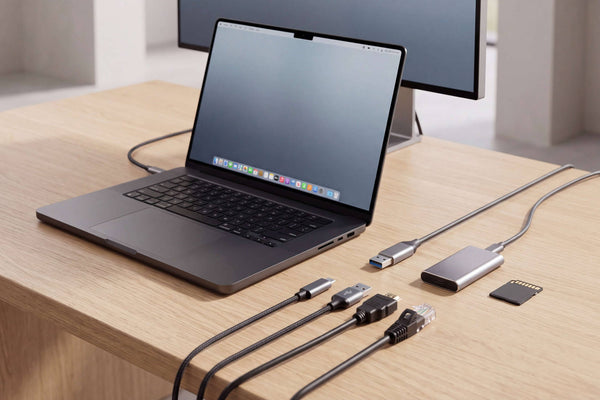
Thunderbolt 5 Dock Ports Explained: What Matters for Mac
Not all Thunderbolt 5 dock ports do the same job. Learn how to compare upstream and downstream TB5, USB-C speeds,...
Read Article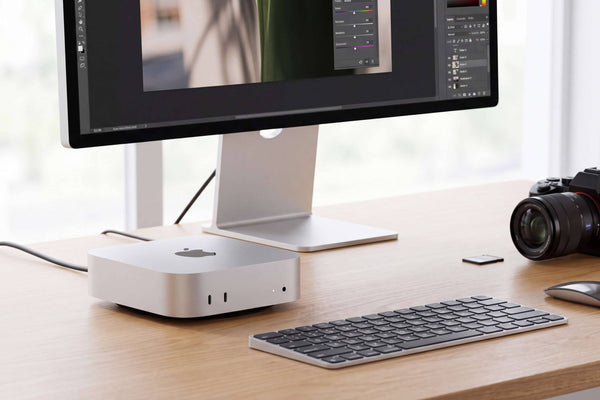
Mac mini Docking Station: USB-C vs Thunderbolt Guide
Choosing a Mac mini docking station? Learn when no dock, a USB-C dock, or Thunderbolt makes sense for displays, SSDs,...
Read Article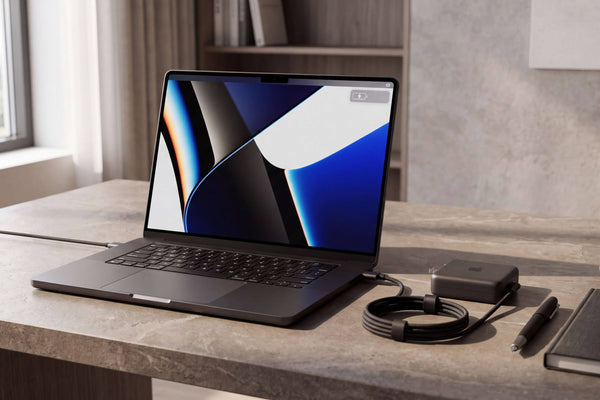
96W vs 140W Dock Charging for 16-inch MacBook Pro
Why 140W USB-C fast charging works on newer 16-inch MacBook Pros but not 2021/early-2023 models, plus our 96W vs 140W...
Read Article